

Accessing Single Entity Create
To create a new entity:- Click Manage Catalog in the top right of the Catalog Page
- Select Create Entity

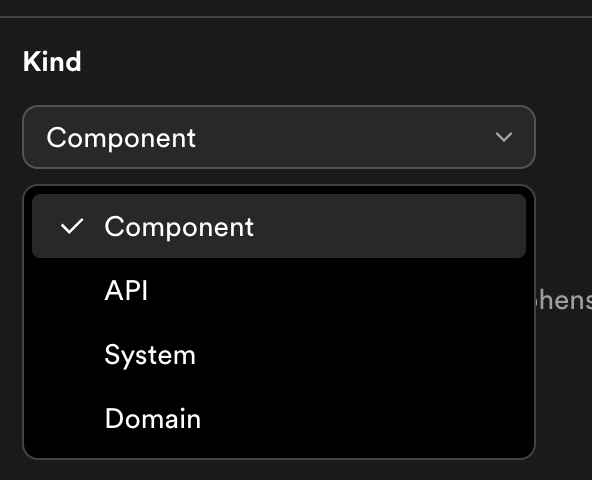
Step 1: Choose Entity Kind
Select the type of entity you want to create:- Component — a software component (service, website, library)
- API — an API definition (REST, gRPC, AsyncAPI)
- System — a collection of related components and APIs
- Domain — a high-level grouping of systems
Step 2: Fill in Metadata
Provide the core metadata for your entity:- Name (required) — a unique identifier, 1–63 characters, lowercase alphanumeric with hyphens, underscores, and dots
- Title — a human-readable display name
- Description — a short summary of the entity
Step 3: Fill in Spec Fields
The required spec fields depend on the entity kind you selected:API Definition as a Link
When creating an API kind entity, the definition field holds the API specification. Instead of pasting the full spec inline, you can provide a URL that points to the hosted definition: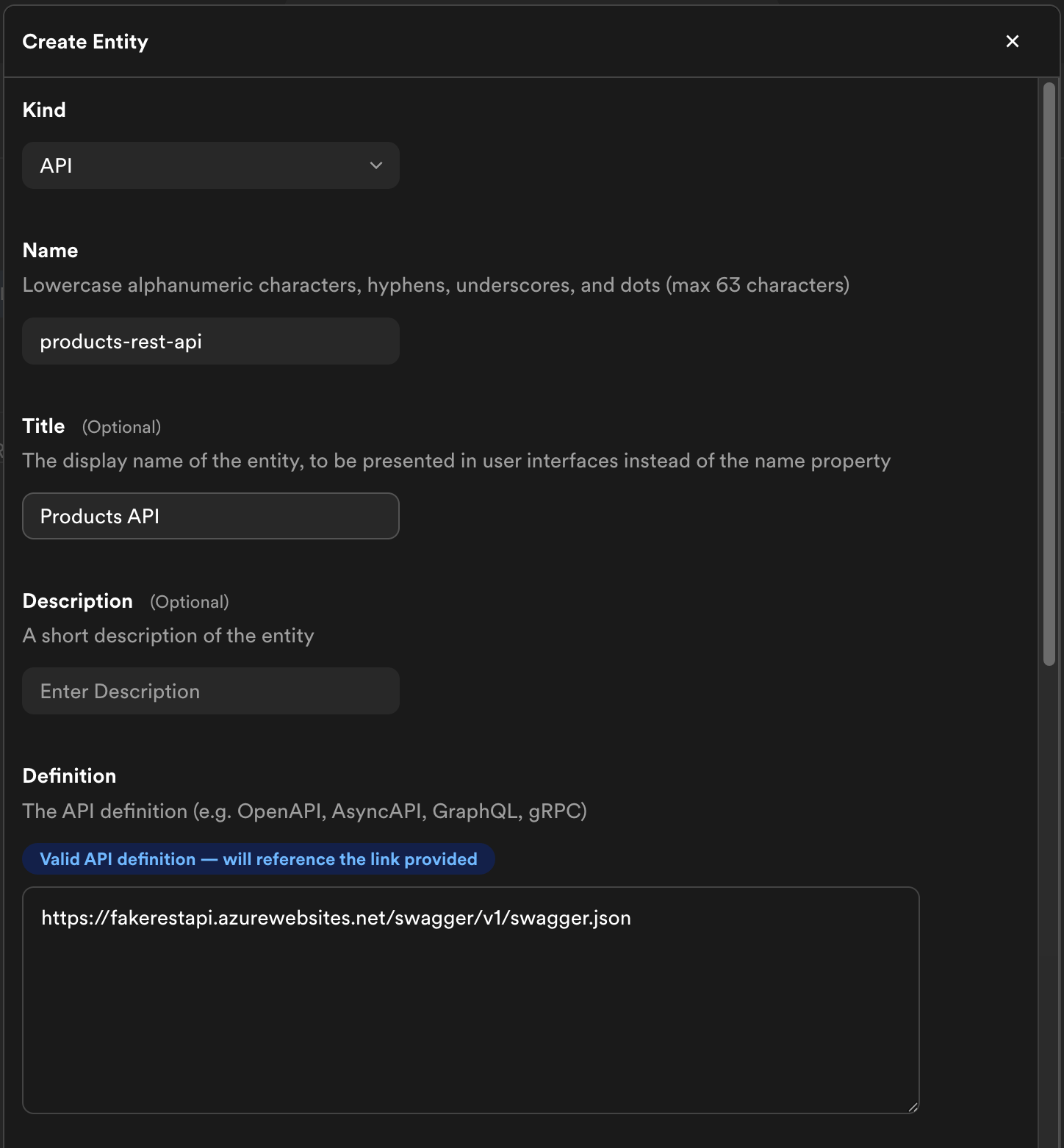
Step 4: Add Additional Metadata (Optional)
You can enrich your entity with additional metadata beyond the required fields.Annotations
Key-value pairs for non-identifying metadata. Annotations are commonly used by plugins and integrations to store configuration — for example, linking to a PagerDuty service or a CI/CD pipeline.Labels
Key-value pairs for filtering and categorization. Unlike annotations, labels are intended for user-defined classification and can be used to filter entities in the catalog.Tags
A list of free-form string tags for discovery. Tags appear on the entity’s catalog page and can be used to search and filter entities.Links
External URLs attached to your entity. Links appear on the entity’s page in Portal and are a good way to surface related documentation, dashboards, or runbooks. Each link supports:- URL (required) — the link destination
- Title — display text for the link
- Icon — an icon identifier (e.g.,
docs,dashboard)
Step 5: Review and Create
Review your entity details and click Create. The entity is immediately registered in the catalog and you’ll be redirected to its page.Related Documentation
- Bulk catalog ingestion — import many repositories at once
- Updating Components — edit entities after creation