Introduction
The AiKA Side Panel is AiKA’s contextual chat surface that appears on plugin pages. It is launched from a small draggable floating button (FAB) and opens as either a popover or a full side panel, so users can keep their work visible while chatting.
Common use cases:
- Ask a question about whatever is on screen, for example, “what’s failing here?” on a Soundcheck track or “what does this entity do?” on a catalog page.
- Run targeted actions through plugin-specific MCP servers, for example, summarising a TechDocs page, opening links, or fetching related entities without leaving the page.
- Get plugin-aware suggestions in the chat input (e.g. “Summarize this page” on TechDocs).
Source of Content
AiKA grounds its answers on two sources when used from the Side Panel:
- Page content — the Side Panel snapshots the current page’s DOM and passes it to the agent.
- MCP tools — actions exposed to AiKA through the MCP integration. MCP servers are how plugins offer real capabilities (search, read, mutate) to the agent. The Side Panel can be configured per plugin to call into a specific subset of servers and tools.
If a plugin has no MCP servers wired up, AiKA can still answer questions based on the page content, it just can’t take actions on that plugin’s behalf.
Getting Started
By default, the Side Panel is enabled on every plugin. Operators can opt individual plugins out, turn it off everywhere, or pre-wire MCP server defaults for a plugin from this same screen.
Disable the Side Panel for a specific plugin
- Open Plugins → AiKA settings.
- Go to the
aika > agent > plugins section.
- Add an entry for the plugin ID (e.g.
catalog, scaffolder)
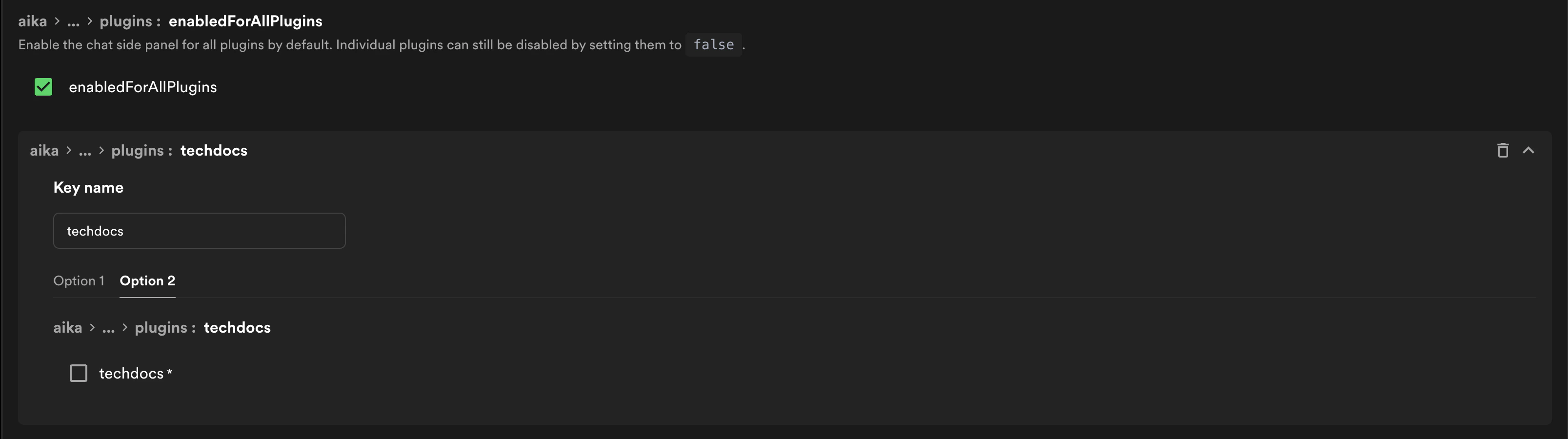
- Press the Option 2 tab set its value to
false by unchecking the checkbox.
- Save your changes.
Checked plugins are always hidden — this overrides enabledForAllPlugins.
The plugin ID must exactly match your plugin’s ID, otherwise the entry has no
effect.
Disable the Side Panel for all plugins
- Open Plugins → AiKA settings.
- Go to the
aika > agent > plugins section.
- Toggle
enabledForAllPlugins off.
- Save your changes.
After this, the Side Panel is hidden everywhere except on plugins you explicitly enable (see below).
Enable the Side Panel for a specific plugin
When enabledForAllPlugins is off, you can re-enable the Side Panel on individual plugins:
- Open Plugins → AiKA settings.
- In
aika > agent > plugins, add an entry for the plugin ID.
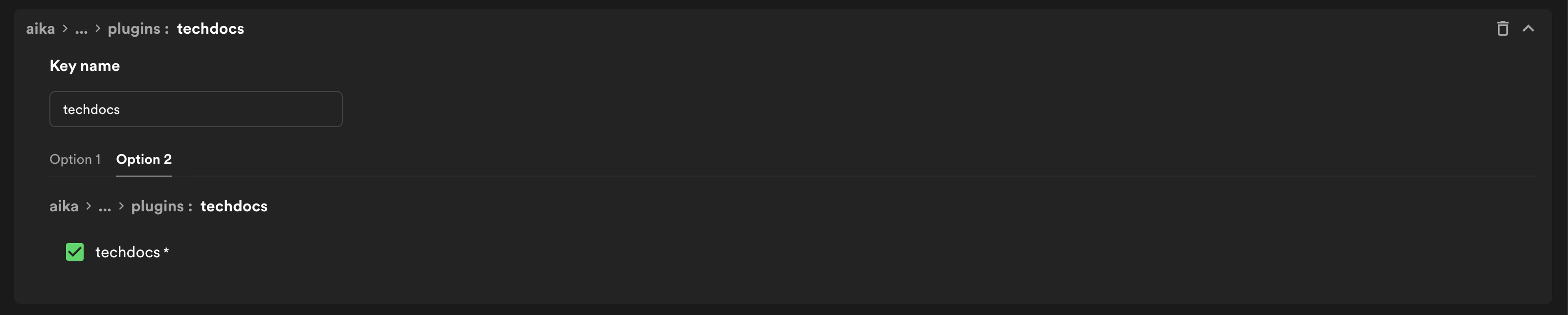
- Press the Option 2 tab set its value to
true by checking the checkbox.
- Save your changes.
Add default MCP servers for a plugin
Portal admins can pre-wire specific MCP servers (and optionally restrict to specific tools and pre-fill inputs) so the Side Panel always has those tools available on a given plugin’s pages.
- Open Plugins → AiKA settings.
- In
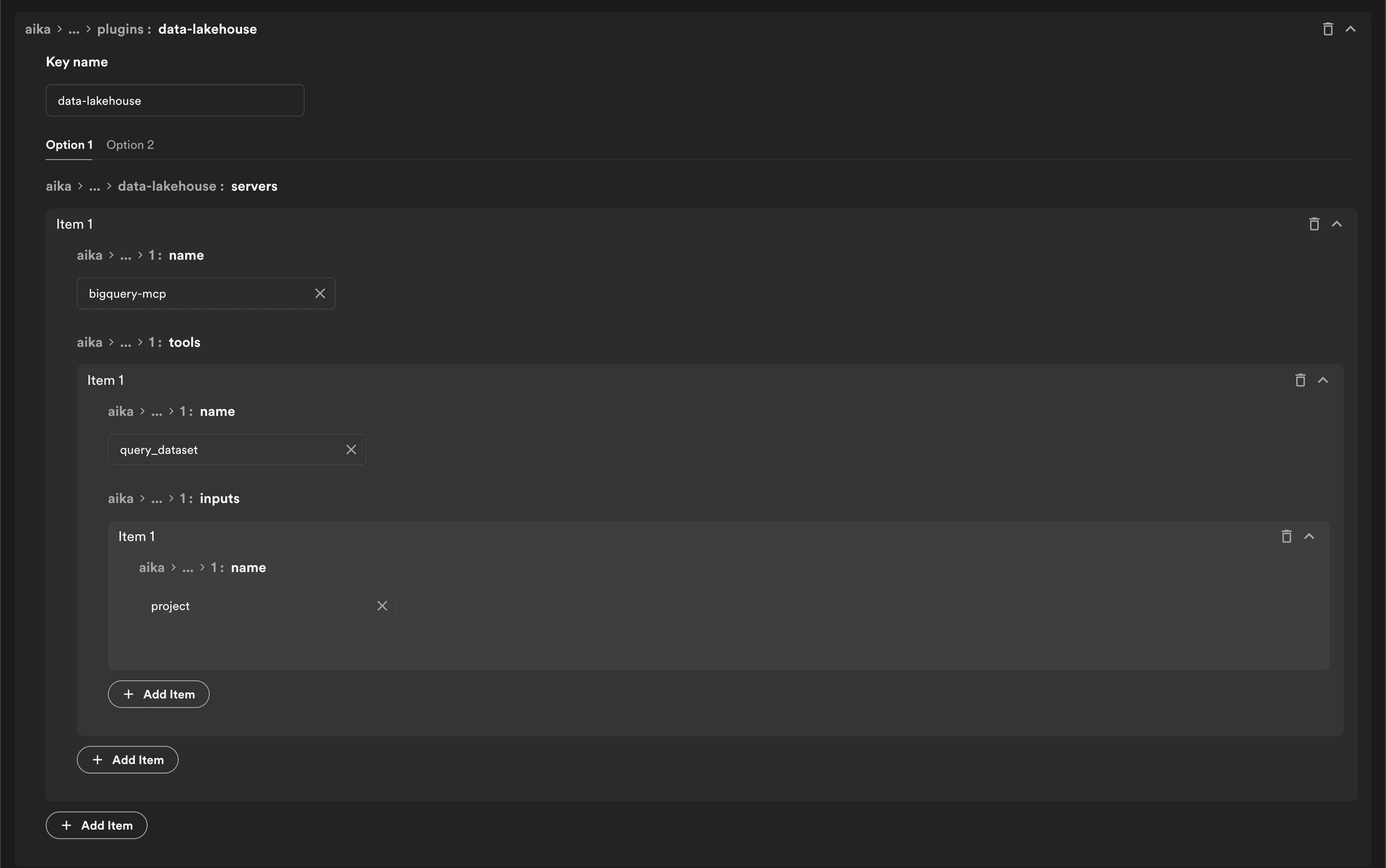
aika > agent > plugins > <pluginId> > servers, add one entry per server with the following fields:
name (required) — the MCP server entity name as registered in the catalog (kind: API, spec.type: mcp-server).tools (optional) — a list of tools to restrict the chat to. Omit to expose all tools on the server. Each tool has:
name (required) — tool name as exposed by the server.inputs (optional) — pre-filled inputs, each with a name (matching the tool’s input schema) and a value.
- Save your changes.
Adding a servers entry also implicitly enables the Side Panel on that plugin, even if enabledForAllPlugins is off.
FAQ
Why doesn’t AiKA perform actions on every page?
Not every plugin exposes MCP actions. On plugins without configured MCP servers, AiKA can still answer questions based on the page content (the page HTML it captures), but it has no tools to do anything. To give AiKA actionable capabilities on a plugin, an operator needs to register MCP servers and wire them up under aika > agent > plugins > <pluginId> > servers in AiKA’s Plugin settings. See MCP in Portal for how to register tools.
Why can’t I move the FAB?
The FAB can be moved — drag it horizontally and it snaps to either the bottom-left or bottom-right of the viewport. The chosen side is remembered per user.
Why doesn’t the Side Panel appear on a specific plugin?
Most likely the plugin is set to false in aika > agent > plugins, or enabledForAllPlugins has been turned off without the plugin being explicitly re-added.