

Overview
This step will guide you through the process of adding the needed configuration and credentials to App Settings to be able to connect to Azure DevOps.Step Checklist
This is the first (1) step in this guide, once completed you can move onto the next step.- Setup the Azure integration in App Settings
- Setup Azure DevOps Discovery
- Install the Azure DevOps Annotator Processor
- Install the Azure DevOps plugin
- Install the Azure DevOps scaffolder actions
- Install the Azure DevOps Wiki collator
Walkthrough
To begin integrating Azure DevOps with Portal we need to add some configuration and credentials to the Azure section in the App Setting’s Integrations tab. You have two options for authentication to Azure DevOps from Portal:Personal Access Token (PAT) or Service principal with a client secret. There are a few differences between the two worth noting:- Personal Access Token (PAT) are the quickest option as you likely are an Azure DevOps user and can create these one your own. The downside is that they are user based and they need to be manually updated when they expire. Follow the [Use personal access tokens]https://learn.microsoft.com/en-us/azure/devops/organizations/accounts/use-personal-access-tokens-to-authenticate documentation from Microsoft to learn how to create a PAT.
- Service principal with a client secret are the more advanced method, they assume you have a deep understanding of how Entra and Azure DevOps integrate with each other, they allow for easier central administration and can easily be rotated. If you choose this method you’ll want to coordinate this setup with someone who has proper access to your Microsoft Entra admin center to create App registrations and Service principals (an admin works best) and also make sure you have the needed Client ID, Client secret, and Tenant ID. Follow the Implementation guide from Microsoft to learn how to setup your Service principal so that you can integrate it with Portal, make sure to follow Option A under Step 1 in this guide!
Spotify Portal for Backstage does not support system-assigned or user-assigned
managed identity as it is not deployed in Azure, a requirement for these two
options. When using the Implementation
guide
from Microsoft make sure to follow Option A under Step 1 in this guide!
- Navigate to App Settings
- Now click on the Integrations tab
- Then click the View button on the Azure card
- First you will need to pick your Host, there are two options:
dev.azure.com, this is the default and it what you’ll want to use for Azure DevOps Services- Custom, this is what you want to use if your are using Azure DevOps Server, the on-premise version. You’ll need to have Private Connect setup and working before this option will work for you.
- Then click on the ”+ Add Item” option under Credentials, this will open a drawer on the right
- In the drawer under Organization click the ”+ Add Item” option and enter your Organization name, repeat for all the Organizations that will be associated with the credentials you will be using.
- Next pick your Authentication method: Service principal with a client secret or Personal access token
- Now provided the needed details based on your selection:
- For Service principal with a client secret you will need to provide a Client ID, Client secret, and Tenant ID
- For Personal access token you just need to provide the Token
- Then click the “Add Item” button, this will close the drawer on the right hand side
- You can now click the Save button in the bottom right to save the configuration and credentials you’ve just set up.
- In the top right you’ll see a pulsing message “Applying new configuration…” as the settings get saved
- The message will then change to “New configuration applied successfully.” with a Reload button, click it to reload the configuration
- Portal is now configured to integrate with Azure DevOps!
catalog-info.yaml files.
PAT (Personal Access Token) Scopes
If you use a PAT for your authentication method use the following scopes as they will give you the needed access for the all the Azure DevOps features within Portal: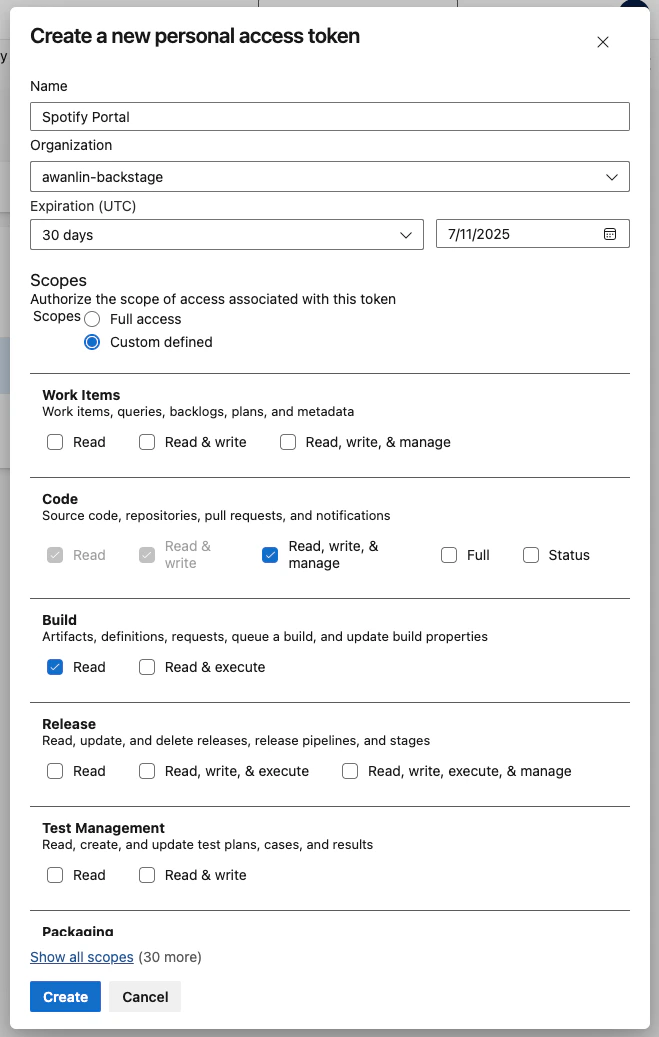
If you don’t plan to use the Scaffolder and its related Azure DevOps actions
you can use the “Read” scope for “Code”