

Template Management
How to Create a Template from Scratch
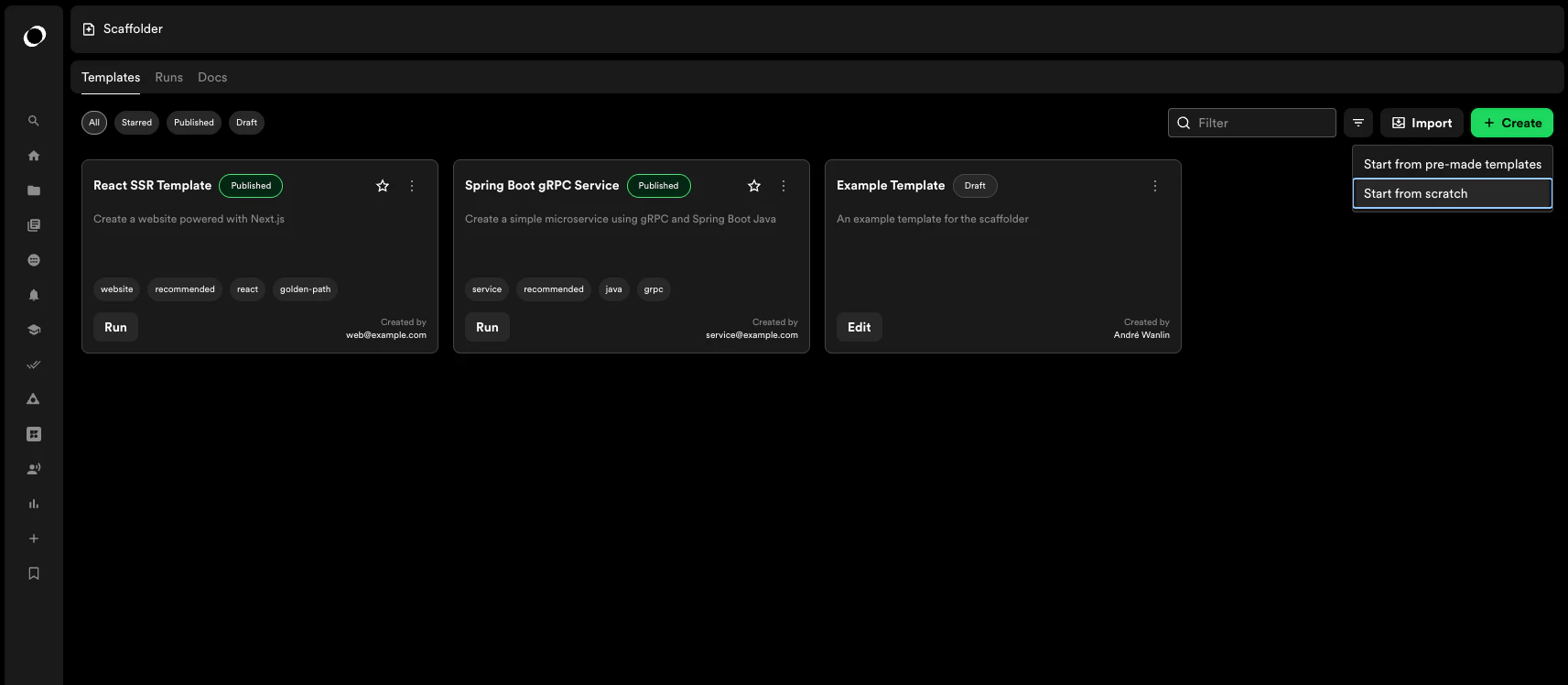
- Navigate to the Scaffolder templates page
- Click Create New Template
- Select Create from Scratch
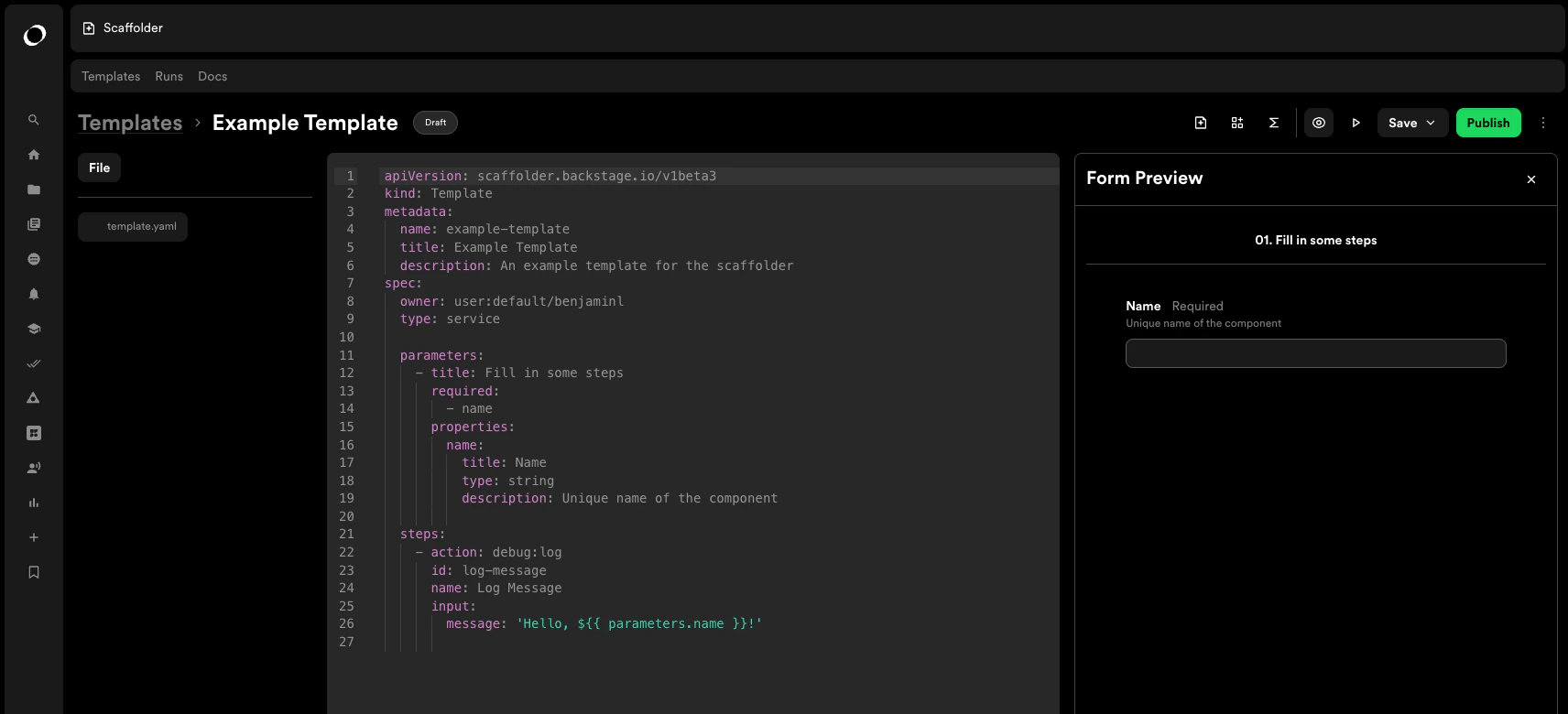
- Define your template structure:
- Add form fields for user inputs
- Configure actions to execute
- Set up extensions if needed
- Save as draft or publish when ready
How to Create a Template from an Existing Template
- Click Create New Template
- Select Create from a Premade Template
- Choose your source:
- Select via GitHub repository
- Choose the repository containing your template
- Set visibility (public/private)
- Click Initialize
- The template will load in the editor for customization
How to Edit a Published Template
- Navigate to your templates list
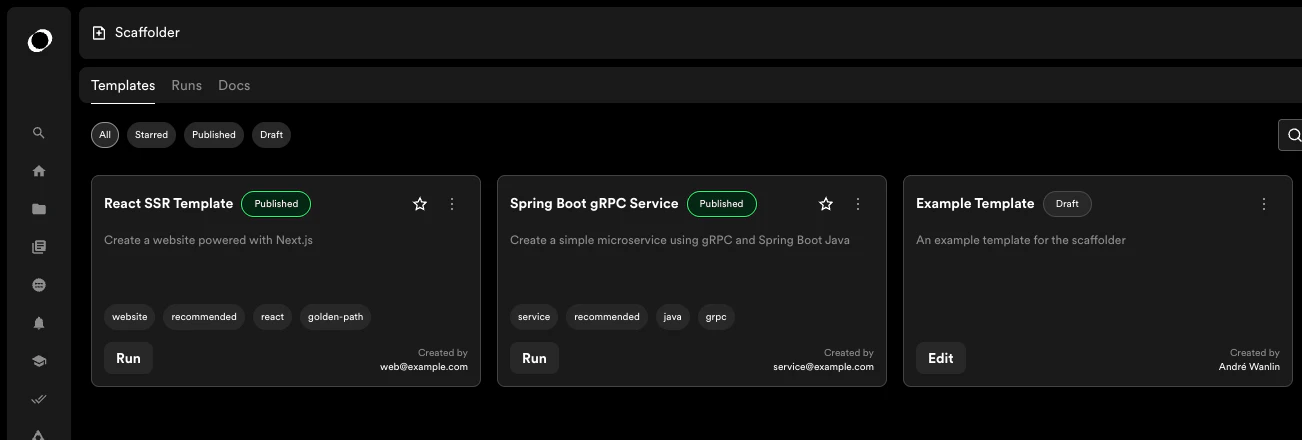
- Find the template you want to edit
- Click Edit on the template
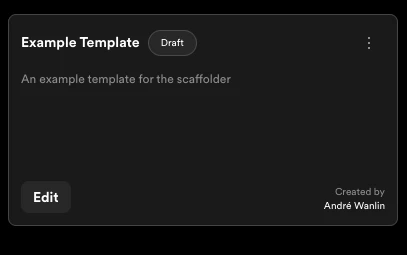
- Make your changes in the editor
- Save your changes:
- Save: Update the template
- Download: Export template locally
- Publish: Update the published version
How to Add Form Fields
Form fields collect input from users when they run your template.- Open your template in the editor
- Navigate to the form fields configuration section

- Click Append to add a new field

-
Configure the field:
- Set field name and type
- Add label and description
- Configure validation rules
- Set default values (optional)
- Save your changes
How to Add Actions to a Template
Actions define what happens when the template executes.- In the template editor, navigate to the actions section
- Click to add a new action
- Select an action type:
catalog:register: Register entities in the cataloggithub:create: Create GitHub repositoriesfetch:template: Fetch template content- And more…
- Configure action parameters
- Save the action configuration
How to Configure Extensions
Extensions provide custom filters, functions, and values for your templates.- Navigate to the extensions section in the editor
- Add extensions as needed:
- Filters: Transform data (e.g., lowercase, uppercase)
- Functions: Custom logic for complex operations
- Values: Reusable values across your template
- Reference extensions in your template configuration
- Save your changes
Template Testing
How to Use Dry Run
Dry run allows you to test templates without creating actual resources.- In the template editor, click Dry Run

- Fill in the form with test values:
- Organization selection
- Repository name
- Any required fields

- Click Dry Run to simulate execution
- Review the output:
- Check what repository would be created
- Verify expected resources
- Confirm configuration is correct

- If issues are found, return to editor and make adjustments
How to Review Dry Run Results
After running a dry run:- Check the preview section for expected outputs
- Verify repository details:
- Organization
- Repository name
- Visibility settings
- Review any catalog entities that would be created
- Confirm all parameters are correctly applied
Template Execution
How to Run a Published Template
- Navigate to the templates list
- Click Run on your desired template
- Fill in the required information:
- Select organization from dropdown
- Enter repository name
- Provide description
- Complete any additional fields
- Click Review to verify your inputs
- Click Submit to execute the template
How to Monitor Template Execution
When a template is running:- View Logs: Real-time execution logs appear automatically

- Check Progress: Monitor each step as it executes

-
Review Output: Once complete, check the output section for:
- Created repositories
- Registered catalog entities
- Any generated artifacts
- Access Resources: Click links to view created resources

How to Handle Execution Errors
If template execution fails:- Review the error message in the logs
- Common issues:
- Missing permissions (verify write access to target repository)
- Invalid configuration
- Network or API errors
- Check the Show Logs option for detailed error information
- Fix the issue and retry execution
Troubleshooting
Template Won’t Save
Issue: Error when trying to save template changes Solutions:- Check that all required fields are filled in
- Verify JSON/YAML syntax is valid
- Ensure you have permission to edit the template
- Try downloading the template and checking for errors locally
GitHub Integration Error
Issue: Error message when creating template via GitHub Solutions:- Verify GitHub authentication is valid
- Check that the repository exists and you have access
- Confirm the repository URL is correct
- Re-authenticate with GitHub if necessary
Dry Run Not Working as Expected
Issue: Dry run results don’t match expectations Solutions:- Review form field configurations
- Check action parameters are correctly set
- Verify extensions are properly configured
- Test with different input values
Template Missing After Publishing
Issue: Published template doesn’t appear in templates list Solutions:- Refresh the page
- Check that publish completed successfully
- Verify template catalog configuration
- Ensure template has proper metadata (name, description)
Tips to Ensure Success
- Verify Permissions: Ensure your user has write access to the repository where you’re creating components
- Check Template Structure: Make sure your template doesn’t contain conflicting catalog-info.yaml files
- Test First: Always use dry run before publishing templates to production
- Use Clear Names: Give templates descriptive names and descriptions
- Document Requirements: Clearly document any prerequisites or permissions needed