

Connecting AI Agents
Portal supports connecting external AI agents to its MCP endpoint. Agents can authenticate using static tokens or CIMD (Client-Initiated Metadata Discovery), an OAuth-based client registration mechanism.Authentication methods
Portal supports two ways for external agents to authenticate:CIMD setup
CIMD (Client-Initiated Metadata Discovery) allows AI agents to authenticate with Portal via OAuth without pre-configured secrets. Instead of sharing static tokens, each user authenticates through their browser and the agent receives a scoped token.How CIMD works
- The AI agent reads Portal’s client ID metadata document to discover OAuth endpoints
- The agent initiates an OAuth flow, opening the user’s browser for authentication
- After the user authenticates, the agent receives a token scoped to that user
- The agent uses this token to make MCP requests on behalf of the authenticated user
Admin: Enabling CIMD
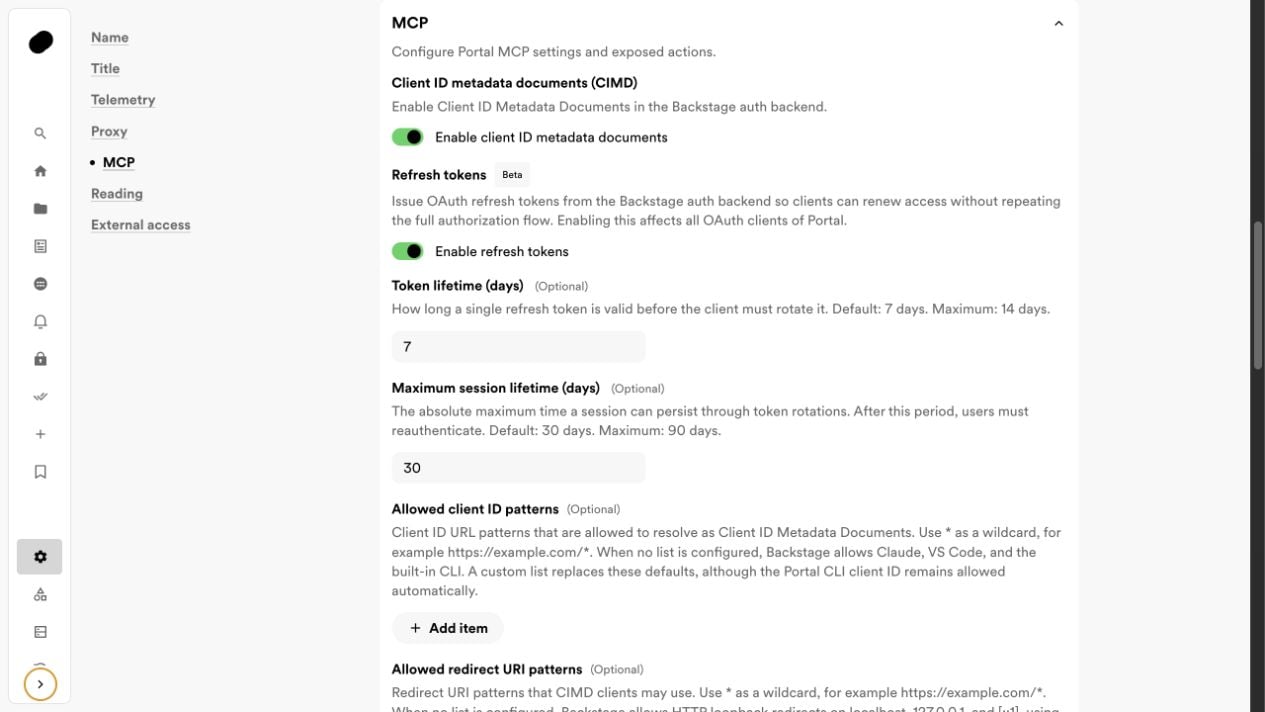
- Navigate to App Settings > General and scroll down to MCP
- Toggle Enable client ID metadata documents to allow agents to discover OAuth endpoints
- Optionally enable refresh tokens and adjust their settings (see Refresh token configuration below)
Admin: Allowed client ID patterns
By default, Portal allows Claude, VS Code, and the built-in Portal CLI to connect via CIMD. If you need to allow additional clients, you can configure custom patterns under App Settings > General > MCP > Allowed client ID patterns. The default client ID patterns are:* as a wildcard when specifying patterns — for example, https://example.com/*.
Admin: Allowed redirect URI patterns
By default, Portal allows HTTP loopback redirects onlocalhost, 127.0.0.1, and [::1] using any port and path. You can configure custom redirect URI patterns under App Settings > General > MCP > Allowed redirect URI patterns.
The default redirect URI patterns are:
Make sure the Auth plugin source is enabled under **App Settings > General
MCP > Plugin sources**, otherwise the who-am-i action will not be
available and agents won’t be able to identify the authenticated user.

Admin: End-user rollout
Once CIMD is enabled, admins can control when to introduce Portal MCP to their organization:- In App Settings > General > MCP, scroll to End-user rollout
- Toggle Announce MCP to users to show an in-product announcement to your organization
- End users will see a banner on their Portal homepage with a guided setup flow and example prompts to get started
- Users will also see a Portal MCP option in their profile menu

End user: Connecting your agent
Once your admin has enabled CIMD and the end-user rollout announcement, you’ll see a “Connect your coding agent to Portal” banner on your homepage. Click Set up MCP to follow the guided onboarding flow, or configure your agent manually: Claude Code:Authorization header — the agent handles authentication automatically through the OAuth flow.
Only agents that support CIMD can authenticate this way. Agents that do not
support CIMD (e.g. Cursor, VS Code Copilot) must use static
tokens instead.
Refresh token configuration
When using CIMD, Portal can issue OAuth refresh tokens so agents can maintain sessions without requiring users to re-authenticate frequently. Toggle Enable refresh tokens under App Settings > General > MCP, then configure the lifetimes:Enabling refresh tokens affects all OAuth clients of Portal, not just MCP
agents.
Security
Portal has implemented several security measures for MCP authentication. Be aware of both the protections in place and the remaining considerations.Security improvements
- Suspended user filtering — Portal’s bundled org data providers (GitHub, Entra ID, Okta, GitLab) now exclude suspended and disabled users from catalog ingestion.
- Token refresh validation — Portal validates that a user still exists in the catalog when their session token is refreshed. Once a user is removed from the catalog, their session is invalidated on the next refresh attempt.
- Shorter refresh token defaults — The default maximum lifetime for refresh tokens has been reduced. You can further customize this via Token lifetime and Maximum session lifetime in the MCP admin settings.
Remaining considerations
- Catalog ingestion reliability — Token validation depends on catalog ingestion running correctly. If an org data provider fails or returns stale data, offboarded users may incorrectly retain access until the issue is resolved.
- Agent compatibility — Only coding agents that support CIMD can authenticate with Portal MCP. Check your agent’s documentation for CIMD support.