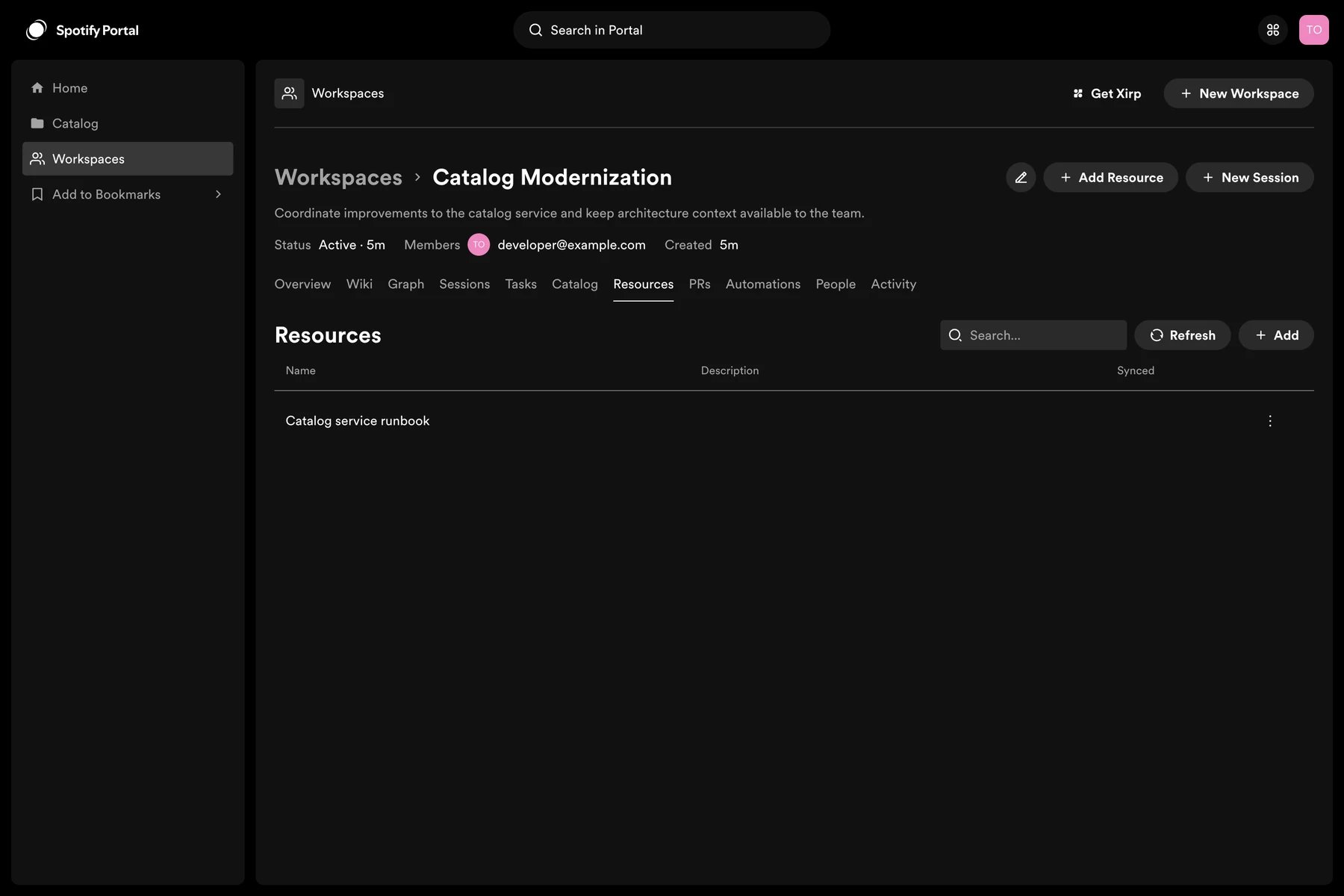
Add a resource
- Open the Workspace.
- Select Add.
- Choose the resource type.
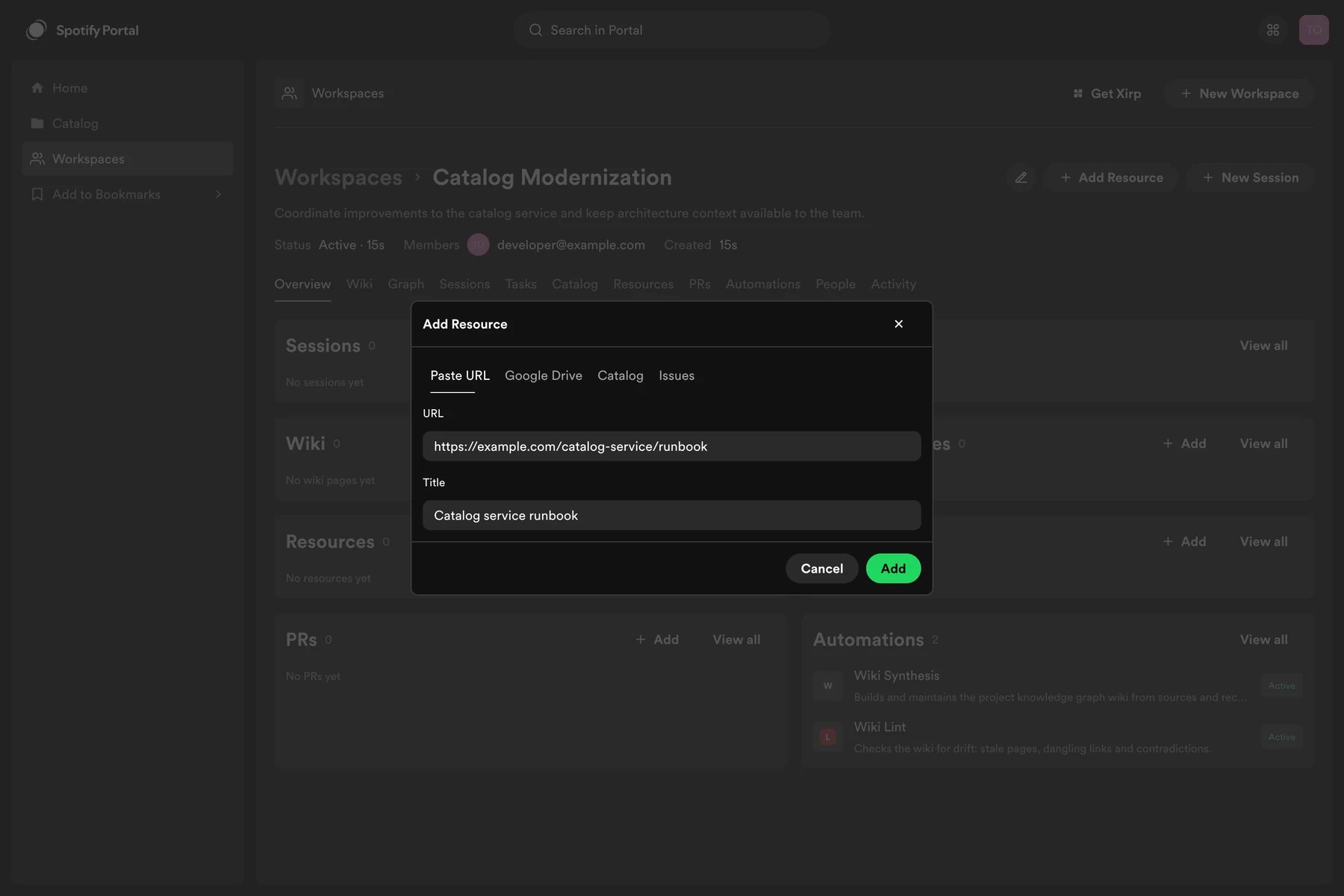
- Search for an integrated resource or enter a URL.
- Review the title and metadata.
- Save the resource.
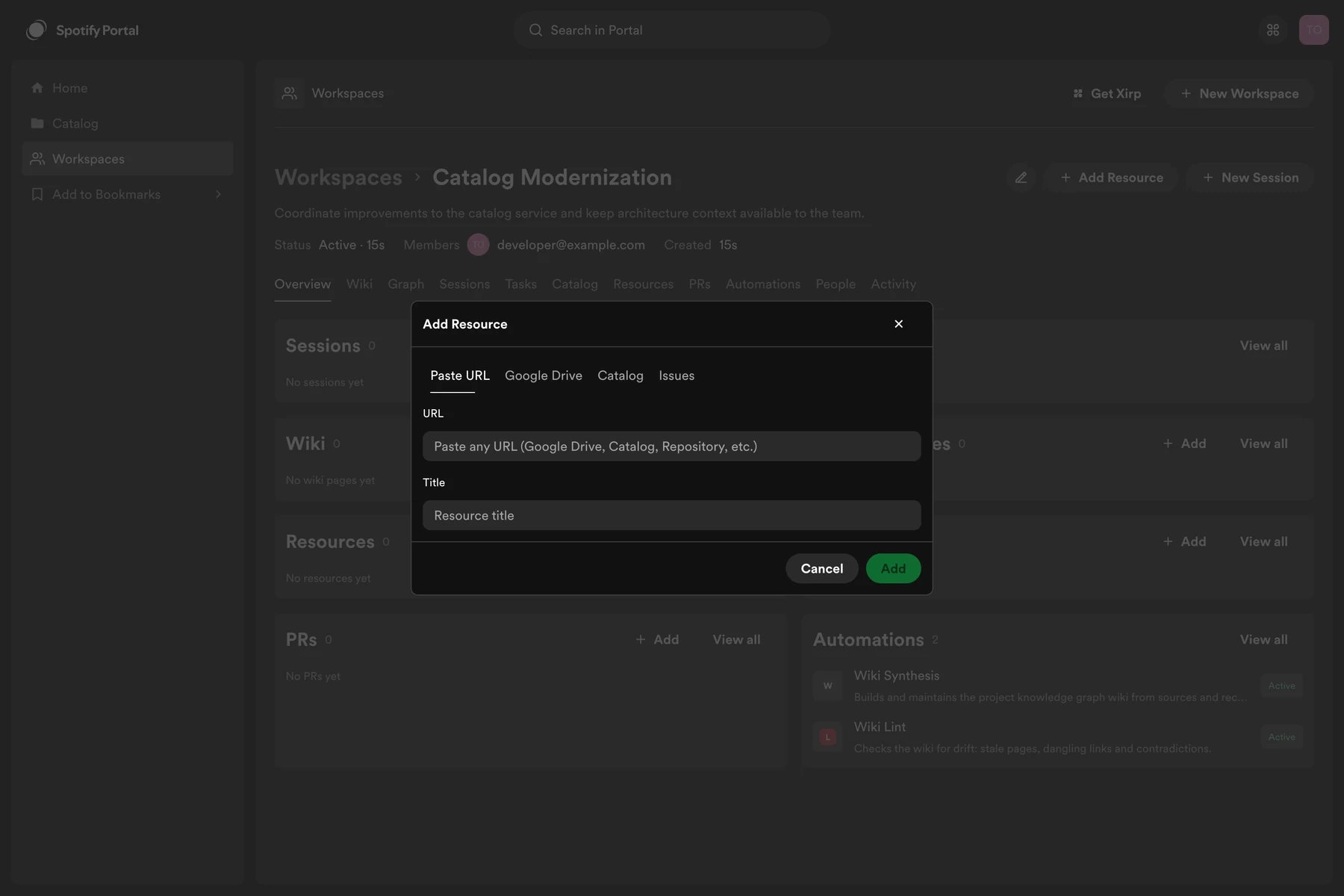
Resource types
Catalog entities
Add components, services, APIs, systems, resources, users, and groups from the Software Catalog. Catalog entities are the preferred way to associate source repositories with a Workspace and launch Xirp sessions.Links
Add runbooks, architecture diagrams, dashboards, design files, documentation, and other URLs. Use a clear title that tells an agent why the link matters.GitHub
With the GitHub integration enabled, add repository and pull request context associated with catalog entities. Repository access follows the repositories granted to the Portal GitHub App.Google Drive
With Google OAuth and Drive enabled, search and add documents such as design proposals, project briefs, and meeting notes.Linear
With Linear enabled, add individual issues or projects. Portal can display current issue details and status. A configured webhook can provide real-time updates.Choose useful context
Prefer resources that are:- Current and maintained
- Authoritative for a decision or system
- Understandable to someone outside the immediate team
- Narrow enough to be relevant to the Workspace
Update or remove a resource
Open the resource menu to edit its title or metadata, refresh it, or remove it from the Workspace. Removing a resource from a Workspace does not delete the source document, issue, repository, or catalog entity.Make resources useful to agents
An agent first receives a curated Workspace overview, then requests details as needed. Clear titles, descriptions, catalog relations, and wiki summaries help it choose the right resource without loading everything into context. The Resources tab shows everything currently linked to the Workspace.