

Before you start
Confirm that:- Xirp is installed and connected to Portal.
- You are a member of the Workspace.
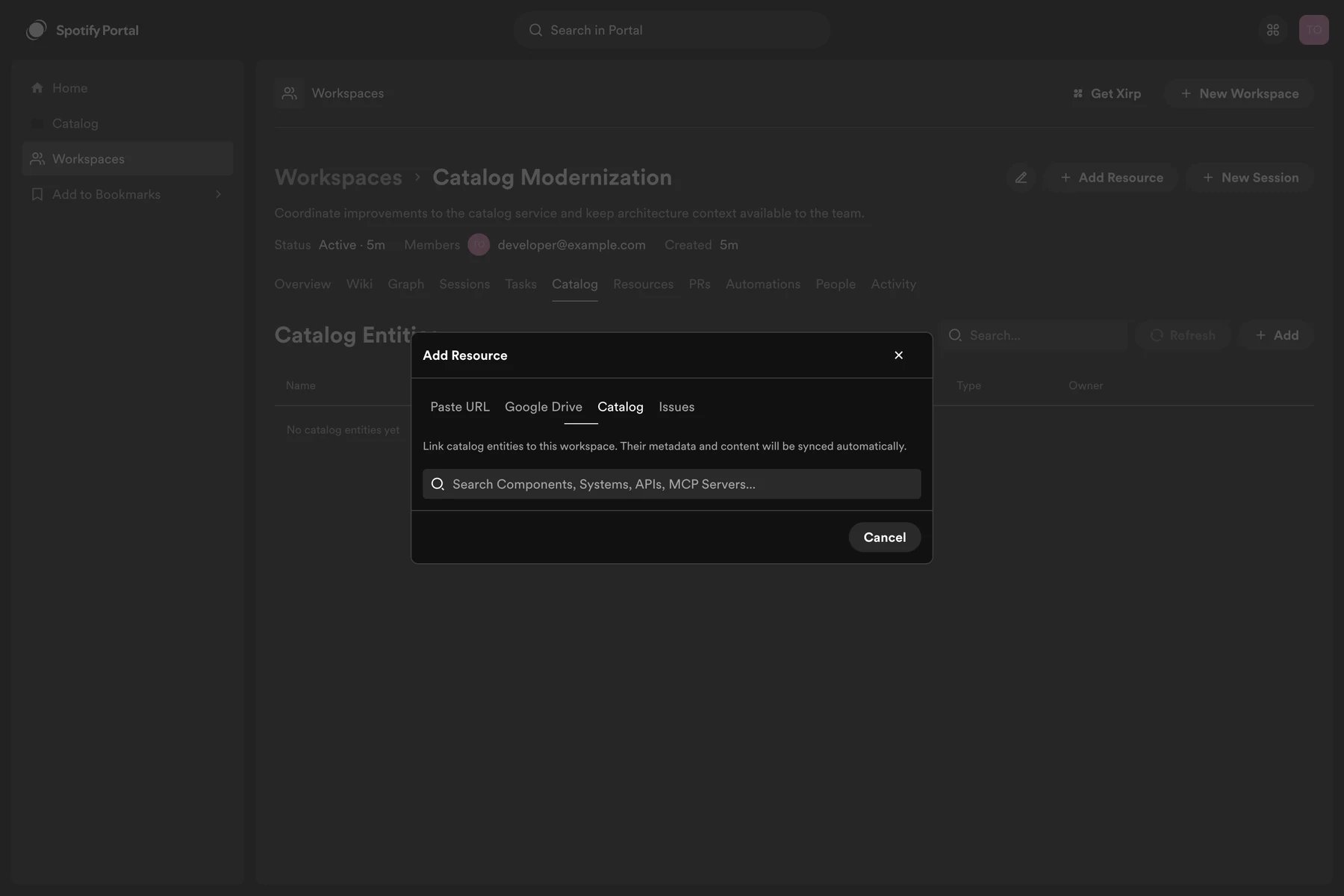
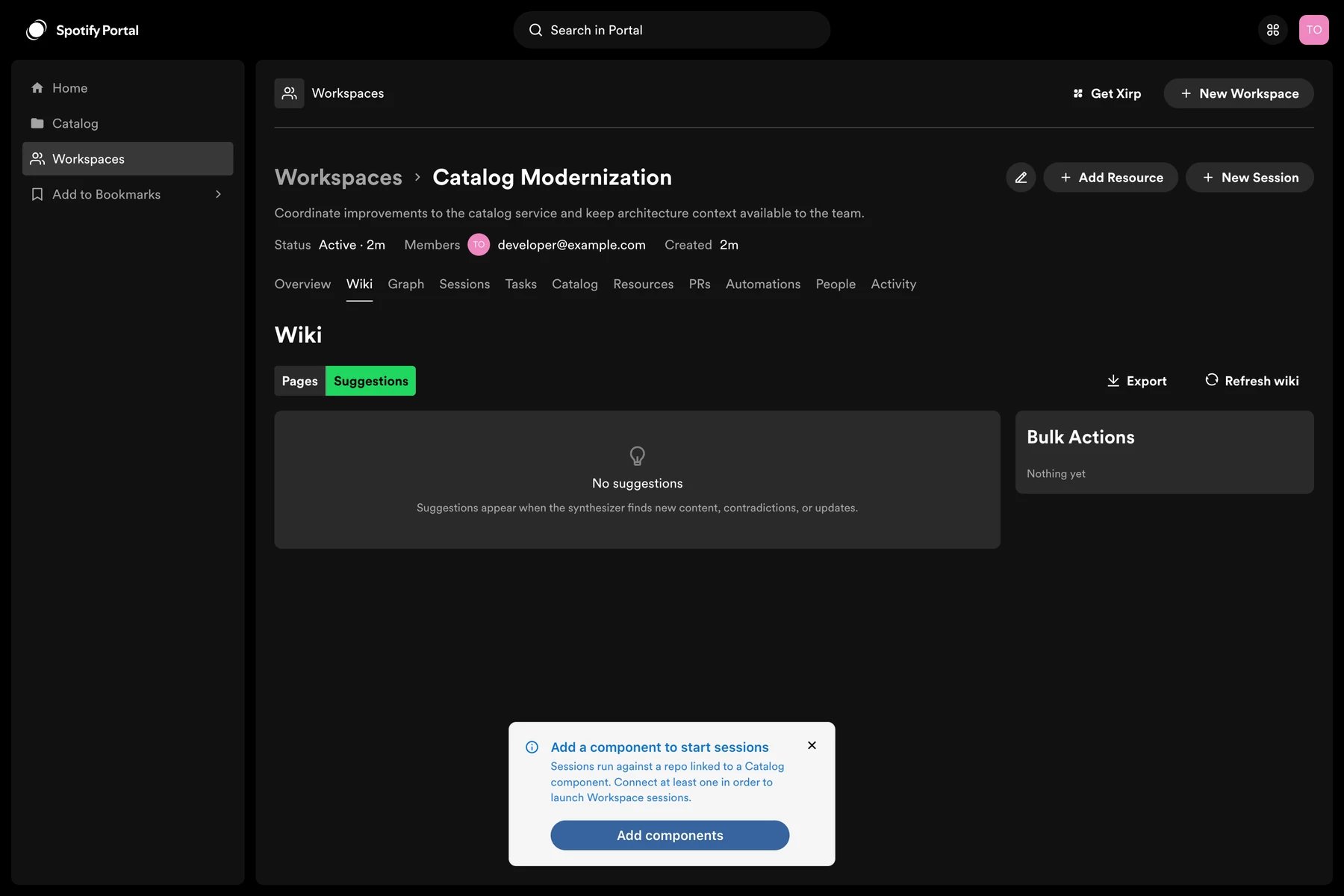
- The Workspace contains at least one catalog component.
- The selected component has a source location that resolves to a Git repository.
- A supported coding agent is installed and authenticated on your Mac.
Launch from a Workspace
- Open the Workspace in Portal.
- Select Open in Xirp or the Xirp session action.
- If prompted, choose the catalog component and source repository.
- Approve the browser request to open Xirp.
- Choose the local destination or existing project when prompted.
- Review the session goal and start the session.
What the agent receives
Xirp associates the session with the Workspace and connects the agent to Portal’s MCP endpoint. At the start of the session, the agent can request a curated project overview that includes available:- Workspace metadata and members
- Catalog entities
- Resources
- Wiki pages
- Records and decisions
- Previous uploaded session transcripts
Workspace context complements repository files and agent rules. It does not
override the coding agent’s native permissions, sandbox, model, or
credentials.
Work in Xirp
Use a new worktree when the task may change code. During the session, you can review files and Git changes, open a linked shell, or place the session in grid view alongside related work. Ask the agent to distinguish facts found in the repository from facts found in Portal. For important conclusions, ask it to cite the relevant wiki page, record, resource, or file.Share the transcript
Uploading a transcript lets Workspace members review what the session accomplished and gives future sessions access to prior context through MCP. Session upload is manual during the beta. Any session can be uploaded to any connected Workspace — it does not need to have been launched from that Workspace.- Open the session in Xirp.
- Select the Portal upload action.
- Choose the target Workspace from the picker, or create a new Workspace.
- Review the session information and upload.
- Return to the Workspace and verify that the session appears.
Current limitations
- Uploads are not automatic.
- Access to full transcript content depends on Workspace permissions and current beta behavior.
- Repository selection is required when several catalog components are available.