Application contains app behavior, a button to replay the welcome tour, and a toggle for the quit confirmation prompt (Cmd+Q). Appearance sets the app theme (System, Dark, or Light) independently of the terminal theme, and controls terminal font, font sizes, and layout density.Accessibility contains visual and interaction preferences. Changes are stored locally for the Xirp installation.
Choose the default coding agent used for new sessions. Xirp does not translate one agent’s permission or sandbox settings into another agent’s controls.Prompting settings control Xirp-owned instructions added to new sessions. Repository rules and Portal context are separate sources of instructions.
Configure Option-as-Meta behavior, natural mouse selection, scroll speed, terminal emulator, and tab behavior.Use Input & Shortcuts to change a binding. Select a shortcut row, record the new key combination, and save it. Press Cmd+/ for a complete reference.
Choose where Xirp creates worktrees and how it names them. Project-specific setup and cleanup scripts can prepare dependencies in a new worktree or clean resources before removal.Prefer a predictable location that is included in your backup and cleanup practices. Do not place worktrees inside another worktree unless your repository tooling expects that structure.
A bell icon in the header opens the notification center, where you can read, dismiss, and snooze app notifications.Session hooks let Xirp detect agent state and power status badges, sounds, and visual alerts. Under Notifications, choose which notification kinds you receive and turn on digest mode to batch them on a timer.You can disable sound while keeping visual status indicators enabled.
A cost button in the header opens a breakdown of token usage and estimated spend per session and per day.The Alerts section lets you set a daily spend threshold. Xirp shows a banner when a session approaches or crosses it.
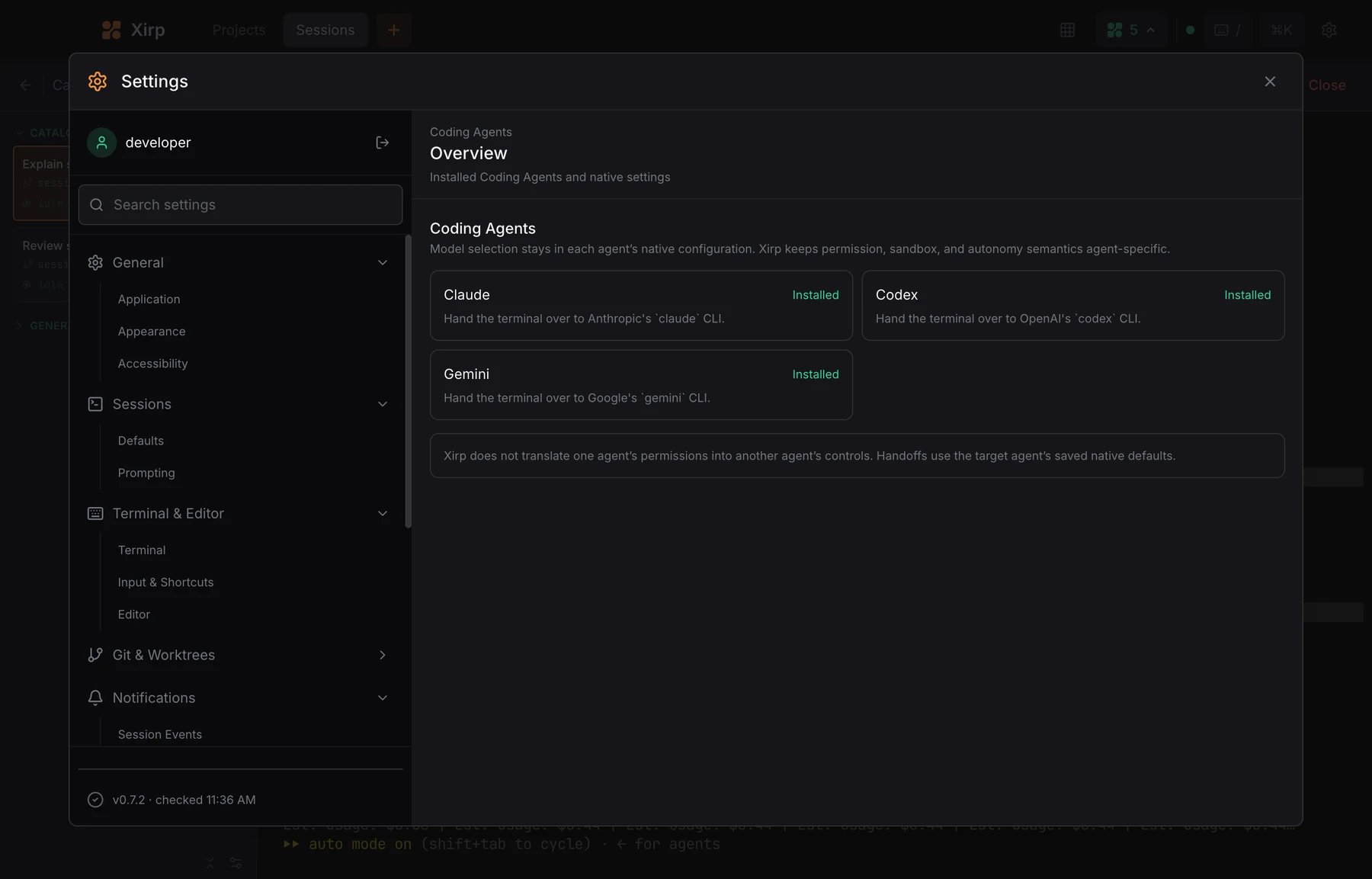
The Coding Agents section shows installed agent CLIs and exposes only tested, agent-specific launch controls.Models, credentials, reasoning behavior, and most native settings remain in each coding agent’s own configuration. Xirp can edit supported native configuration files, but it never exposes credential files.
Project settings cover display behavior, Git and worktree defaults, and setup scripts. The project selector at the top of the section determines which project you are editing.
The Doctor page checks your coding agents, tmux, and agent hooks. It reports which checks failed and offers a fix for each. When Doctor finds failing checks, Xirp posts a notification so you can open Doctor and fix them without searching through Settings.