Create, monitor, organize, and resume persistent coding-agent sessions in Xirp.
A session is a persistent terminal running a coding agent. It can belong to a project and worktree, or run as a general session without project context.
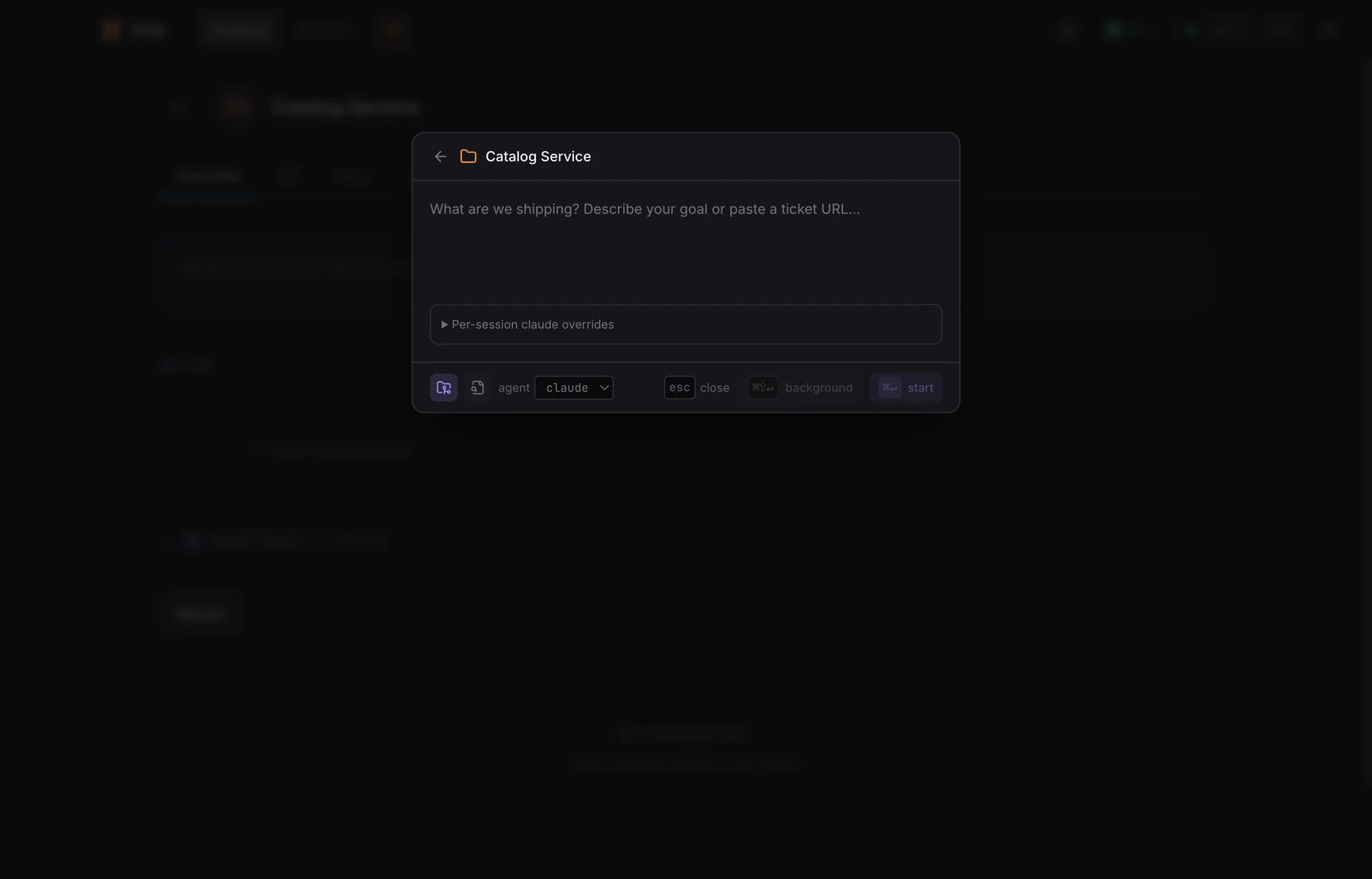
Select the + button at the top of the sessions panel to choose a project or a general session.The full session form lets you:
Describe the goal
Select a coding agent (Claude Code, Codex, Gemini CLI, Pi, or Cursor)
Use the main checkout or create a new Git worktree
Attach screenshots to the initial prompt
Override supported per-session agent options
Start in the foreground or background
Write a goal that describes the intended outcome, relevant constraints, and how you will recognize completion. Xirp sends the goal to the selected agent as its initial prompt.
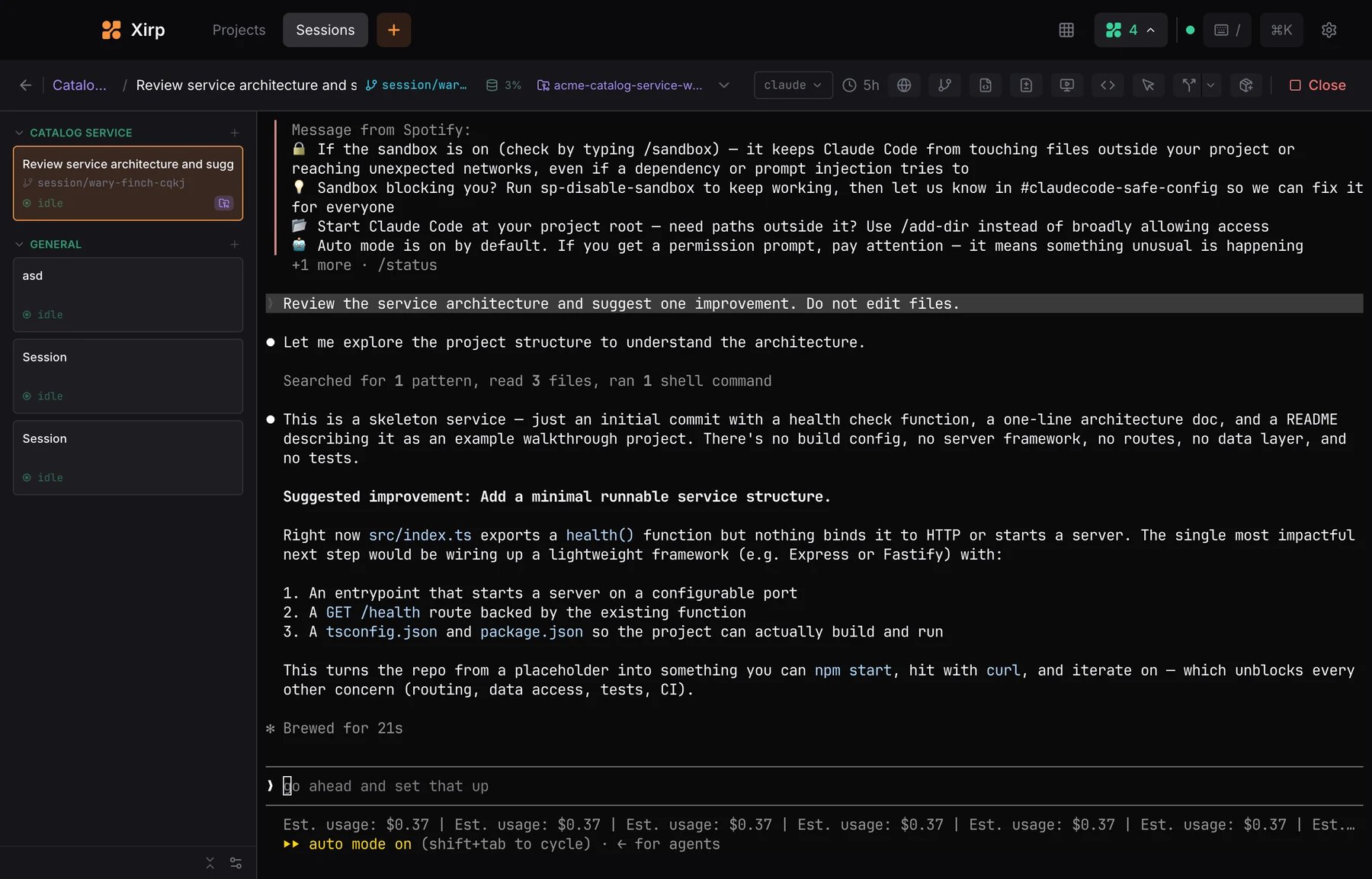
The session page is a full interactive terminal. The toolbar shows the project, session, branch, context-window use, worktree, selected agent, and session controls.You can:
Type and respond exactly as in the native coding-agent CLI
Change to another installed coding agent during a session
Open the worktree in an external terminal or editor
Browse files and review Git changes without leaving the session
Open an inline code review panel for diffs
Open a browser panel (Cmd+Shift+B) alongside the terminal and annotate page elements to send comments to the agent
Use voice input (Cmd+J) to dictate prompts
Review agent responses passage by passage and send selected passages back as a follow-up
Copy an agent response with the hover action
Insert a saved prompt from the prompt palette (Cmd+Shift+;)
Split the terminal into multiple panes to run commands side-by-side
Fork a conversation to explore another approach
Open a linked shell in the same worktree, or create one from the CLI with xirp session new-terminal
Open a standalone project terminal without starting a coding agent (Ctrl+Shift+T)
Cmd+click a file path in terminal output to open it in the built-in editor
Take a screenshot of the current window to your clipboard (Cmd+Shift+X)
Stop or close a session
Agent permission bypasses and autonomous modes can allow file changes, shell
commands, and network calls without confirmation. Use the native agent’s
sandbox and permission controls, and prefer disposable worktrees for risky
tasks.
Sessions can also carry a workflow status — backlog, in progress, in review, done, or blocked — to track where a task sits in your development cycle. You can group and sort sessions by workflow status. Turn this on under Settings > Sessions > Workflow.
A new-worktree session receives its own Git branch and checkout. Use one worktree per independent task when several sessions may change the same repository.Before deleting a worktree, review uncommitted changes and confirm whether Xirp should also remove its branch. Closing a session and deleting a worktree are separate actions.
Grid view places multiple live terminals in one window. Open it with Cmd+G, then add sessions from the minimap.You can resize the grid, focus a pane, maximize a session, group sessions by theme, and filter by project. Each pane remains interactive.
Save prompts you use often and recall them from a searchable palette (Cmd+Shift+;). Select a prompt to insert it into the active session. Prompts can be global or scoped to a project.
Any session can be uploaded to a connected Portal Workspace. The upload button on the session toolbar names the workspace it sends to. A menu beside it lets you pick a different workspace or create a new one. Uploading shares the transcript with authorized Workspace members and makes it available as context for future sessions.Review the transcript before uploading. Workspace permissions control who can access it. See Launch and share Xirp sessions.