

Overview
This step will guide you through the process of setting up GitLab Discovery for the repositories Portal should be able to read from GitLab.Step Checklist
This is the second (2) step in this guide.- Setup the GitLab integration in App Settings
- Setup GitLab Discovery
Walkthrough
To enable GitLab Discovery, navigate to Catalog Settings > Providers, open the GitLab provider, and add a new provider configuration.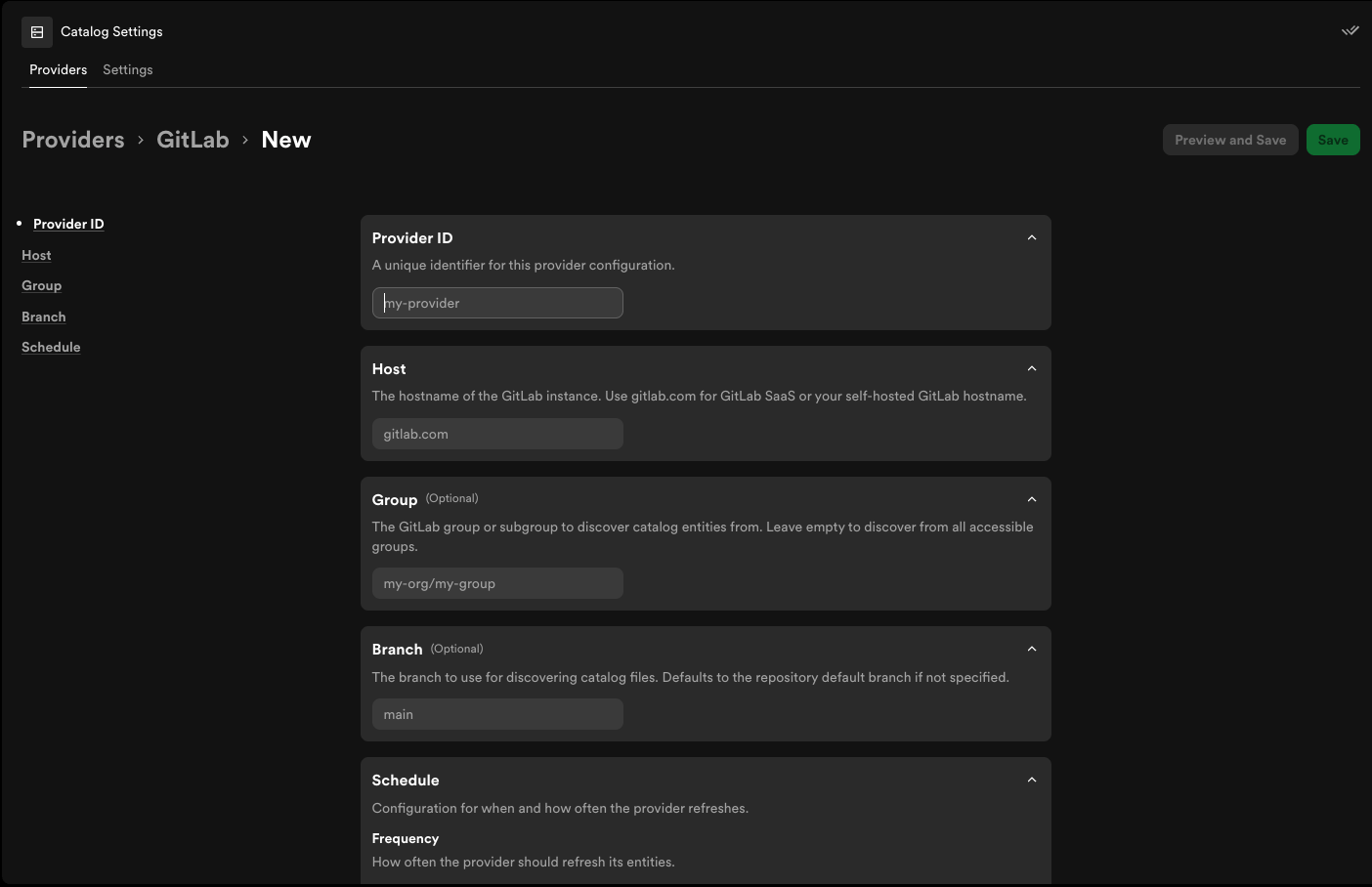
Required Fields
Fill in the required fields before saving:Provider ID- A unique identifier for this provider configuration. Usedefaultto get started.Host- The hostname of the GitLab instance Portal should read from. Usegitlab.comfor GitLab SaaS, or your self-managed GitLab hostname.Schedule- Configure when and how often Portal refreshes this provider. Use the default schedule to get started, then adjust the refresh frequency and timeout later if needed.
Group and Branch fields are optional. Leave them at their defaults to start unless you need to limit discovery to a specific GitLab group or branch.
After saving the configuration, wait for Portal to apply the new settings and reload when prompted.
From here Portal can use the GitLab provider configuration for supported GitLab-backed workflows.