

Create an OAuth Application in GitLab
In GitLab, create a new OAuth application for Portal.- Set the application name to
Spotify Portal, or your own custom app name - Set the redirect URI to:
- Select the scopes required for sign-in:
openidprofileemailread_user
- Save the application
- Store the Application ID and Secret so you can add them to Portal
If your Portal instance uses a custom domain, use that domain in the redirect
URI. Do not add a trailing slash after
frame.Configure the Authentication Provider in Portal
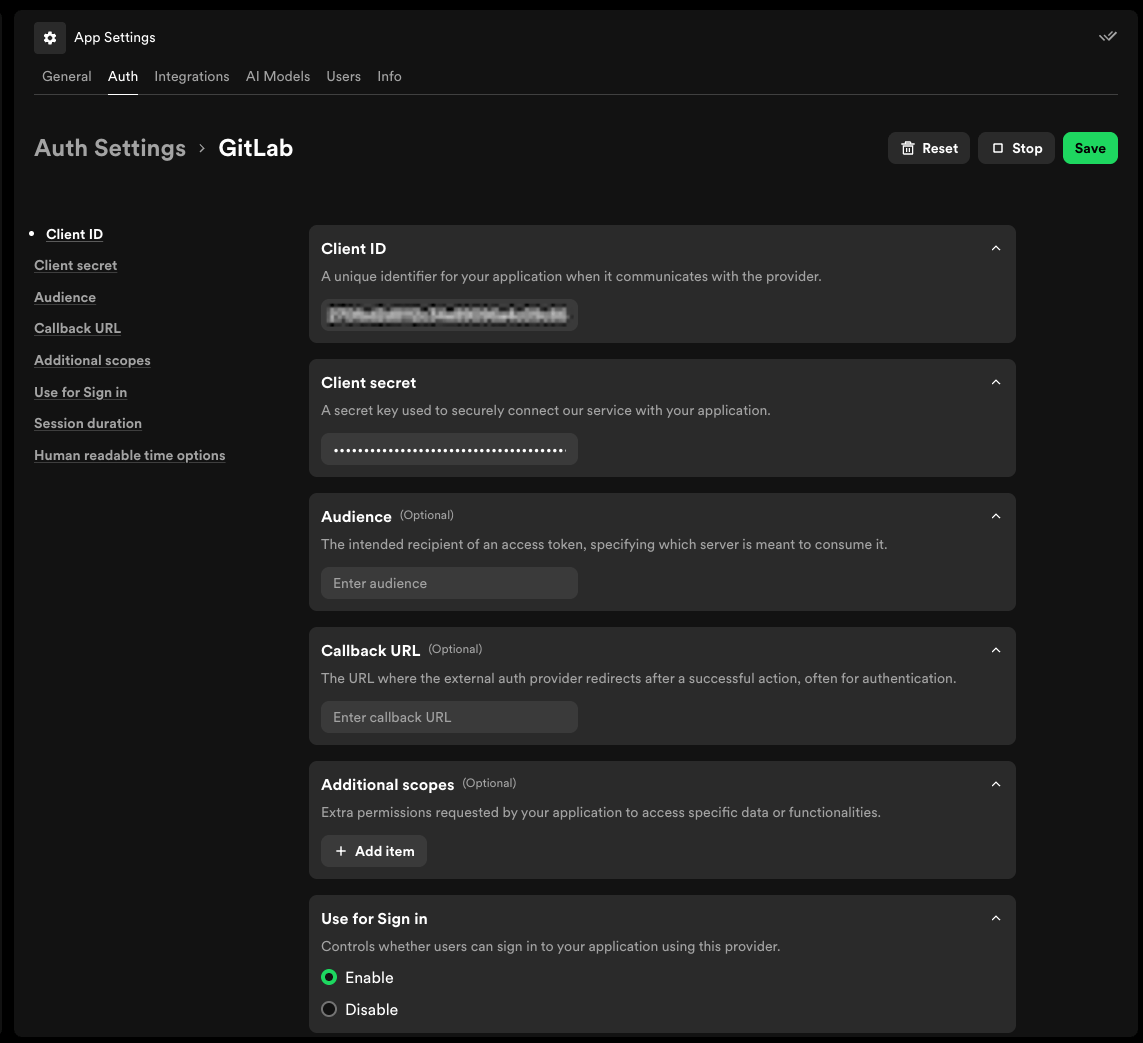
- Open App Settings in Portal and navigate to Auth
- Open the GitLab provider
- Add a new configuration entry with a key name of
production - Enter the following details from your GitLab OAuth application:
Client IDClient secret
- If you use self-managed GitLab, set the audience to the base URL for your GitLab instance, for example
https://gitlab.example.com - In the Use for Sign in section, select Enable
- Click Save
Test your new auth provider
To test your new auth provider, sign out of Portal and sign back in using your GitLab credentials.- Select your profile icon in the top right
- Press “Sign Out”
- Sign back in using your GitLab credentials