> ## Documentation Index
> Fetch the complete documentation index at: https://backstage.spotify.com/docs/llms.txt
> Use this file to discover all available pages before exploring further.
# Workspace wiki pages
> Generate, review, create, and maintain Wiki pages from shared Workspace context.
The Workspace wiki turns distributed resources into structured, browsable context for people and AI agents.
## How generation works
The wiki follows a seed-and-maintain model:
1. Portal reads the Workspace metadata and resources.
2. It proposes an initial page structure and content.
3. You review each suggestion before it becomes part of the wiki.
4. As resources and decisions change, Portal proposes additions or updates.
Generation does not remove the need for review. A Workspace member decides whether a suggestion is accurate and appropriate.
 ## Understand the reserved pages
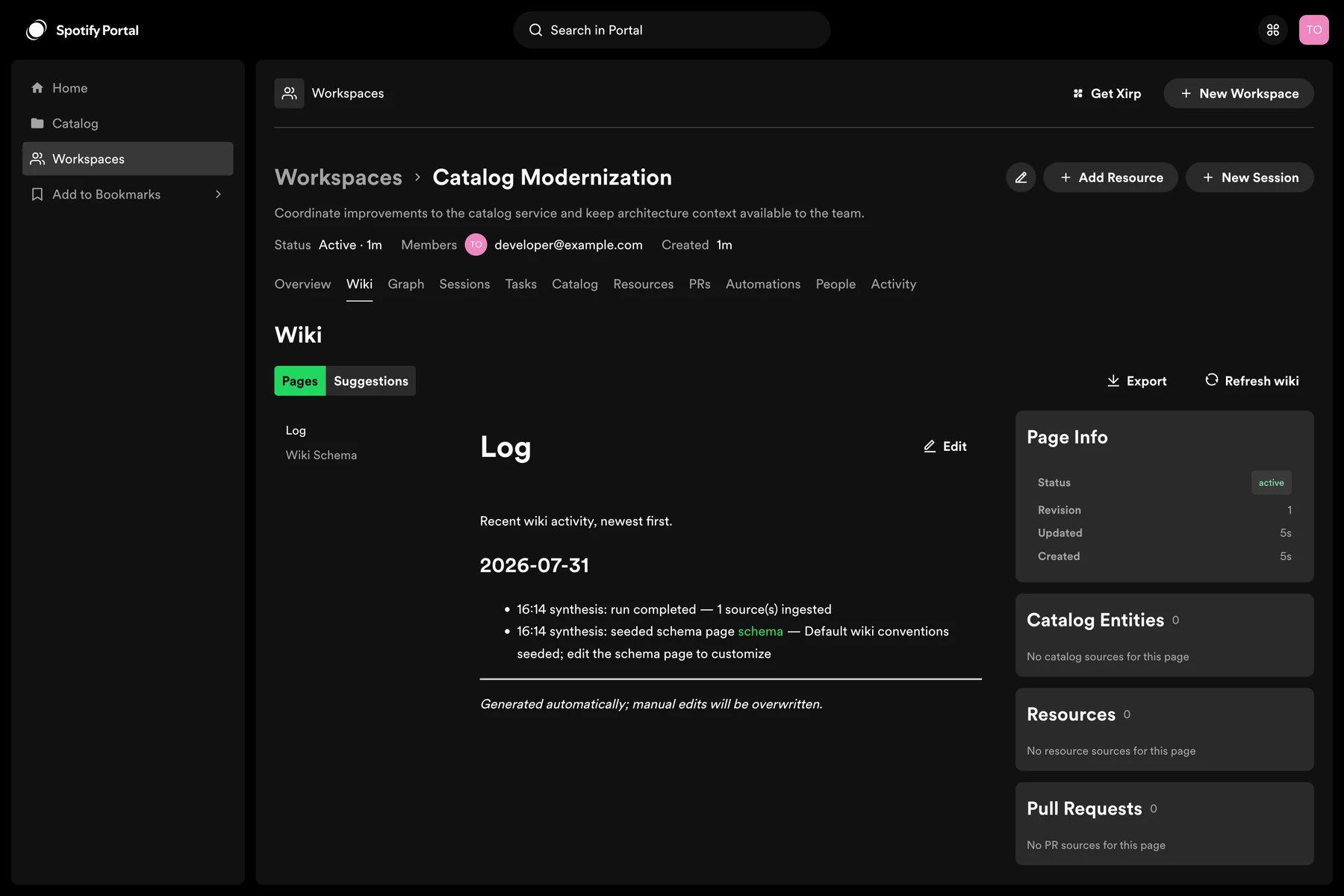
Each generated wiki starts with three reserved pages:
* **Wiki Index** is the generated table of contents, grouped by category. Portal maintains it automatically.
* **Wiki Log** records generated wiki activity. Portal maintains it automatically.
* **Wiki Schema** contains the instructions used to generate and maintain suggestions. You can edit this page to override the default prompt.
The default Wiki Schema asks the pipeline to build a connected project knowledge graph rather than a collection of source summaries. It defines conventions for page links, slugs, categories, topic ownership, source citations, and useful page types. Edit it when your Workspace needs different structure or generation guidance. Changes affect future suggestions; review generated content before accepting it.
## Review a suggestion
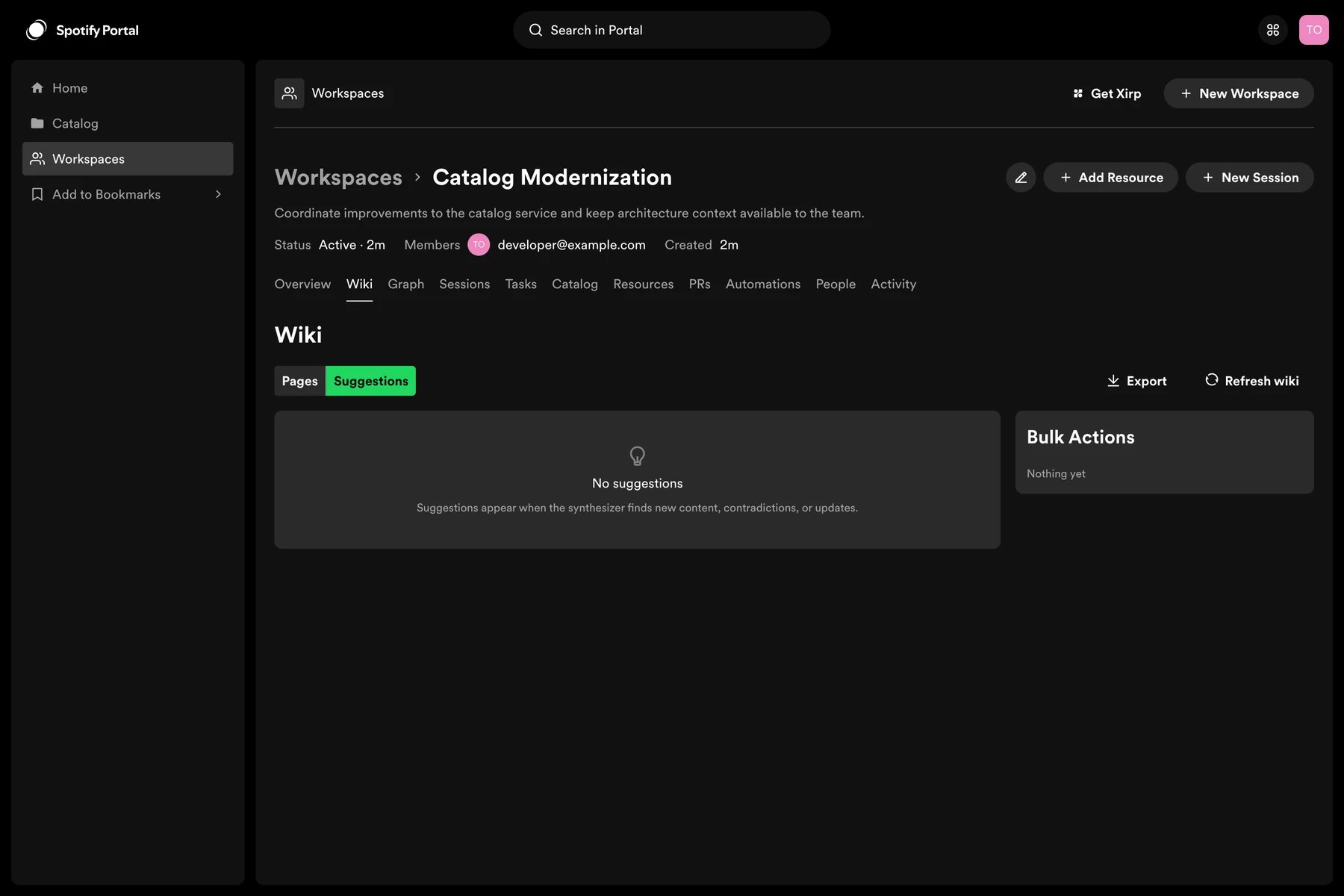
1. Open the Workspace's wiki or suggestions view.
2. Select a pending suggestion.
3. Compare the proposed content with the cited Workspace resources.
4. Choose **Accept**, **Reject**, or **Dismiss**.
* **Accept** publishes the proposed page or update.
* **Reject** marks the proposal as incorrect or unsuitable.
* **Dismiss** removes it from the current review queue without publishing it.
## Understand the reserved pages
Each generated wiki starts with three reserved pages:
* **Wiki Index** is the generated table of contents, grouped by category. Portal maintains it automatically.
* **Wiki Log** records generated wiki activity. Portal maintains it automatically.
* **Wiki Schema** contains the instructions used to generate and maintain suggestions. You can edit this page to override the default prompt.
The default Wiki Schema asks the pipeline to build a connected project knowledge graph rather than a collection of source summaries. It defines conventions for page links, slugs, categories, topic ownership, source citations, and useful page types. Edit it when your Workspace needs different structure or generation guidance. Changes affect future suggestions; review generated content before accepting it.
## Review a suggestion
1. Open the Workspace's wiki or suggestions view.
2. Select a pending suggestion.
3. Compare the proposed content with the cited Workspace resources.
4. Choose **Accept**, **Reject**, or **Dismiss**.
* **Accept** publishes the proposed page or update.
* **Reject** marks the proposal as incorrect or unsuitable.
* **Dismiss** removes it from the current review queue without publishing it.
 ## Create or edit a page
Workspace members can create a page directly or edit an existing page. Use headings and short sections so both people and agents can retrieve the relevant part quickly.
Useful page types include:
* System overview
* Architecture and component boundaries
* Local development and testing
* Operational ownership and escalation
* Important decisions and constraints
* Release and deployment process
## Let an agent suggest an update
A Xirp session with Workspace MCP access can create a wiki suggestion or, when permitted, create and update wiki pages. Ask the agent to cite the Workspace evidence behind the change and prefer a suggestion when human review is required.
Example prompt:
```text theme={"theme":{"light":"github-light","dark":"dracula"}}
Based on the implementation and the Workspace resources, propose an update to
the architecture wiki page. Explain which facts changed and cite the relevant
files or records. Create a suggestion rather than publishing directly.
```
## Keep the wiki reliable
* Prefer links to authoritative resources over copied details that will drift.
* Review suggestions after major architecture or ownership changes.
* Remove stale pages rather than leaving contradictory guidance.
* Do not publish secrets, credentials, personal data, or restricted source content.
Future Xirp sessions can read accepted wiki pages through Portal MCP, allowing each session to build on reviewed team knowledge.
## Create or edit a page
Workspace members can create a page directly or edit an existing page. Use headings and short sections so both people and agents can retrieve the relevant part quickly.
Useful page types include:
* System overview
* Architecture and component boundaries
* Local development and testing
* Operational ownership and escalation
* Important decisions and constraints
* Release and deployment process
## Let an agent suggest an update
A Xirp session with Workspace MCP access can create a wiki suggestion or, when permitted, create and update wiki pages. Ask the agent to cite the Workspace evidence behind the change and prefer a suggestion when human review is required.
Example prompt:
```text theme={"theme":{"light":"github-light","dark":"dracula"}}
Based on the implementation and the Workspace resources, propose an update to
the architecture wiki page. Explain which facts changed and cite the relevant
files or records. Create a suggestion rather than publishing directly.
```
## Keep the wiki reliable
* Prefer links to authoritative resources over copied details that will drift.
* Review suggestions after major architecture or ownership changes.
* Remove stale pages rather than leaving contradictory guidance.
* Do not publish secrets, credentials, personal data, or restricted source content.
Future Xirp sessions can read accepted wiki pages through Portal MCP, allowing each session to build on reviewed team knowledge.