> ## Documentation Index
> Fetch the complete documentation index at: https://backstage.spotify.com/docs/llms.txt
> Use this file to discover all available pages before exploring further.
# Workspaces
> Centralize project knowledge in Portal for people, Xirp sessions, and other MCP-compatible agents.
A Workspace is a shared knowledge hub in Portal. It brings together software, documentation, links, work items, decisions, people, wiki pages, and Xirp session transcripts.
Workspaces make that context available through MCP. Xirp provides an integrated Workspace experience, but you can also use the Workspace MCP tools from other compatible clients. A coding session can begin by discovering the system it is changing instead of relying only on files in one repository.
## What a Workspace contains
* **Members**: users and teams allowed to access the Workspace
* **Catalog entities**: components, services, APIs, systems, and related software
* **Resources**: repository links, documents, design files, runbooks, Slack channels, pull requests, and other references
* **Records**: decisions, plans, and discussions
* **Wiki pages**: generated or human-maintained knowledge
* **Sessions**: uploaded Xirp transcripts associated with the Workspace
Only invited members and Portal administrators can see the complete Workspace.
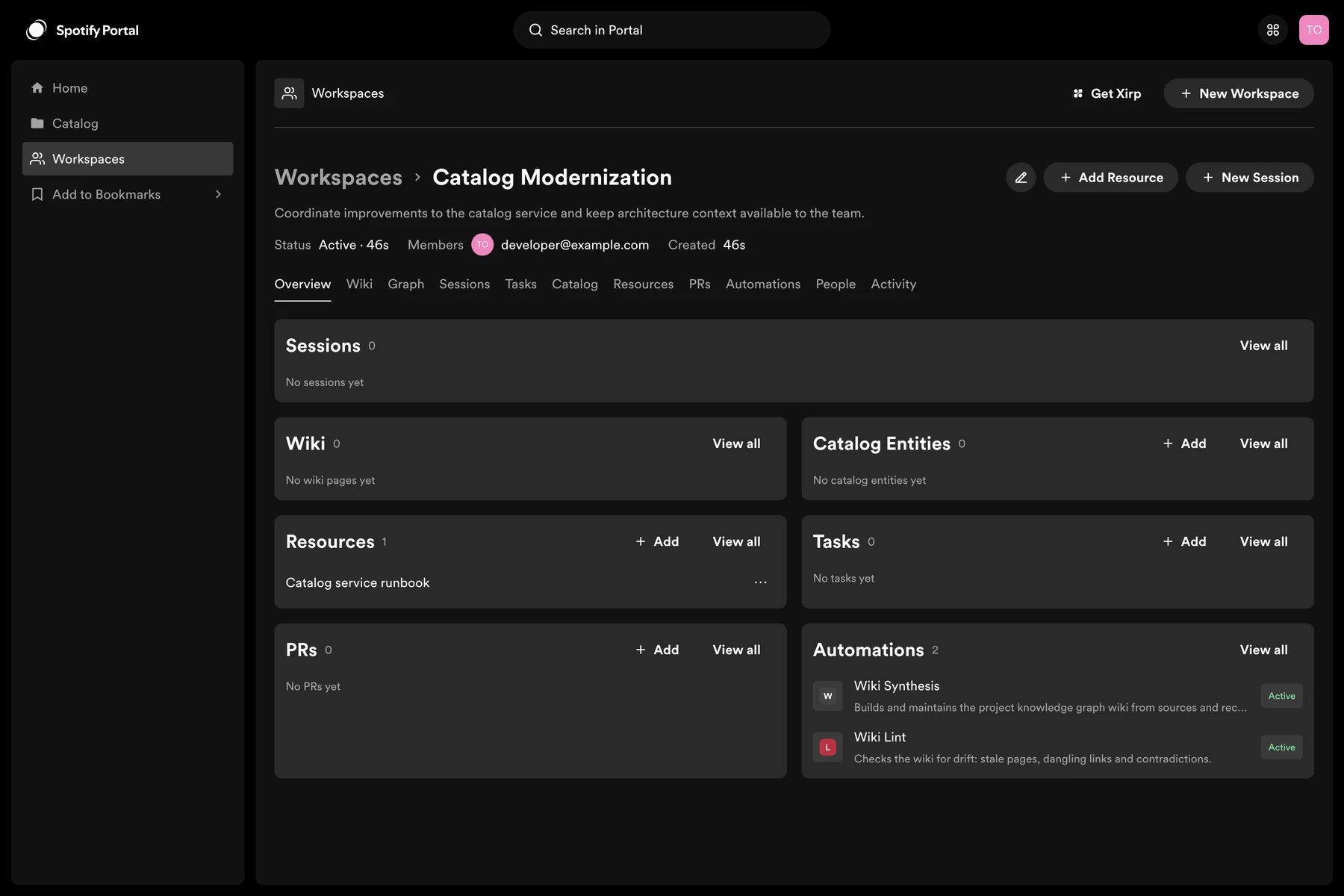 ## Create a Workspace
1. Select **New Workspace** in Portal's top navigation, or open **Workspaces** from the sidebar.
2. Enter a title and optional description.
3. Add relevant Software Catalog entities.
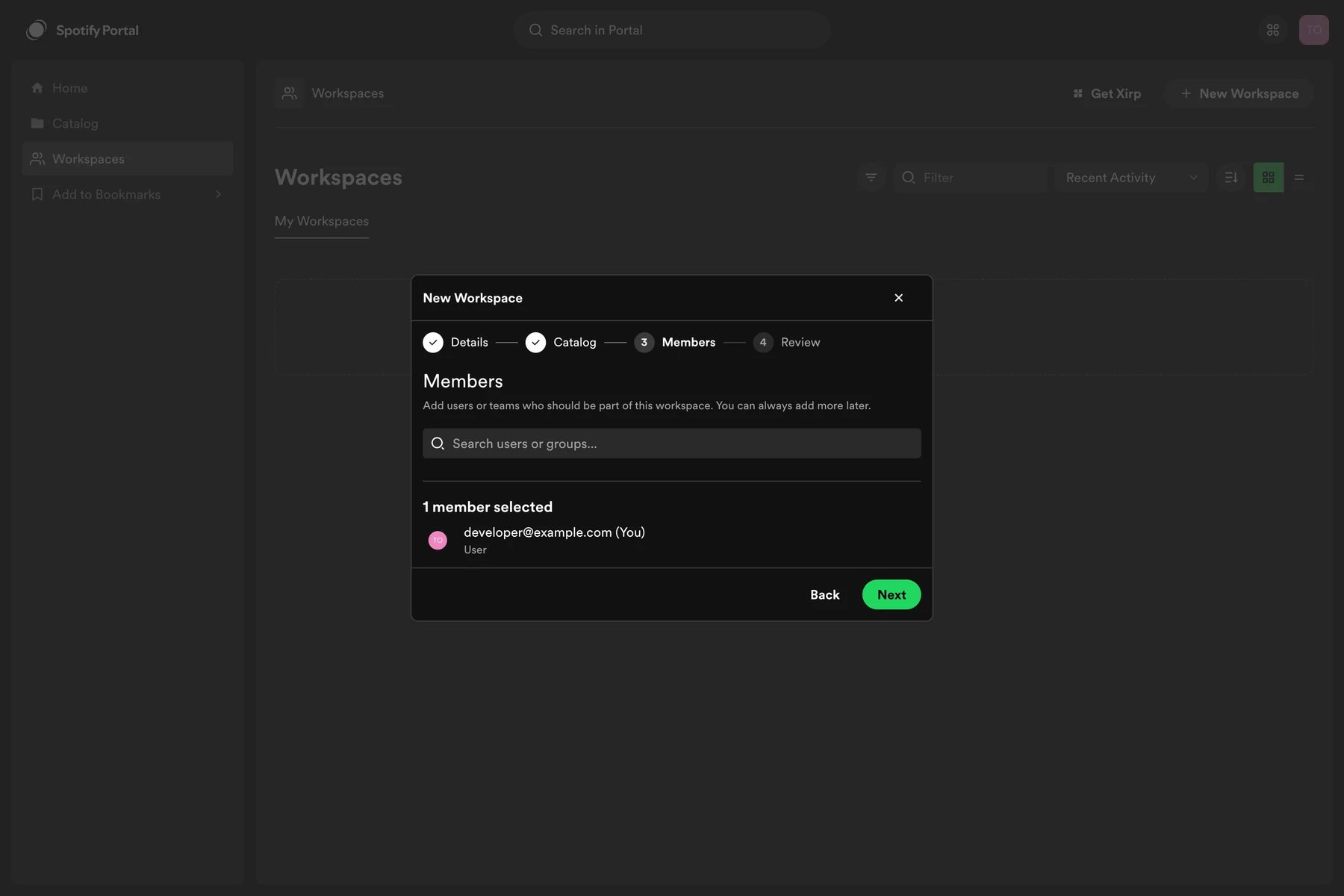
4. Add users or teams as members.
5. Review and create the Workspace.
## Create a Workspace
1. Select **New Workspace** in Portal's top navigation, or open **Workspaces** from the sidebar.
2. Enter a title and optional description.
3. Add relevant Software Catalog entities.
4. Add users or teams as members.
5. Review and create the Workspace.
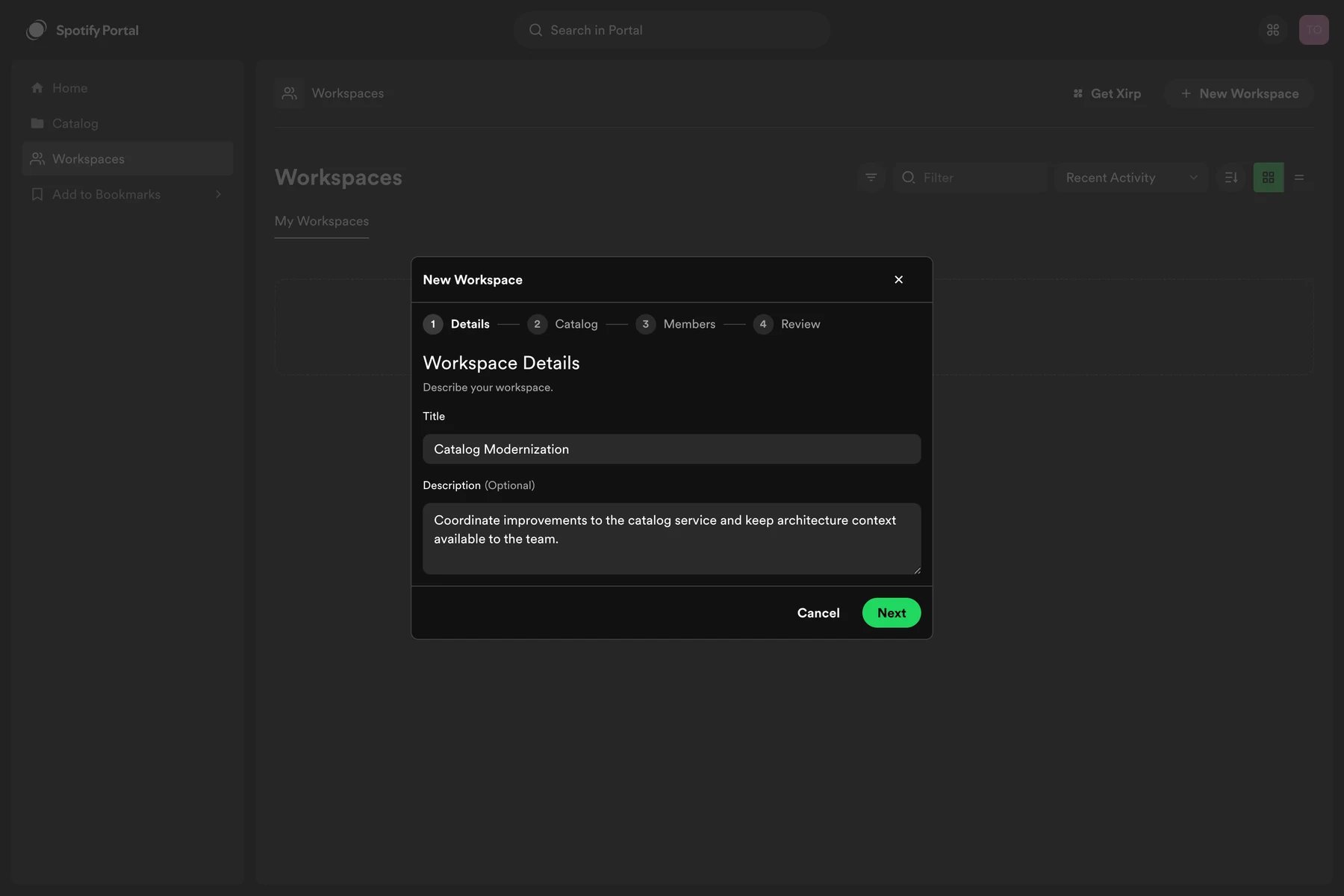 Attach catalog entities during creation or add them later.
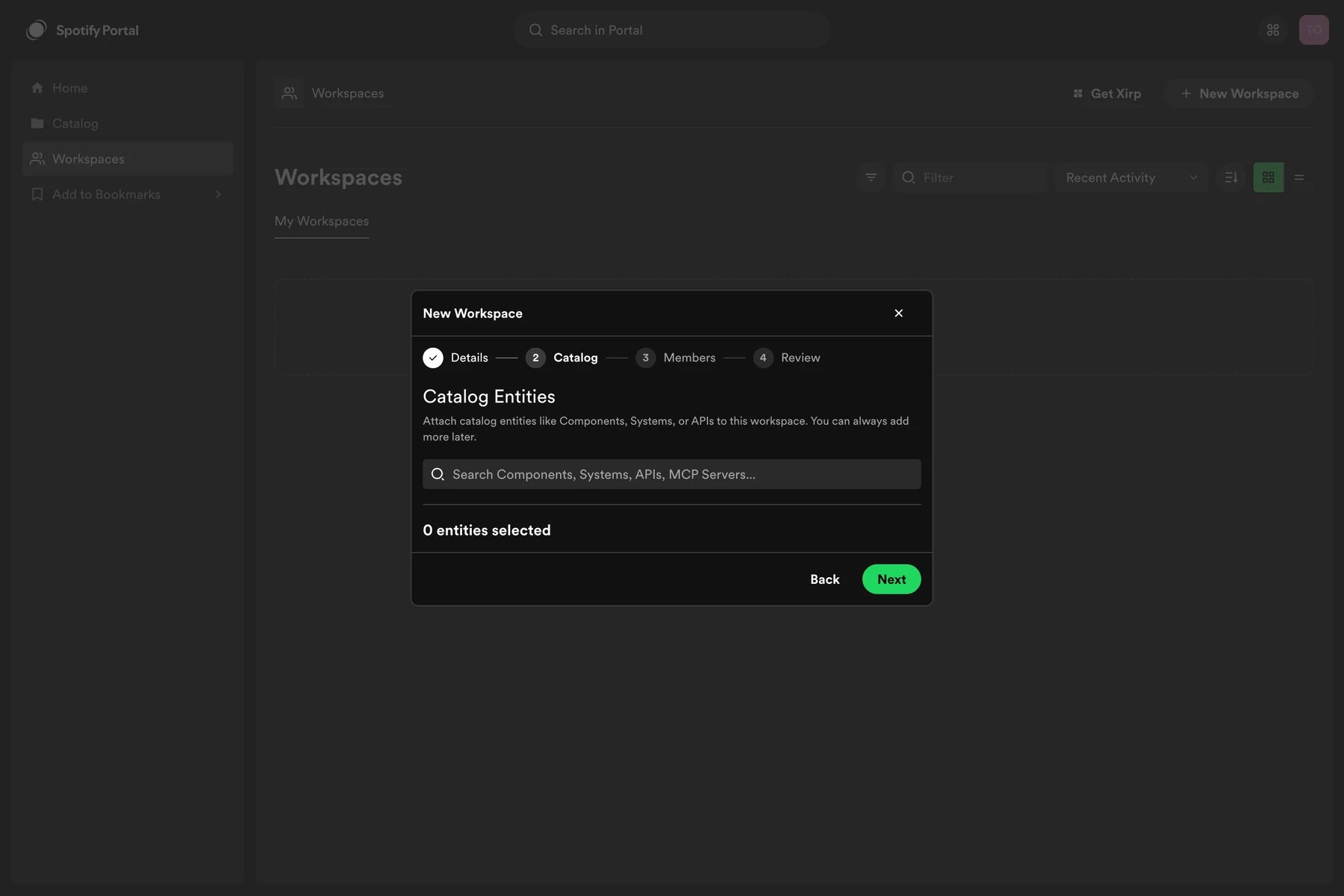 The review step shows the selected catalog entities and members before anything is created.
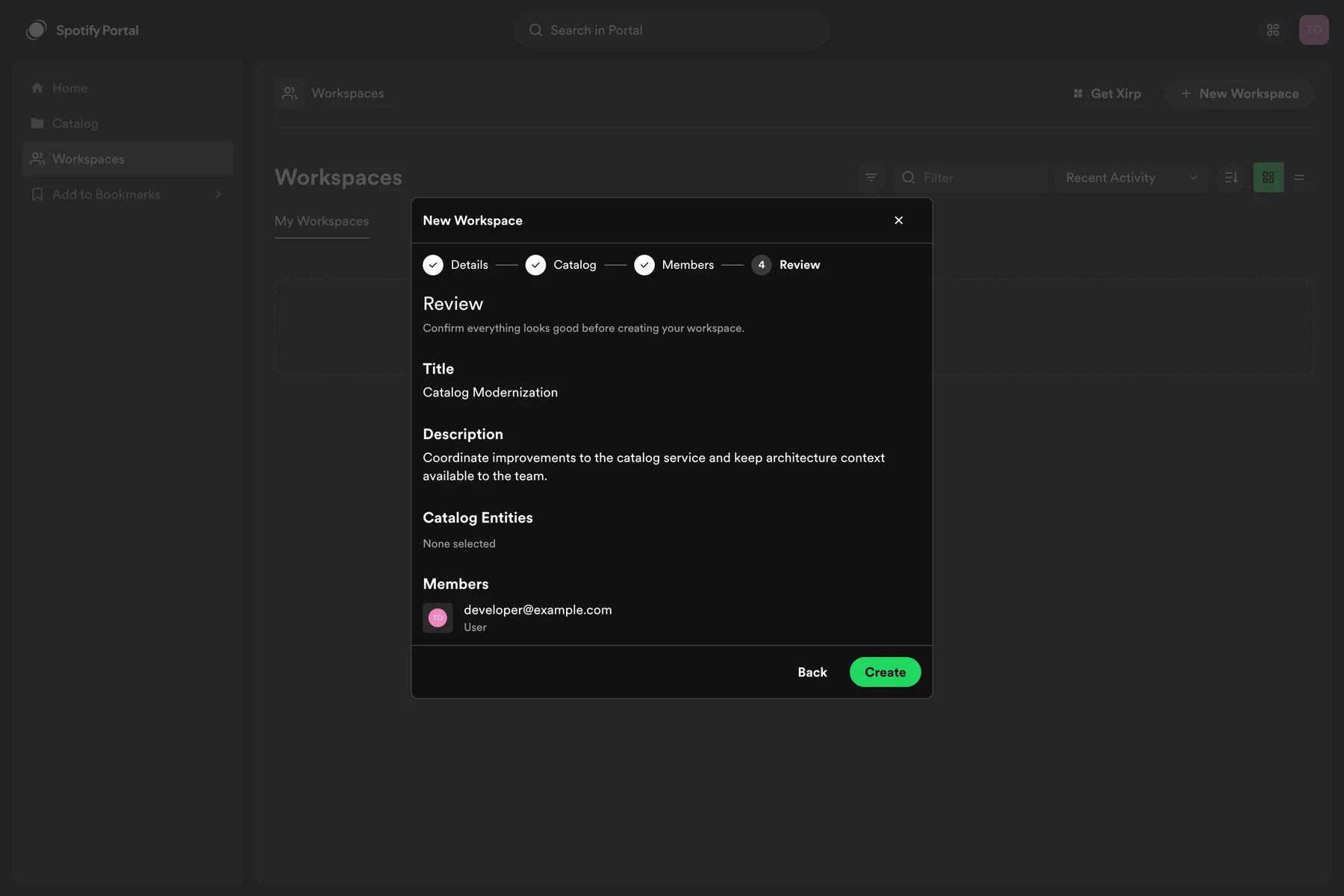 You can also start from a catalog entity page. Portal preselects that entity and its related resources.
## Add members
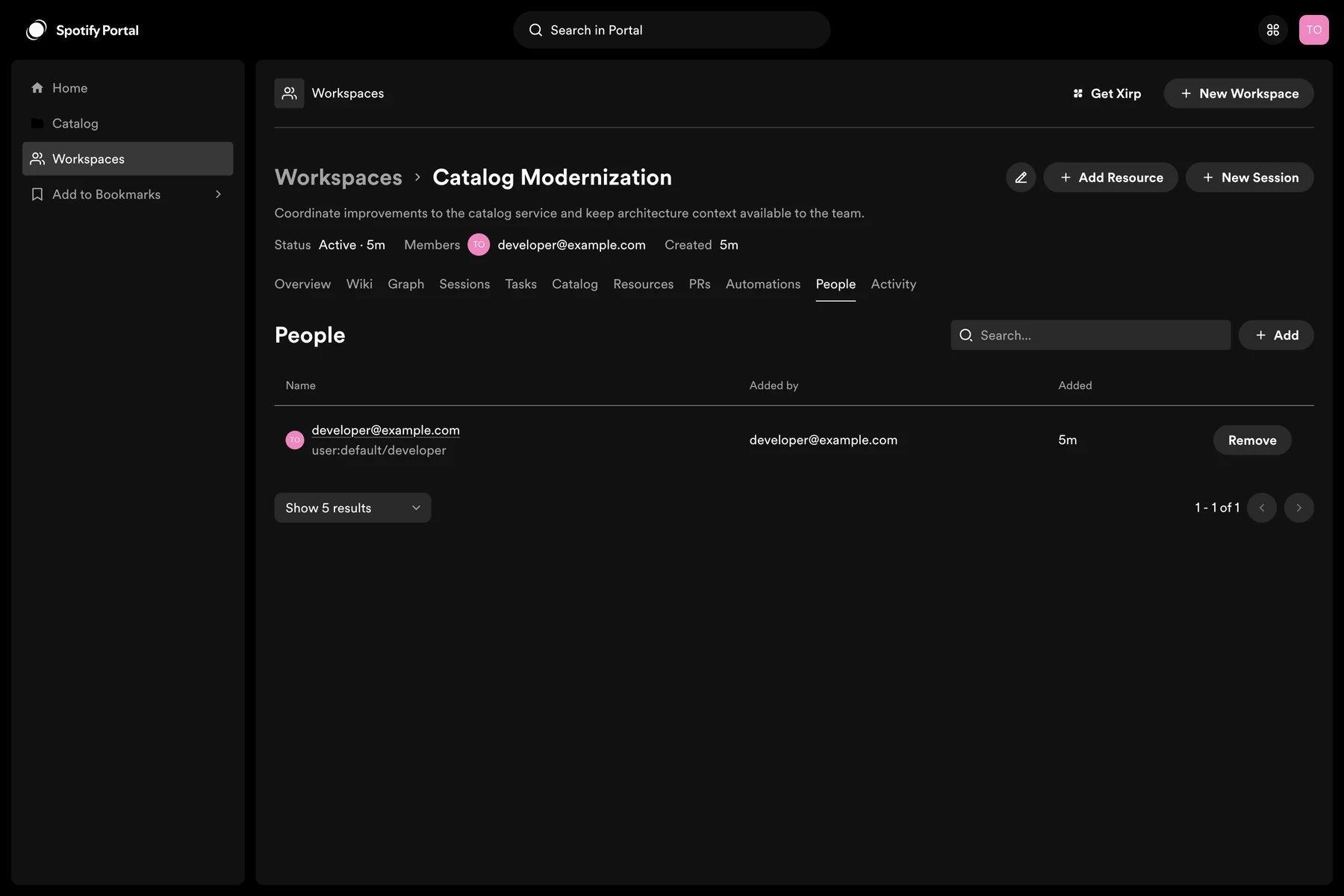
Select **Add member** in the Workspace. Add an individual user or a team from the Software Catalog. Adding a team gives its current members access according to the Workspace permission model.
The first Portal administrator is responsible for inviting other users to the Portal instance. A Workspace invitation does not replace the instance invitation.
You can also start from a catalog entity page. Portal preselects that entity and its related resources.
## Add members
Select **Add member** in the Workspace. Add an individual user or a team from the Software Catalog. Adding a team gives its current members access according to the Workspace permission model.
The first Portal administrator is responsible for inviting other users to the Portal instance. A Workspace invitation does not replace the instance invitation.
 The **People** tab lists current members and lets an authorized user add or remove access.
 ## Workspaces and Xirp
A session launched from a Workspace requires at least one catalog component with a resolvable source repository. If the Workspace has several eligible components, choose which repository Xirp should clone or open.
During the session, the agent can query Workspace context through MCP. After the work is complete, upload the transcript manually to share it with the Workspace.
Add catalog entities, links, documents, work items, and other resources.
Generate, review, and maintain structured knowledge from Workspace
resources.
Start a context-aware coding session and upload its transcript.
Populate the Software Catalog with repositories, users, and groups.
## Supported integrations
| Integration | What it adds | Setup |
| ------------ | --------------------------------------------------------------------------- | ------------------------------------------------------------------------------------------- |
| GitHub | Repository metadata, pull requests, and source context for catalog entities | Configure the Portal GitHub App |
| Linear | Issues, projects, and status updates | Configure the Linear auth provider; add a webhook secret for real-time updates if available |
| Google Drive | Search, preview, and linked document resources | Enable Drive and configure Google OAuth |
Integration availability depends on your Portal configuration. More integrations are planned.
You can add any useful URL as a Workspace resource. When a session's MCP client has an integration that can access the linked service, the agent may be able to retrieve additional context from that link.
## Workspaces and Xirp
A session launched from a Workspace requires at least one catalog component with a resolvable source repository. If the Workspace has several eligible components, choose which repository Xirp should clone or open.
During the session, the agent can query Workspace context through MCP. After the work is complete, upload the transcript manually to share it with the Workspace.
Add catalog entities, links, documents, work items, and other resources.
Generate, review, and maintain structured knowledge from Workspace
resources.
Start a context-aware coding session and upload its transcript.
Populate the Software Catalog with repositories, users, and groups.
## Supported integrations
| Integration | What it adds | Setup |
| ------------ | --------------------------------------------------------------------------- | ------------------------------------------------------------------------------------------- |
| GitHub | Repository metadata, pull requests, and source context for catalog entities | Configure the Portal GitHub App |
| Linear | Issues, projects, and status updates | Configure the Linear auth provider; add a webhook secret for real-time updates if available |
| Google Drive | Search, preview, and linked document resources | Enable Drive and configure Google OAuth |
Integration availability depends on your Portal configuration. More integrations are planned.
You can add any useful URL as a Workspace resource. When a session's MCP client has an integration that can access the linked service, the agent may be able to retrieve additional context from that link.