> ## Documentation Index
> Fetch the complete documentation index at: https://backstage.spotify.com/docs/llms.txt
> Use this file to discover all available pages before exploring further.
# Settings
> Configure Xirp appearance, sessions, terminal behavior, notifications, coding agents, projects, and diagnostics.
Open Settings with the gear icon. In the desktop app, you can also press `Cmd+,`.
 Use the search field to find a setting by name or description.
## General
**Application** contains app behavior and a button to replay the welcome tour. **Appearance** controls the theme, terminal font, font sizes, and layout density.
Use the search field to find a setting by name or description.
## General
**Application** contains app behavior and a button to replay the welcome tour. **Appearance** controls the theme, terminal font, font sizes, and layout density.
 **Accessibility** contains visual and interaction preferences. Changes are stored locally for the Xirp installation.
## Sessions
Choose the default coding agent used for new sessions. Xirp does not translate one agent's permission or sandbox settings into another agent's controls.
**Accessibility** contains visual and interaction preferences. Changes are stored locally for the Xirp installation.
## Sessions
Choose the default coding agent used for new sessions. Xirp does not translate one agent's permission or sandbox settings into another agent's controls.
 Prompting settings control Xirp-owned instructions added to new sessions. Repository rules and Portal context are separate sources of instructions.
## Terminal and editor
Configure Option-key behavior, natural mouse selection, terminal scrolling, the external terminal app, editor command, and keyboard shortcuts.
Prompting settings control Xirp-owned instructions added to new sessions. Repository rules and Portal context are separate sources of instructions.
## Terminal and editor
Configure Option-key behavior, natural mouse selection, terminal scrolling, the external terminal app, editor command, and keyboard shortcuts.
 Use **Input & Shortcuts** to change a binding. Select a shortcut row, record the new key combination, and save it. Press `Cmd+/` for a complete reference.
 ## Git and worktrees
Choose where Xirp creates worktrees and how it names them. Project-specific setup and cleanup scripts can prepare dependencies in a new worktree or clean resources before removal.
Prefer a predictable location that is included in your backup and cleanup practices. Do not place worktrees inside another worktree unless your repository tooling expects that structure.
## Notifications
Session hooks let Xirp detect agent state and power status badges, sounds, and visual alerts.
## Git and worktrees
Choose where Xirp creates worktrees and how it names them. Project-specific setup and cleanup scripts can prepare dependencies in a new worktree or clean resources before removal.
Prefer a predictable location that is included in your backup and cleanup practices. Do not place worktrees inside another worktree unless your repository tooling expects that structure.
## Notifications
Session hooks let Xirp detect agent state and power status badges, sounds, and visual alerts.
 You can disable sound while keeping visual status indicators enabled.
## Coding agents
The **Coding Agents** section shows installed agent CLIs and exposes only tested, agent-specific launch controls.
You can disable sound while keeping visual status indicators enabled.
## Coding agents
The **Coding Agents** section shows installed agent CLIs and exposes only tested, agent-specific launch controls.
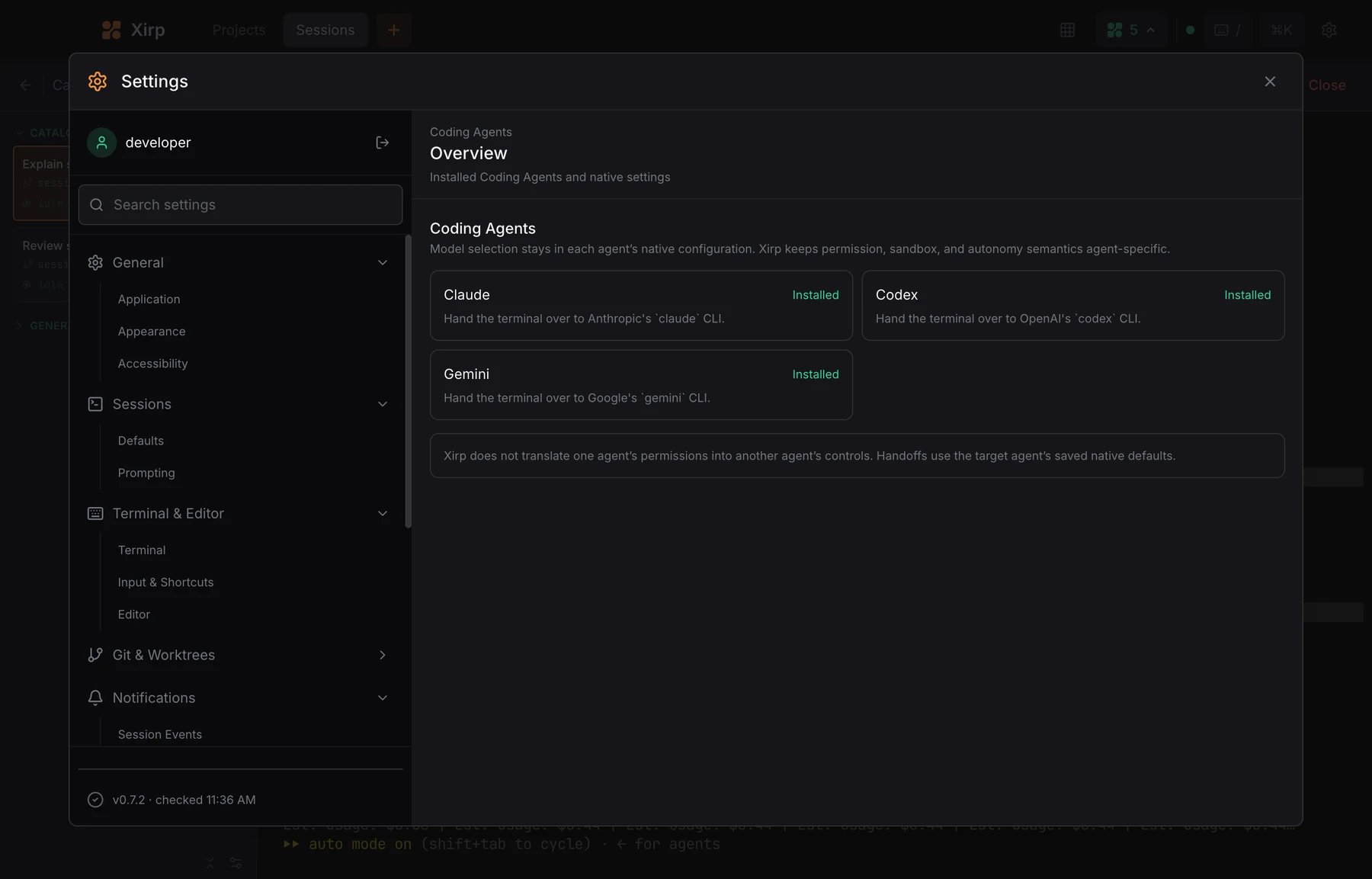 Models, credentials, reasoning behavior, and most native settings remain in each coding agent's own configuration. Xirp can edit supported native configuration files, but it never exposes credential files.
## Projects
Project settings cover display behavior, Git and worktree defaults, and setup scripts. The project selector at the top of the section determines which project you are editing.
## Advanced and debug
Advanced settings include feature flags and third-party license attributions. Debug pages show connection and daemon information useful when working with support.
Debug exports can contain local paths, repository names, and diagnostic data.
Review an export before sharing it outside your organization.
Models, credentials, reasoning behavior, and most native settings remain in each coding agent's own configuration. Xirp can edit supported native configuration files, but it never exposes credential files.
## Projects
Project settings cover display behavior, Git and worktree defaults, and setup scripts. The project selector at the top of the section determines which project you are editing.
## Advanced and debug
Advanced settings include feature flags and third-party license attributions. Debug pages show connection and daemon information useful when working with support.
Debug exports can contain local paths, repository names, and diagnostic data.
Review an export before sharing it outside your organization.