> ## Documentation Index
> Fetch the complete documentation index at: https://backstage.spotify.com/docs/llms.txt
> Use this file to discover all available pages before exploring further.
# Projects
> Add local projects to Xirp and use overview, Git, files, skills, rules, and worktrees.
A project is a folder on your Mac that Xirp uses as the working directory for coding sessions. One project can contain many sessions.
## Add a project
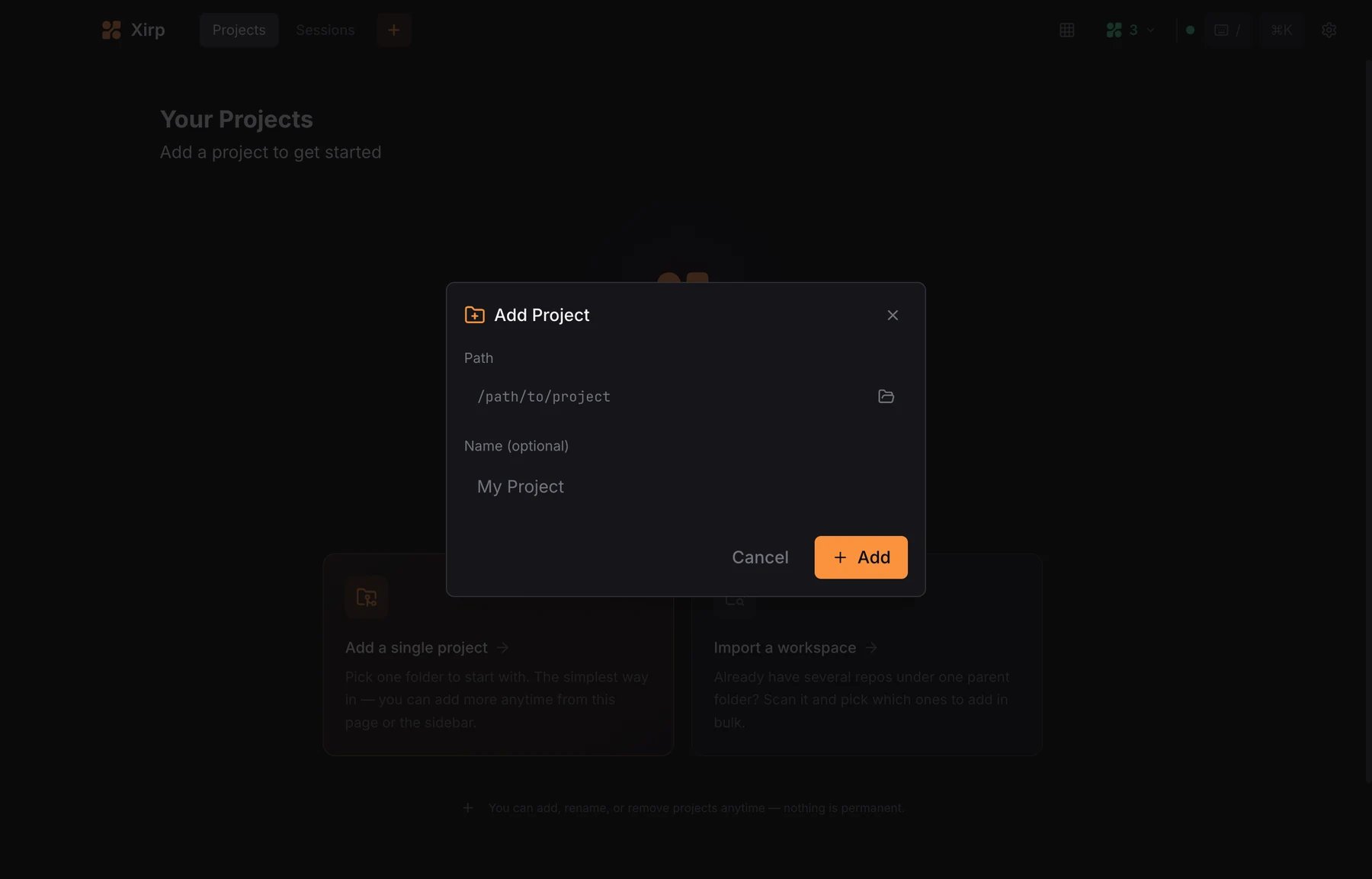
1. Select **Projects** in the top navigation.
2. Select **Add Project**.
3. Enter an absolute folder path.
4. Optionally enter a display name.
5. Select **Add**.
 You can add:
* A single Git repository. This enables the full Git and worktree experience.
* A non-Git folder. Sessions, files, skills, and rules remain available.
* A parent folder containing several repositories. Agents can work across the children, but repository-level Git and worktree controls are limited.
Registering a project does not upload its files to Portal. The coding agent
and Xirp operate on the local folder.
## Project overview
The overview shows active and recent sessions, worktrees, and a prompt box for starting work.
You can add:
* A single Git repository. This enables the full Git and worktree experience.
* A non-Git folder. Sessions, files, skills, and rules remain available.
* A parent folder containing several repositories. Agents can work across the children, but repository-level Git and worktree controls are limited.
Registering a project does not upload its files to Portal. The coding agent
and Xirp operate on the local folder.
## Project overview
The overview shows active and recent sessions, worktrees, and a prompt box for starting work.
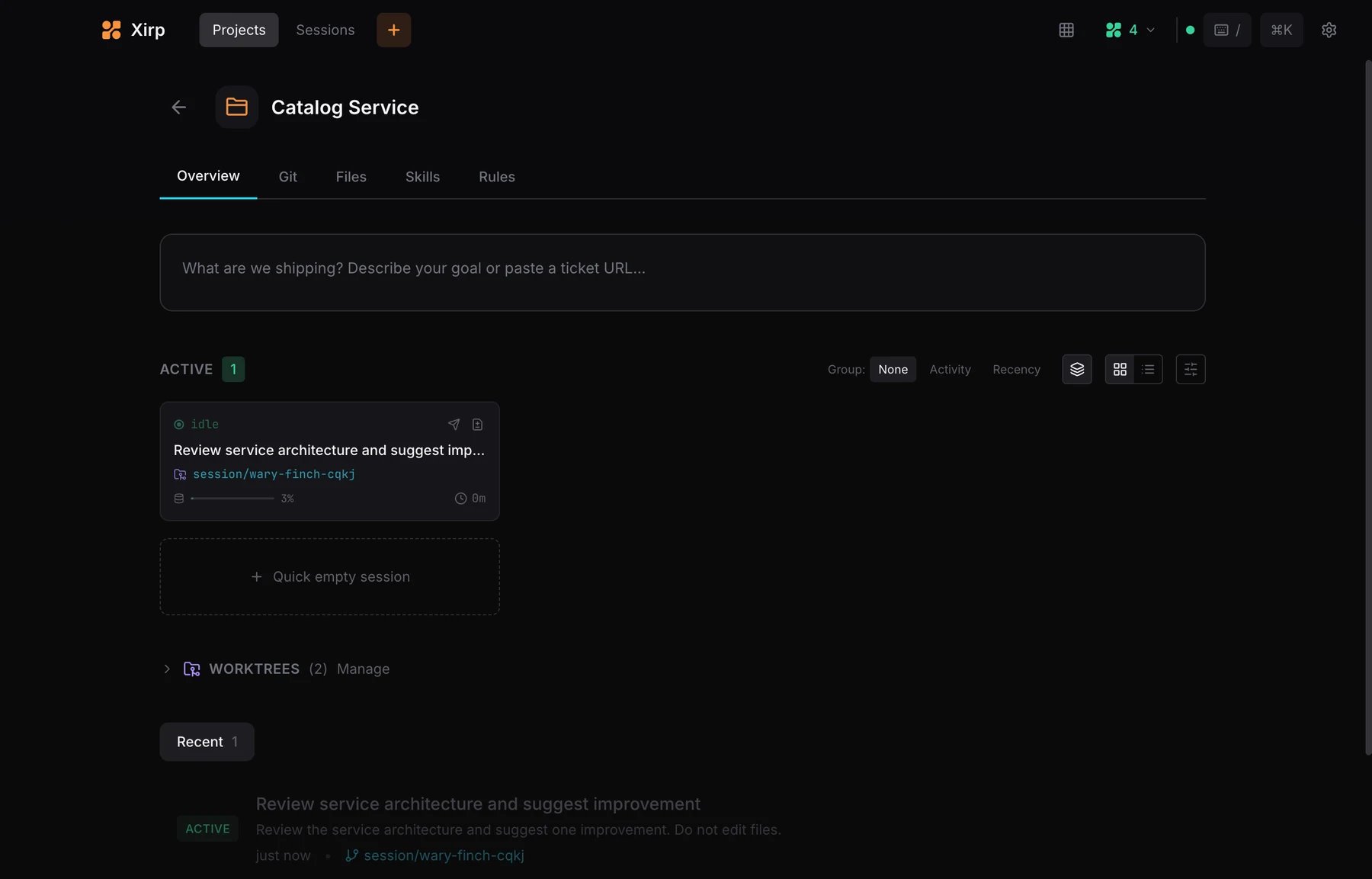 Use the session view controls to switch between cards, a compact list, and other available layouts. Xirp keeps session and worktree information together so you can see which branch each agent is using.
## Git
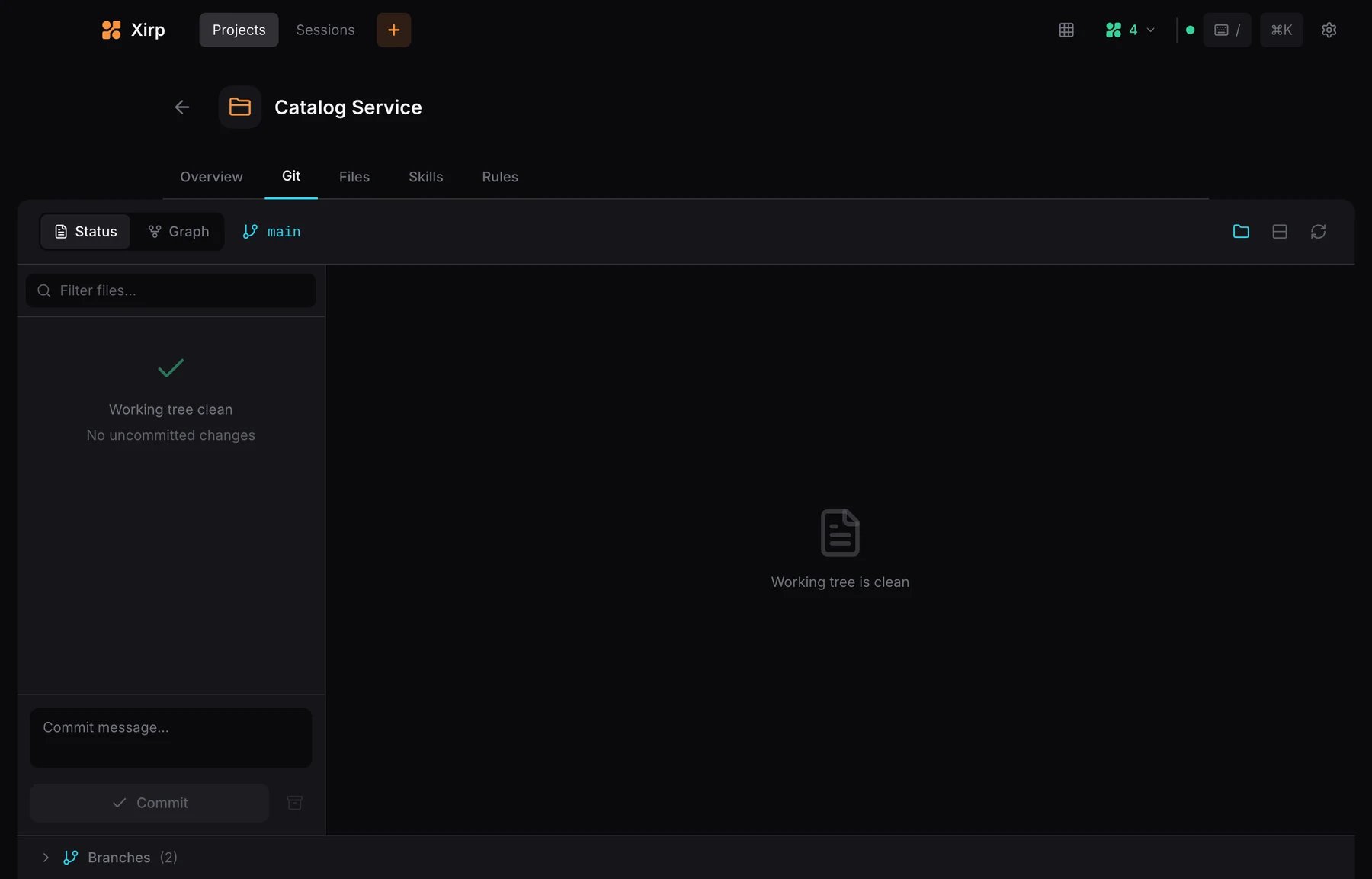
The **Git** tab shows working-tree changes, branches, commit history, and commit controls. Select a changed file to inspect its diff before committing.
Use the session view controls to switch between cards, a compact list, and other available layouts. Xirp keeps session and worktree information together so you can see which branch each agent is using.
## Git
The **Git** tab shows working-tree changes, branches, commit history, and commit controls. Select a changed file to inspect its diff before committing.
 A new-worktree session creates a separate branch and checkout. This lets several agents work against the same repository without modifying the same files in the same working tree.
## Files
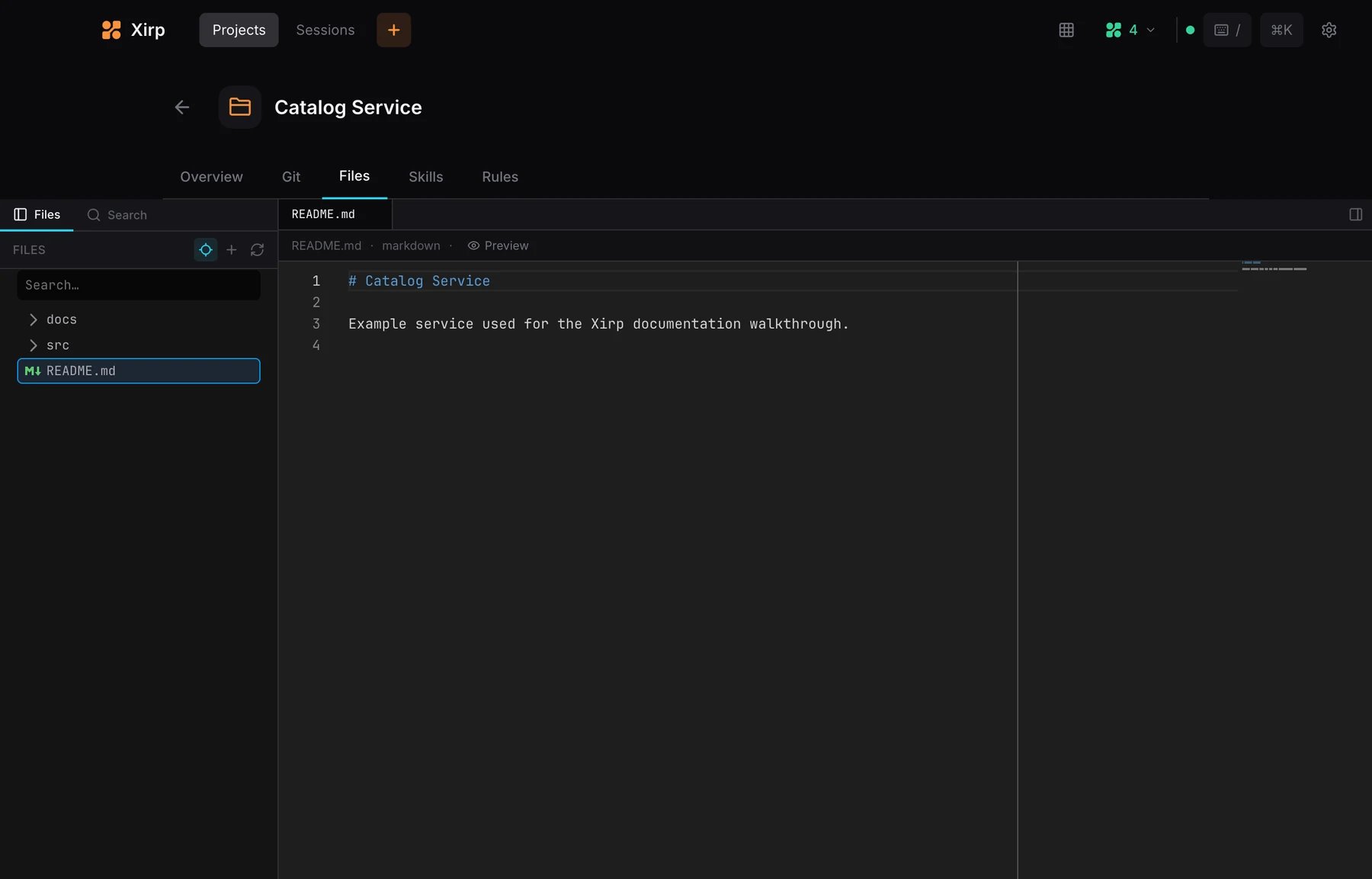
The **Files** tab provides a file tree and editor. Markdown files can be viewed as source or previewed.
A new-worktree session creates a separate branch and checkout. This lets several agents work against the same repository without modifying the same files in the same working tree.
## Files
The **Files** tab provides a file tree and editor. Markdown files can be viewed as source or previewed.
 Useful shortcuts:
* `Cmd+P`: open a file by name
* `Cmd+Shift+F`: search across project files
* `Cmd+E`: toggle the file editor from a session
## Skills
The **Skills** tab lists reusable agent instructions discovered from supported global and project skill folders. Use skills for repeatable procedures such as release checks, migrations, or repository-specific operations.
Useful shortcuts:
* `Cmd+P`: open a file by name
* `Cmd+Shift+F`: search across project files
* `Cmd+E`: toggle the file editor from a session
## Skills
The **Skills** tab lists reusable agent instructions discovered from supported global and project skill folders. Use skills for repeatable procedures such as release checks, migrations, or repository-specific operations.
 ## Rules
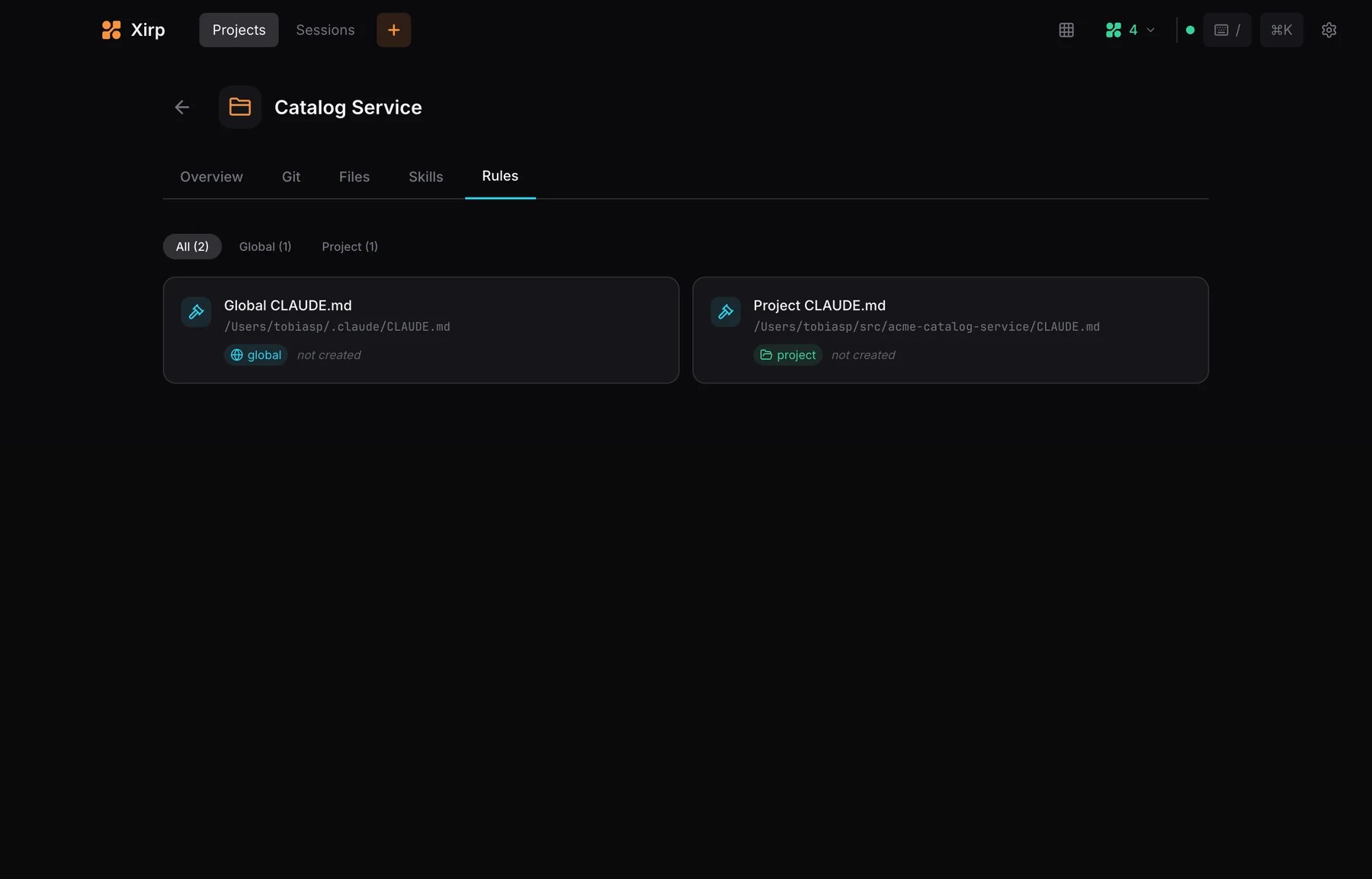
The **Rules** tab lists project and global instruction files such as `CLAUDE.md`, `AGENTS.md`, and supported agent configuration files. Rules help an agent follow repository conventions.
## Rules
The **Rules** tab lists project and global instruction files such as `CLAUDE.md`, `AGENTS.md`, and supported agent configuration files. Rules help an agent follow repository conventions.
 ## Manage projects
From the Projects page you can:
* Pin frequently used projects
* Rename a project's display name
* Remove a project from Xirp
* Import more repositories from a parent folder
Removing a project from Xirp does not delete the local folder. Review any separate worktree cleanup prompt before confirming it.
## Manage projects
From the Projects page you can:
* Pin frequently used projects
* Rename a project's display name
* Remove a project from Xirp
* Import more repositories from a parent folder
Removing a project from Xirp does not delete the local folder. Review any separate worktree cleanup prompt before confirming it.