> ## Documentation Index
> Fetch the complete documentation index at: https://backstage.spotify.com/docs/llms.txt
> Use this file to discover all available pages before exploring further.
# Connect Xirp to Portal
> Connect Portal to add catalog, Workspace context, and session sharing features to Xirp.
Xirp works without Portal. Connecting a Portal trial or subscription adds Software Catalog and Workspace features to your Xirp experience.
There are two ways to start the same connection. Use the Portal flow when you are installing Xirp from Portal. Use the Xirp flow when the app is already installed or you opened it directly. You only need to complete one of them.
## Connect from Portal
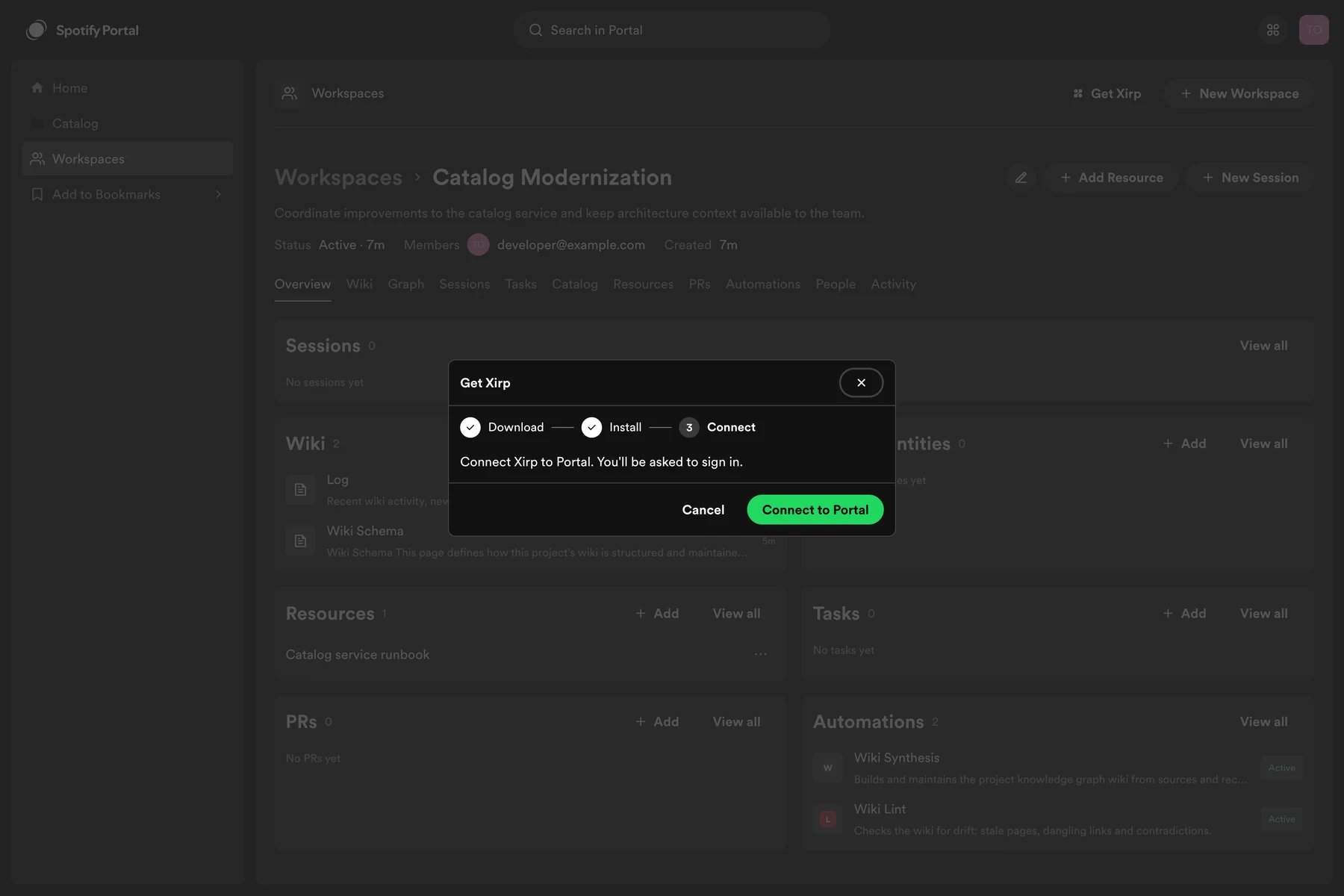
1. In Portal, open **Workspaces** and select **Get Xirp**.
2. Download Xirp.
 3. Complete the installation steps.
 4. Advance to **Connect** and select **Open Xirp**.
5. Allow your browser to open the desktop app if prompted.
6. Complete the authorization request and return to Xirp.
Portal supplies its instance address to Xirp when it opens the app, so you do not need to paste the URL manually.
4. Advance to **Connect** and select **Open Xirp**.
5. Allow your browser to open the desktop app if prompted.
6. Complete the authorization request and return to Xirp.
Portal supplies its instance address to Xirp when it opens the app, so you do not need to paste the URL manually.
 ## Connect from Xirp
Use this method if Xirp is already installed or you started it from **Applications** instead of Portal.
1. Start Xirp and sign in with your Spotify Technology account.
2. On the Portal connection screen, enter the full Portal URL supplied by your administrator, including `https://`.
3. Select **Sign in**.
4. Complete the authorization request in your browser.
5. Return to Xirp.
Both methods create the same Portal connection. Xirp stores the authorization locally and refreshes it automatically. Your Xirp account and Portal authorization are separate, so you may be asked to complete both sign-in flows.
## What the connection enables
When Xirp has a valid Portal connection, it can:
* Resolve a Software Catalog entity to its source repository
* Launch a coding session from a Software Catalog entity
* Launch a context-aware coding session from a Portal Workspace
* Give that session access to Workspace context through Portal's MCP endpoint
* View sessions associated with a Workspace
* Upload a session transcript to an authorized Workspace
For a Workspace-launched session, the agent can query Workspace metadata, members, catalog entities, resources, wiki pages, records, suggestions, and available prior session transcripts.
## Security and access
* Xirp uses your Portal identity. It does not receive broader workspace access than your Portal account.
* Only workspace members and Portal administrators can access a workspace.
* Session transcript access follows workspace permissions.
* Local source files are not uploaded merely because you connect Portal or add a local project.
* A transcript is uploaded only when you explicitly choose the upload action.
A session transcript can contain prompts, tool calls, file paths, code
excerpts, and agent reasoning. Review it before uploading and follow your
organization's data-handling rules.
## Disconnect or change Portal
Use the account controls in Xirp to sign out or disconnect. To connect another instance, enter its full URL and complete authorization again.
Disconnecting Portal disables Portal MCP, catalog launch, and transcript upload until you reconnect. Existing local projects and sessions remain on your Mac.
## Troubleshooting
### The browser does not open
Copy the Portal URL from your invitation, restart Xirp, and retry. Check whether your browser or endpoint security software blocked the authorization window.
### Authorization succeeds but Xirp remains disconnected
Return to Xirp and wait a few seconds. If the state does not update, cancel the flow, restart Xirp, and sign in again.
### You cannot see a Workspace
Ask a workspace owner or Portal administrator to add you or one of your teams as a member. Connecting Xirp does not grant workspace membership.
## Connect from Xirp
Use this method if Xirp is already installed or you started it from **Applications** instead of Portal.
1. Start Xirp and sign in with your Spotify Technology account.
2. On the Portal connection screen, enter the full Portal URL supplied by your administrator, including `https://`.
3. Select **Sign in**.
4. Complete the authorization request in your browser.
5. Return to Xirp.
Both methods create the same Portal connection. Xirp stores the authorization locally and refreshes it automatically. Your Xirp account and Portal authorization are separate, so you may be asked to complete both sign-in flows.
## What the connection enables
When Xirp has a valid Portal connection, it can:
* Resolve a Software Catalog entity to its source repository
* Launch a coding session from a Software Catalog entity
* Launch a context-aware coding session from a Portal Workspace
* Give that session access to Workspace context through Portal's MCP endpoint
* View sessions associated with a Workspace
* Upload a session transcript to an authorized Workspace
For a Workspace-launched session, the agent can query Workspace metadata, members, catalog entities, resources, wiki pages, records, suggestions, and available prior session transcripts.
## Security and access
* Xirp uses your Portal identity. It does not receive broader workspace access than your Portal account.
* Only workspace members and Portal administrators can access a workspace.
* Session transcript access follows workspace permissions.
* Local source files are not uploaded merely because you connect Portal or add a local project.
* A transcript is uploaded only when you explicitly choose the upload action.
A session transcript can contain prompts, tool calls, file paths, code
excerpts, and agent reasoning. Review it before uploading and follow your
organization's data-handling rules.
## Disconnect or change Portal
Use the account controls in Xirp to sign out or disconnect. To connect another instance, enter its full URL and complete authorization again.
Disconnecting Portal disables Portal MCP, catalog launch, and transcript upload until you reconnect. Existing local projects and sessions remain on your Mac.
## Troubleshooting
### The browser does not open
Copy the Portal URL from your invitation, restart Xirp, and retry. Check whether your browser or endpoint security software blocked the authorization window.
### Authorization succeeds but Xirp remains disconnected
Return to Xirp and wait a few seconds. If the state does not update, cancel the flow, restart Xirp, and sign in again.
### You cannot see a Workspace
Ask a workspace owner or Portal administrator to add you or one of your teams as a member. Connecting Xirp does not grant workspace membership.