> ## Documentation Index
> Fetch the complete documentation index at: https://backstage.spotify.com/docs/llms.txt
> Use this file to discover all available pages before exploring further.
# Updating a Plugin
> Update individual plugins or batch-update all plugins with available newer versions from the Portal Plugin Settings page.
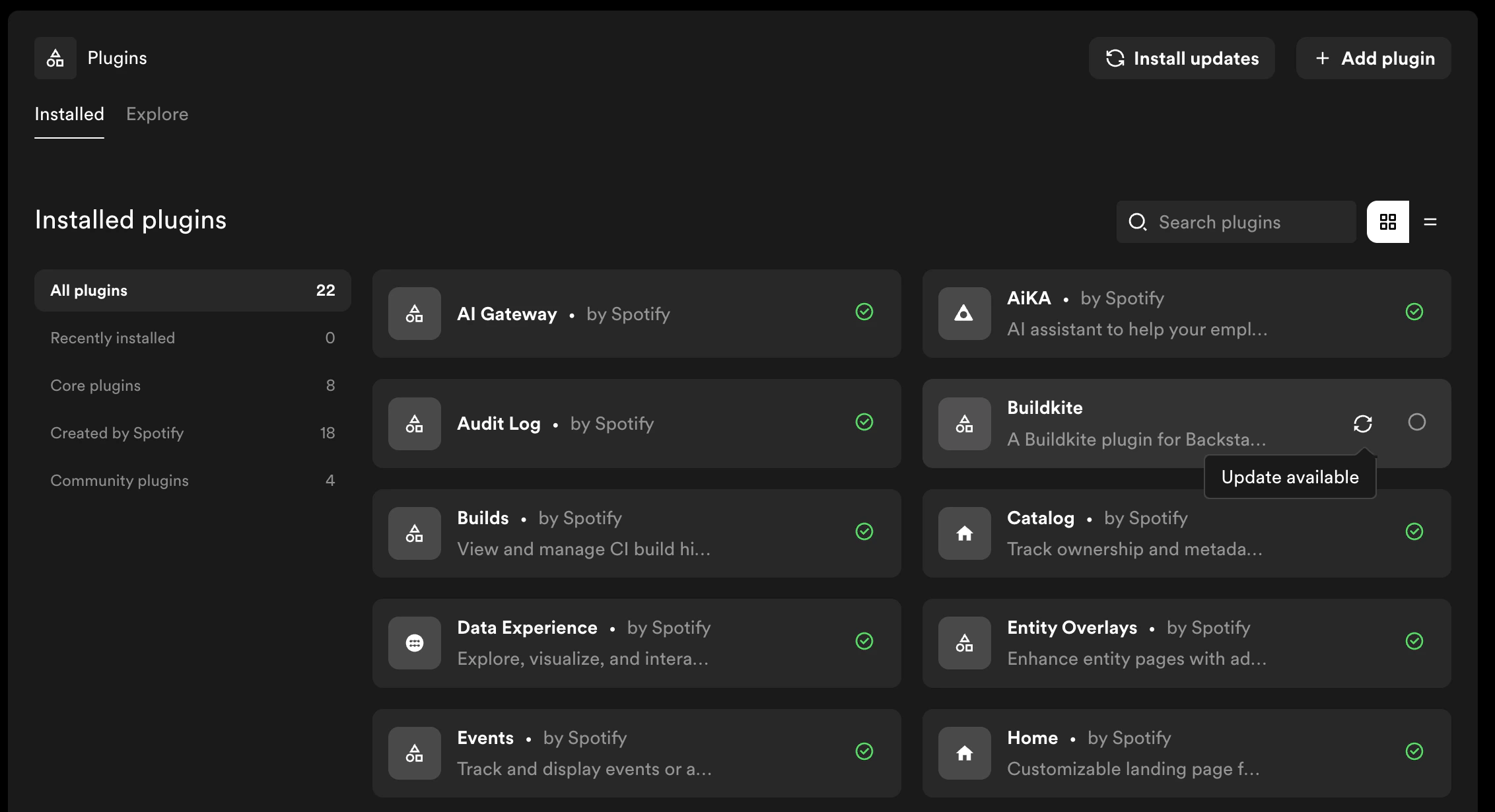
When newer versions of your installed plugins are available, Portal will display update indicators across Plugin Settings. There are two ways to update.
 ## Update All Plugins
To update all plugins with available updates at once:
1. From the Plugin Settings home page, click **Install updates** in the top right
## Update All Plugins
To update all plugins with available updates at once:
1. From the Plugin Settings home page, click **Install updates** in the top right
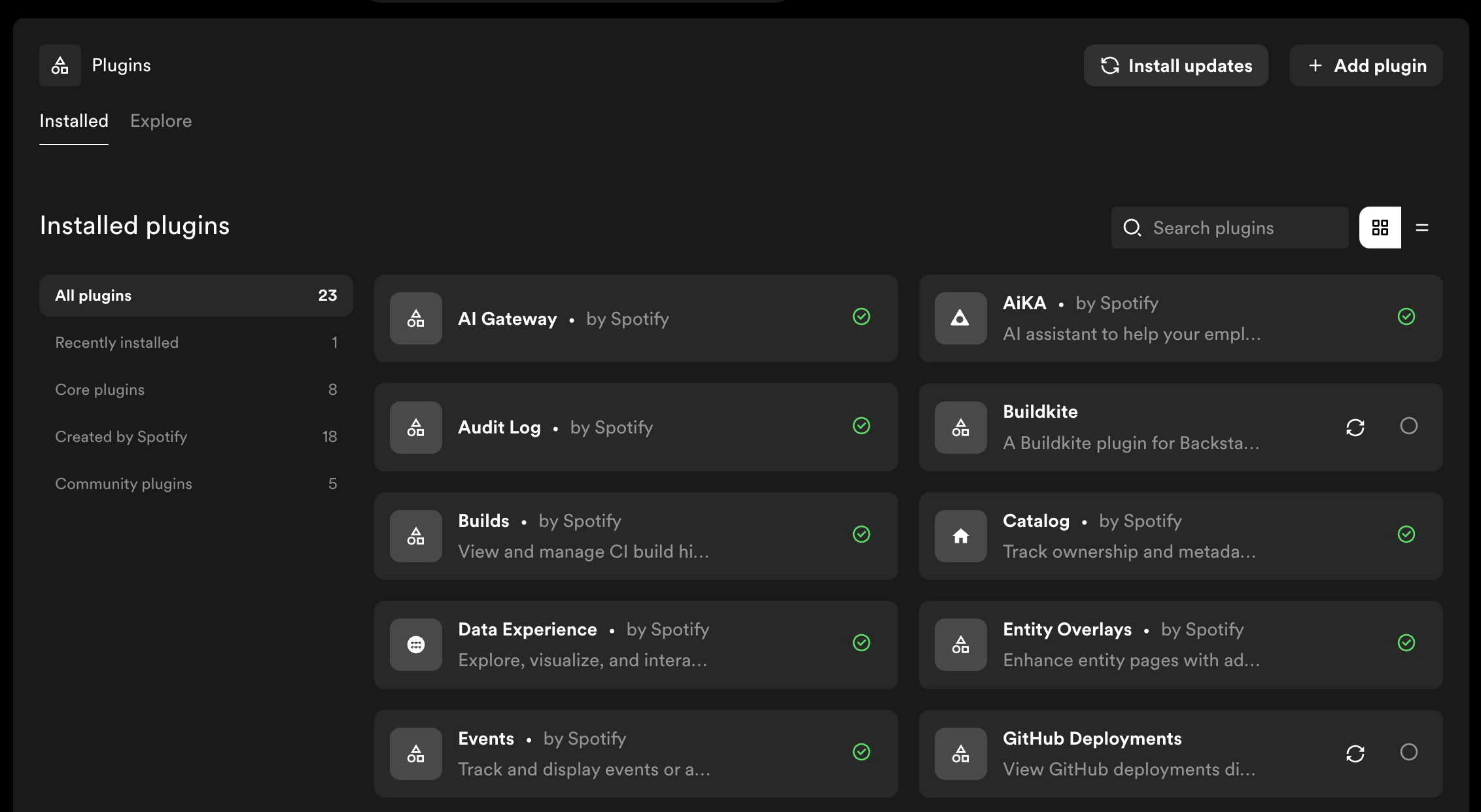 2. In the update dialog, review the packages and versions that will be updated. You can edit the target versions if needed
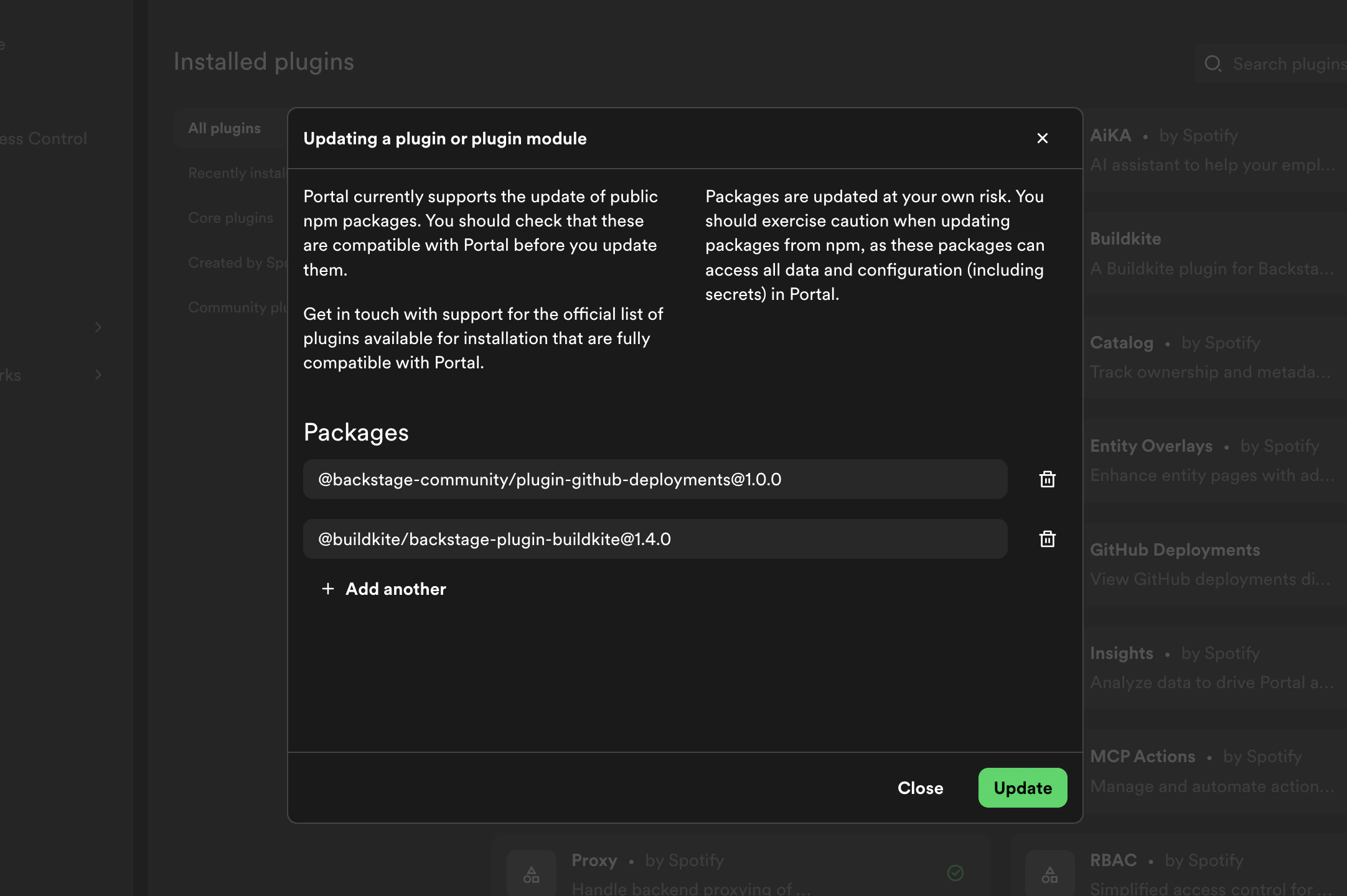 To update to a specific version rather than the latest, edit the version field
in the dialog using the `@` syntax (e.g., `@backstage/plugin-example@2.1.0`).
This is useful for pinning to a particular release or switching between
prerelease channels. See [Plugin Versioning](./plugin-versioning) for more
details on supported version formats.
3. Click **Update** to begin the update
To update to a specific version rather than the latest, edit the version field
in the dialog using the `@` syntax (e.g., `@backstage/plugin-example@2.1.0`).
This is useful for pinning to a particular release or switching between
prerelease channels. See [Plugin Versioning](./plugin-versioning) for more
details on supported version formats.
3. Click **Update** to begin the update
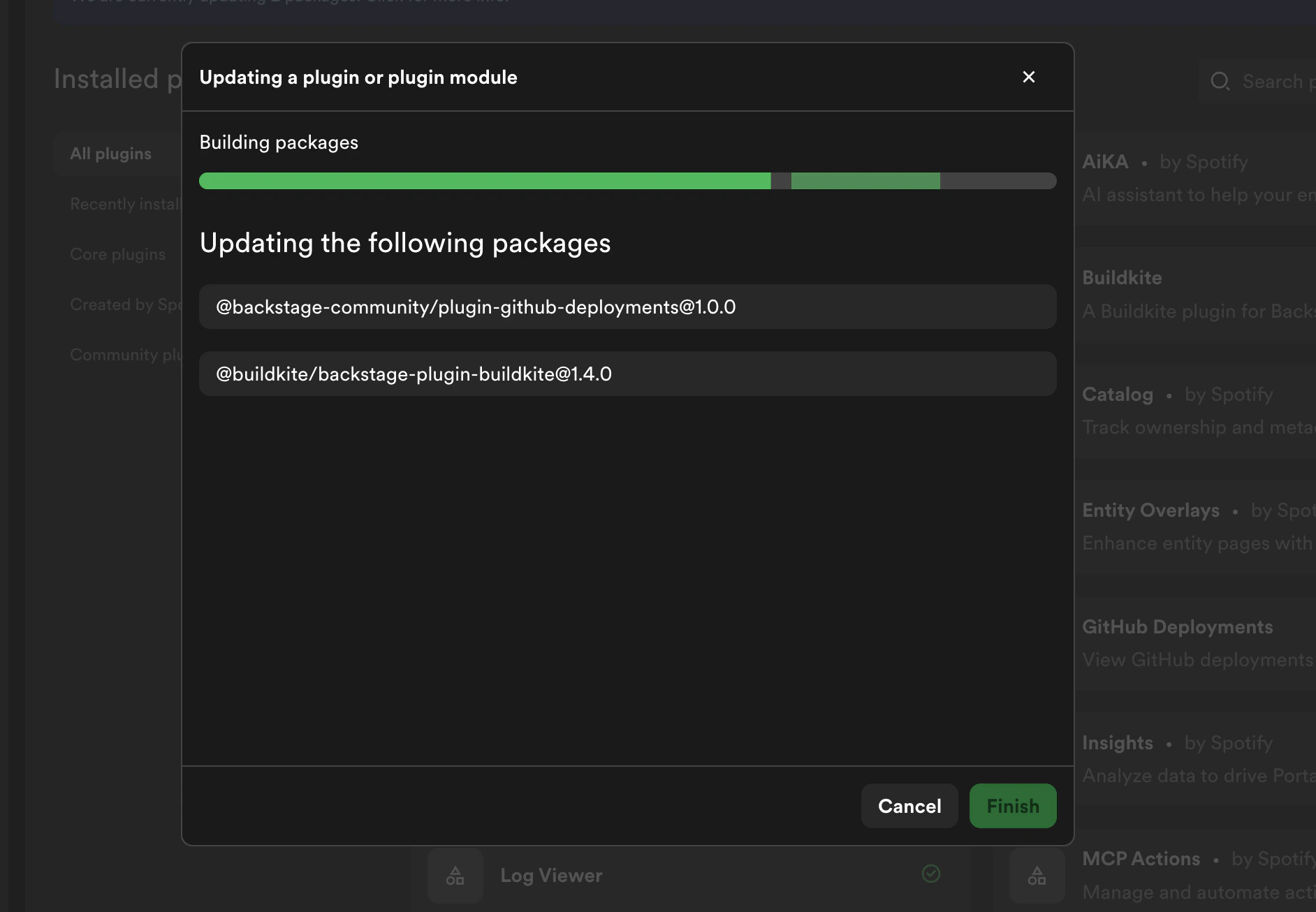 4. Portal will start a build process. You can monitor progress in the build dialog — see [Build Progress](./build-progress) for details
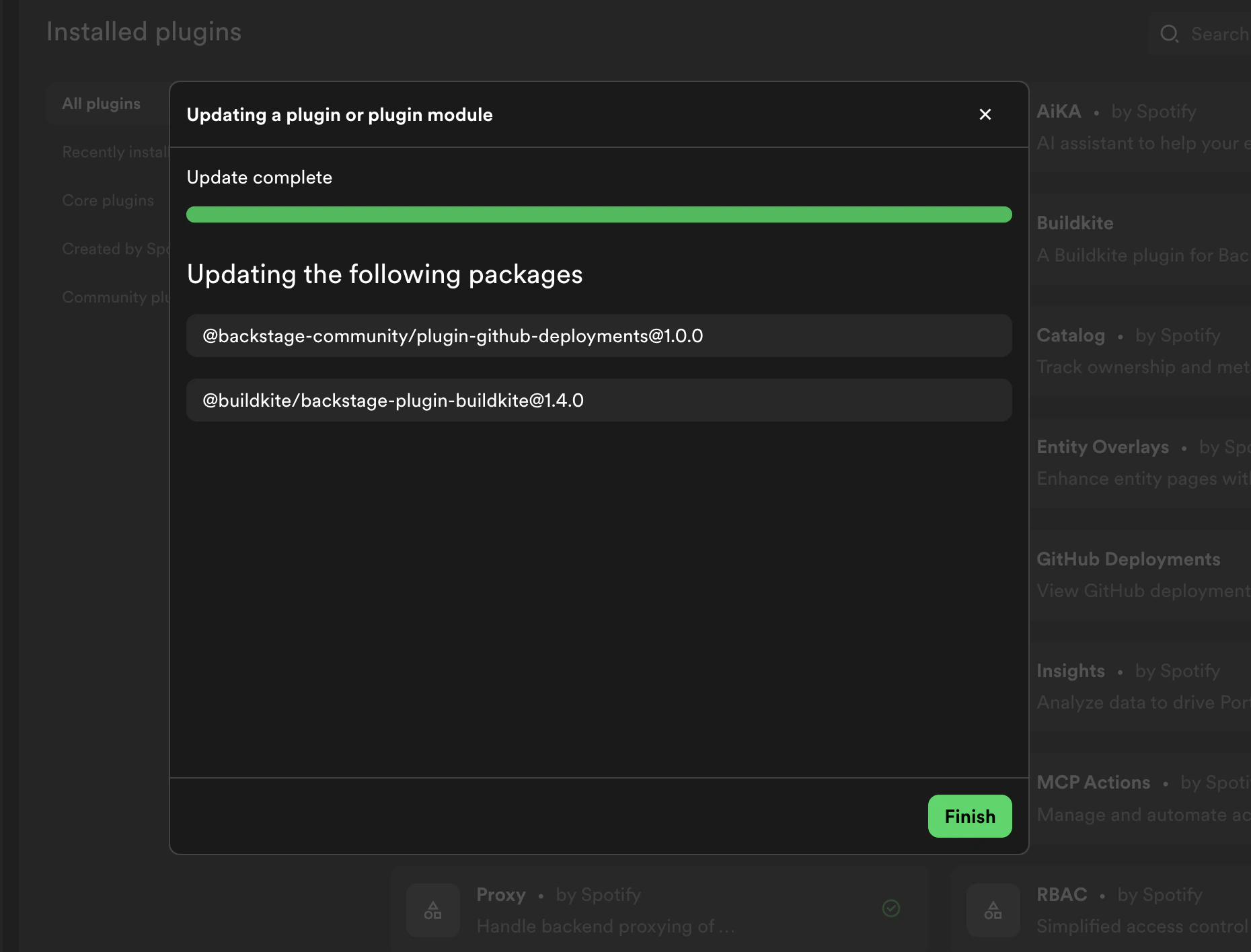
5. Once the build completes successfully, click **Finish** to return to Plugin Settings
4. Portal will start a build process. You can monitor progress in the build dialog — see [Build Progress](./build-progress) for details
5. Once the build completes successfully, click **Finish** to return to Plugin Settings
 ## Update an Individual Plugin
To update a single plugin:
1. From Plugin Settings, click on the plugin you want to update to open its detail page
## Update an Individual Plugin
To update a single plugin:
1. From Plugin Settings, click on the plugin you want to update to open its detail page
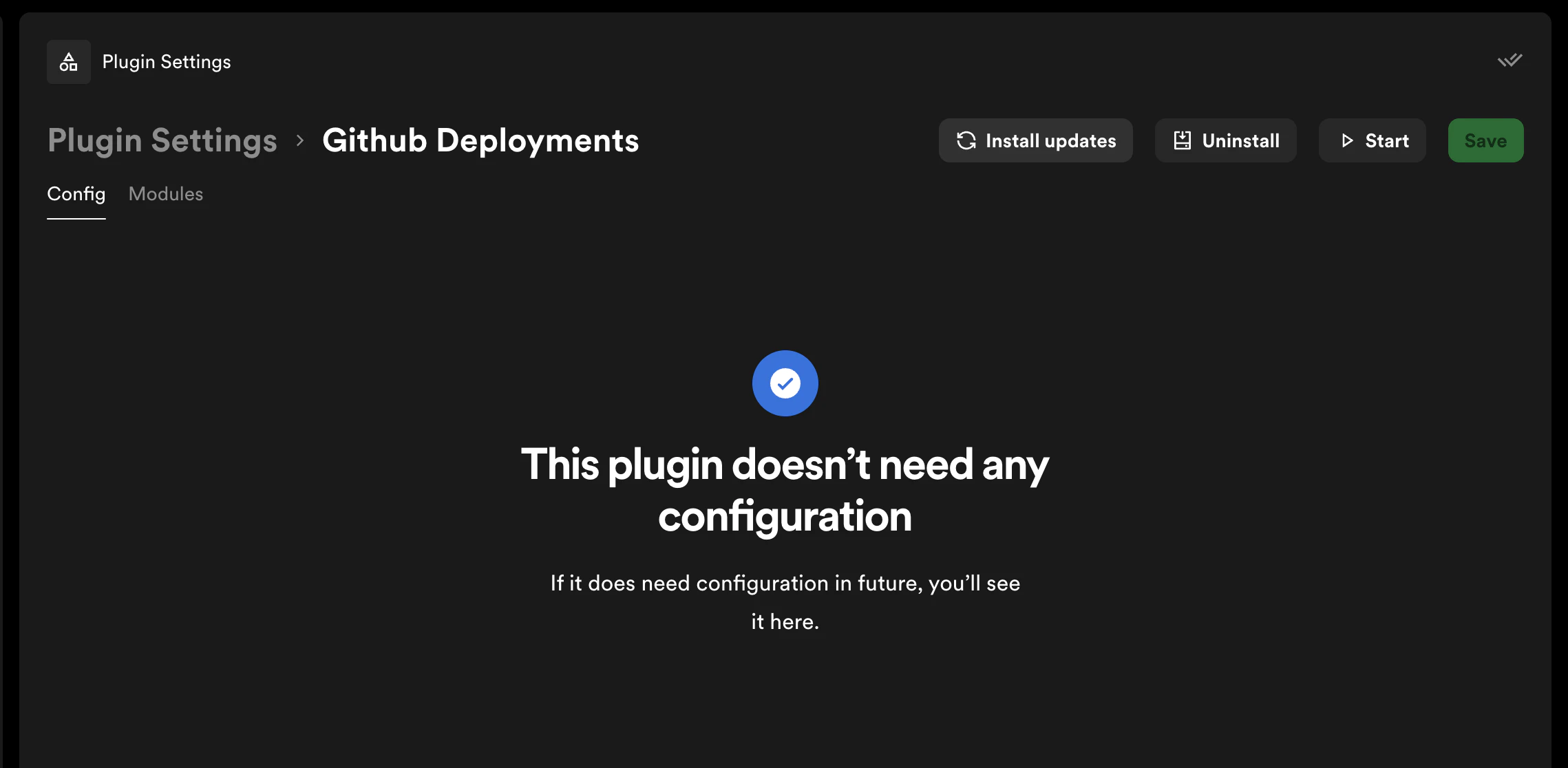 2. Click **Install updates** in the top right
3. In the update dialog, review the packages and versions that will be updated. You can edit the target version if needed
2. Click **Install updates** in the top right
3. In the update dialog, review the packages and versions that will be updated. You can edit the target version if needed
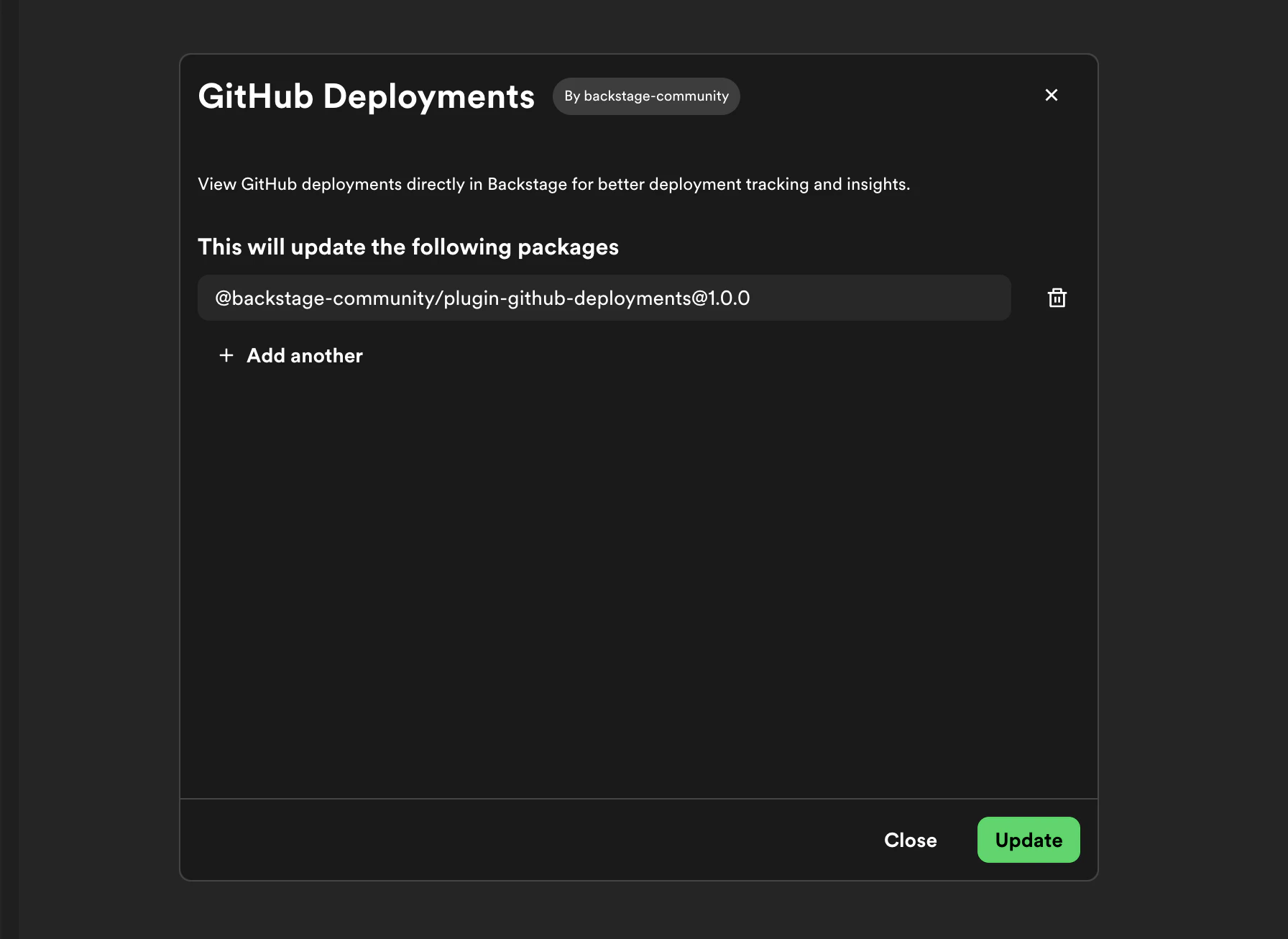 4. Click **Update** to begin the update
5. Portal will start a build process. You can monitor progress in the build dialog — see [Build Progress](./build-progress) for details
6. Once the build completes successfully, click **Finish** to return to Plugin Settings
You can also update individual modules within a plugin. Navigate to the
module's page and click **Update** to update just that module independently of
the rest of the plugin.
For details on how Portal handles versioning and update detection, see [Plugin Versioning](./plugin-versioning).
4. Click **Update** to begin the update
5. Portal will start a build process. You can monitor progress in the build dialog — see [Build Progress](./build-progress) for details
6. Once the build completes successfully, click **Finish** to return to Plugin Settings
You can also update individual modules within a plugin. Navigate to the
module's page and click **Update** to update just that module independently of
the rest of the plugin.
For details on how Portal handles versioning and update detection, see [Plugin Versioning](./plugin-versioning).