> ## Documentation Index
> Fetch the complete documentation index at: https://backstage.spotify.com/docs/llms.txt
> Use this file to discover all available pages before exploring further.
# Build Progress
> Track plugin build stages from queuing through completion, handle build failures, and monitor in-progress builds in Portal.
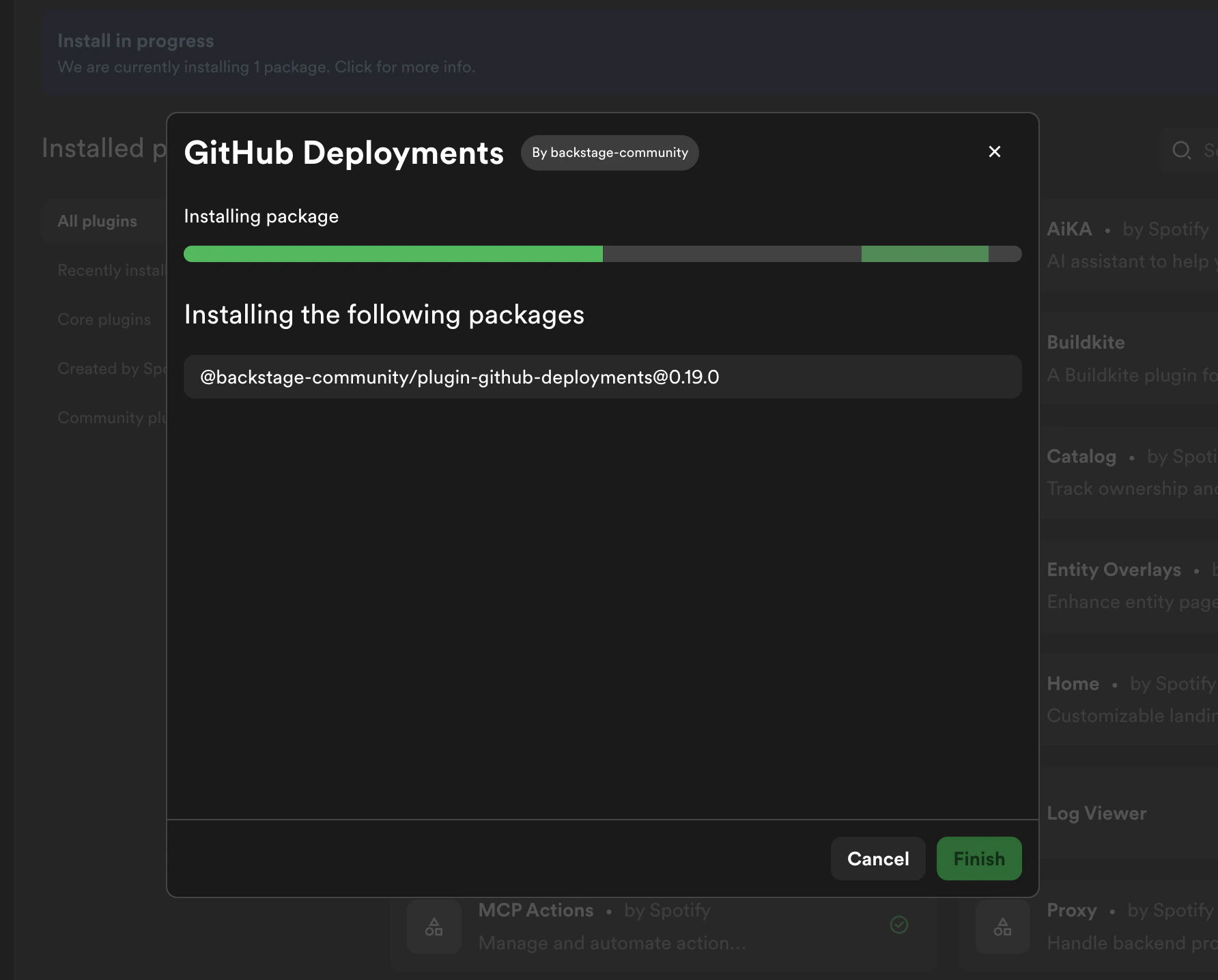
All plugin operations — install, update, and uninstall — trigger a build process. After starting an operation, Portal displays a build progress dialog that walks through the following stages:
Only one build can be in progress at a time. If you attempt to start a new
operation while a build is already running, Portal will show the existing
in-progress build instead.
| Stage | Description |
| --------------- | ----------------------------------------- |
| **Waiting** | Build is queued and waiting to start |
| **Analyzing** | Analyzing package dependencies |
| **Downloading** | Downloading packages |
| **Installing** | Installing packages |
| **Building** | Building Portal with the updated packages |
| **Saving** | Saving build artifacts |
| **Complete** | Build finished successfully |
 ## Viewing an In-Progress Build
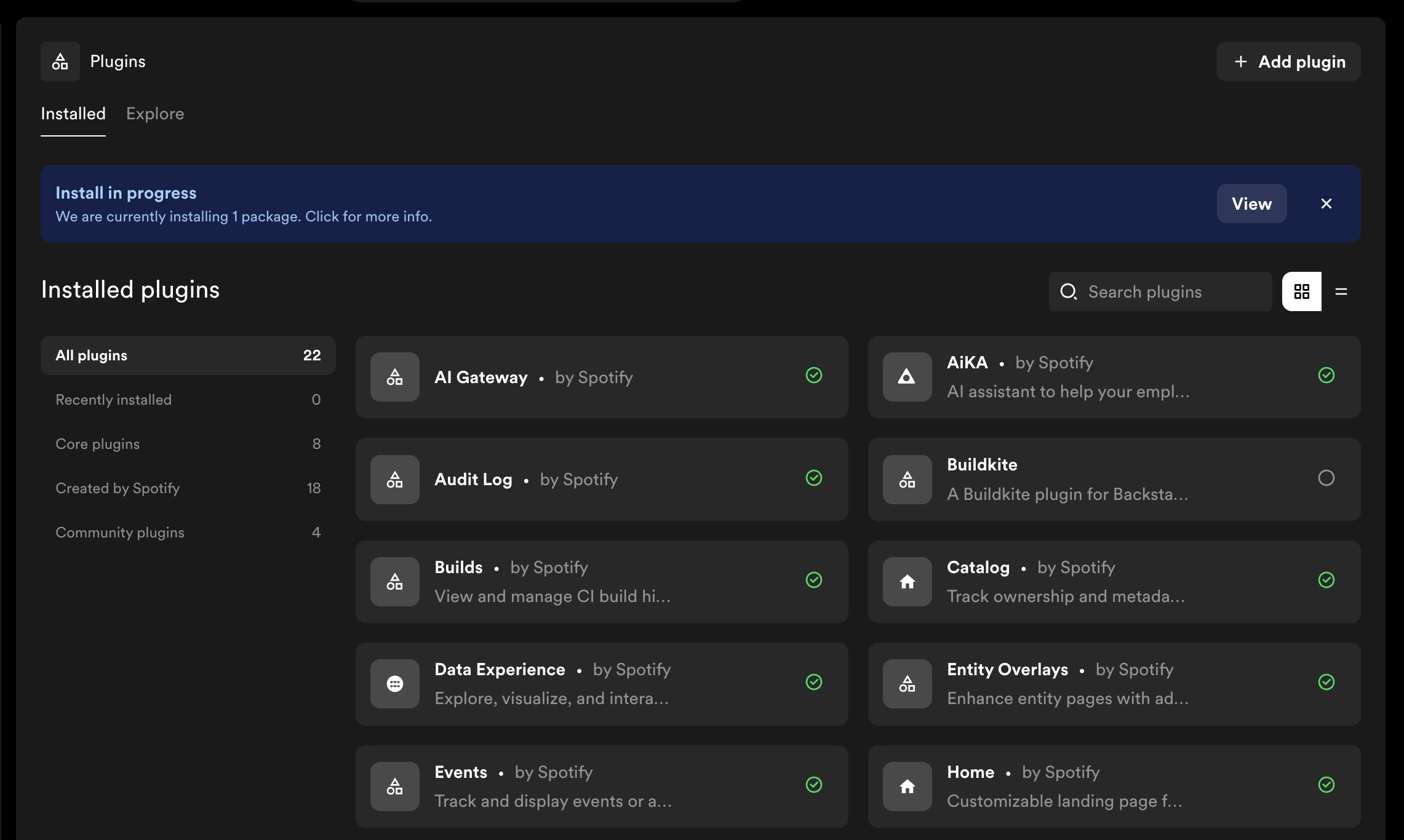
If you navigate away from the build dialog, you can return to it at any time. The Plugin Settings page displays a banner when a build is in progress — click **View** to reopen the build progress dialog.
## Viewing an In-Progress Build
If you navigate away from the build dialog, you can return to it at any time. The Plugin Settings page displays a banner when a build is in progress — click **View** to reopen the build progress dialog.
 ## If a Build Fails
If the build encounters an error, the dialog will display the failure reason along with any per-package error details.
## If a Build Fails
If the build encounters an error, the dialog will display the failure reason along with any per-package error details.
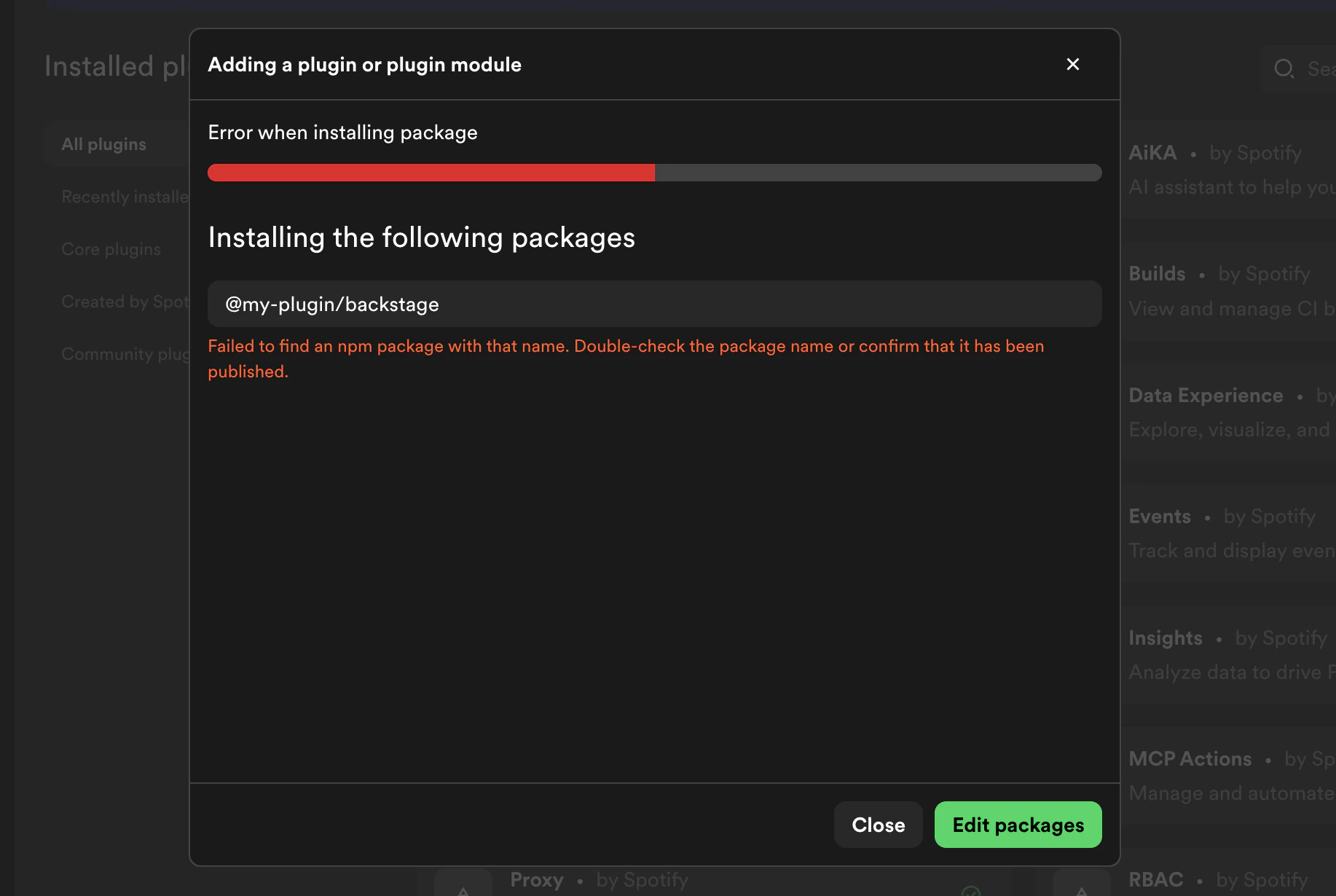 From the error screen, you can:
* **Edit packages** — adjust package names or versions and retry the operation
* **Cancel** — discard the operation and return to Plugin Settings
## Cancelling a Build
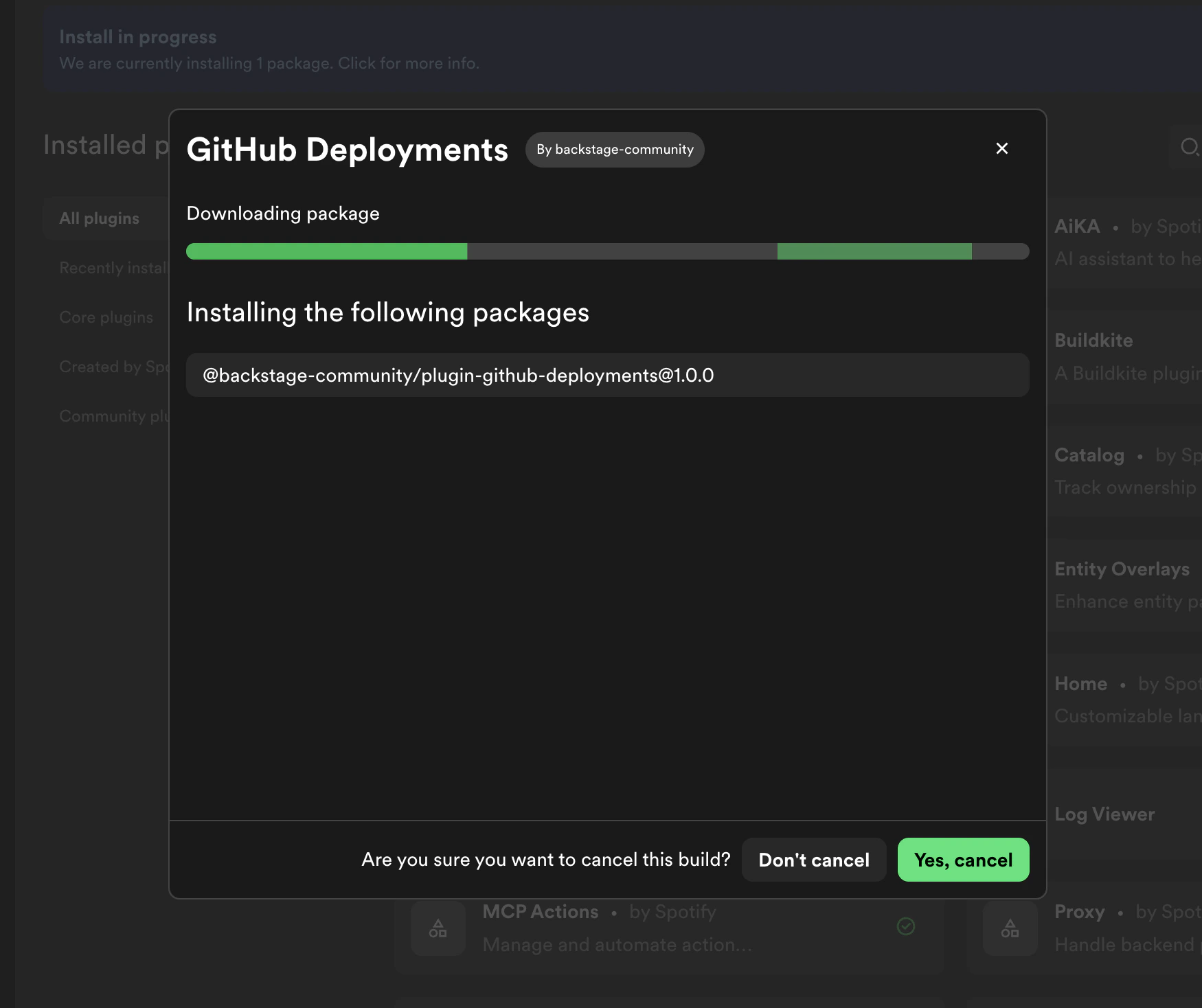
You can cancel a build while it is in progress by clicking **Cancel** in the build dialog. You will be asked to confirm before the build is stopped.
From the error screen, you can:
* **Edit packages** — adjust package names or versions and retry the operation
* **Cancel** — discard the operation and return to Plugin Settings
## Cancelling a Build
You can cancel a build while it is in progress by clicking **Cancel** in the build dialog. You will be asked to confirm before the build is stopped.