> ## Documentation Index
> Fetch the complete documentation index at: https://backstage.spotify.com/docs/llms.txt
> Use this file to discover all available pages before exploring further.
# Setup the GitLab integration in App Settings
> Add GitLab credentials to Portal App Settings.
## Overview
This step will guide you through the process of adding the needed configuration and credentials to App Settings so Portal can connect to GitLab.
### Step Checklist
This is the first (1) step in this guide, once completed you can move onto the next step.
1. ***Setup the GitLab integration in App Settings***
2. [Setup GitLab Discovery](./gitlab-discovery)
## Walkthrough
The GitLab integration is managed in Portal under App Settings > Integrations. Open the GitLab card there to configure the host and credentials Portal should use.
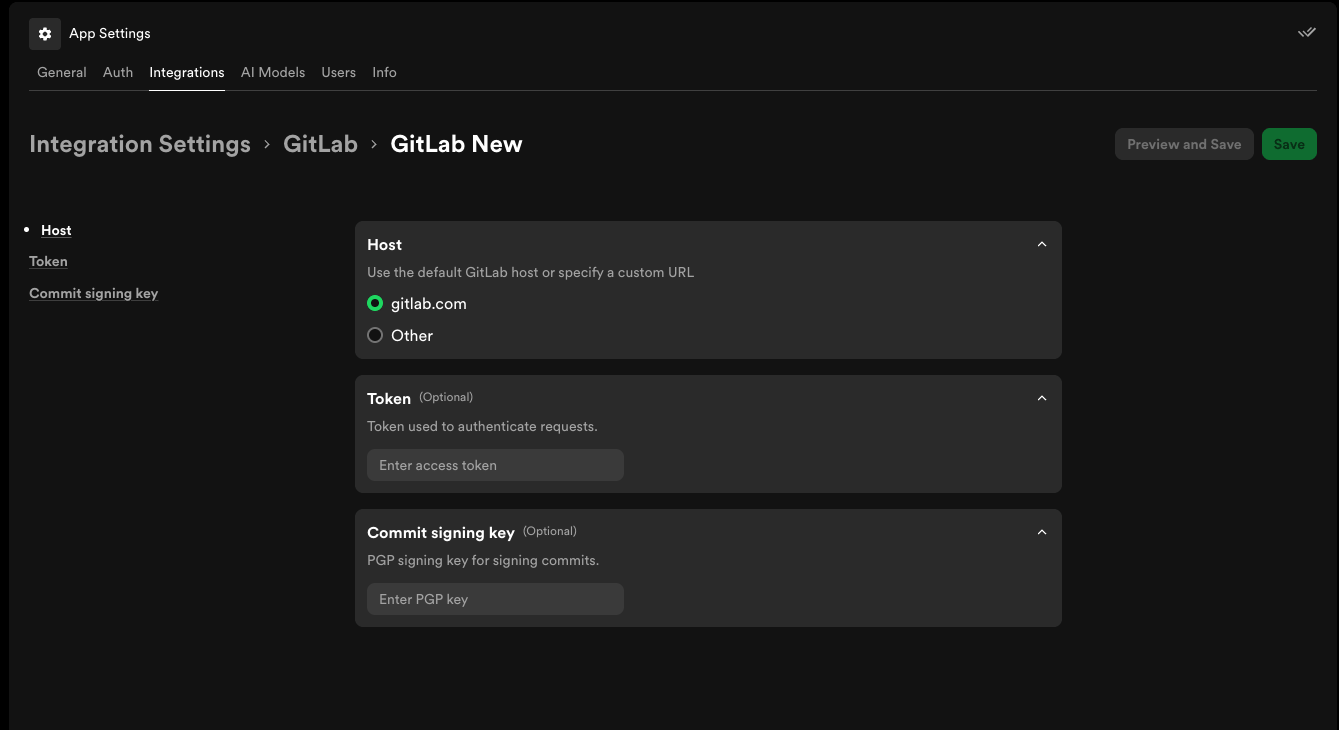 After saving the configuration, wait for Portal to apply the new settings and reload when prompted.
From here you can now move on to Step 2 where you'll [setup GitLab Discovery](./gitlab-discovery).
If you are using a self-managed GitLab instance behind a firewall, make sure
Portal Connect allows access to the GitLab API before saving this integration.
After saving the configuration, wait for Portal to apply the new settings and reload when prompted.
From here you can now move on to Step 2 where you'll [setup GitLab Discovery](./gitlab-discovery).
If you are using a self-managed GitLab instance behind a firewall, make sure
Portal Connect allows access to the GitLab API before saving this integration.