> ## Documentation Index
> Fetch the complete documentation index at: https://backstage.spotify.com/docs/llms.txt
> Use this file to discover all available pages before exploring further.
# AWS Credentials
> Configure how Portal authenticates with your AWS accounts using static credentials or Workload Identity Federation.
Portal can connect to AWS services such as Redshift, S3, EKS, and AWS Config on your behalf. There are two ways to provide credentials:
| Method | How it works | Best for |
| -------------------------------- | -------------------------------------------------------------------------------------------------------------- | --------------------------- |
| **Static credentials** | Access key ID and secret access key stored in Portal | Quick setup, single account |
| **Workload Identity Federation** | Portal's GCP service account exchanges an OIDC token for temporary AWS credentials without any long-lived keys | Production workloads |
## Static credentials
1. In your AWS account, create an IAM User with the permissions required by the Portal plugins you are using.
2. Generate a new access key for the IAM User.
3. In Portal, navigate to **Settings → Integrations → AWS**.
4. Add a new item under **Account overrides**.
* Enter your AWS **Account ID** and select **Custom**.
* Enter the IAM User's **Access Key ID** and **Secret Access Key**.
5. Click **Save**.
Plugins that use AWS credentials such as [Data Experience](/docs/portal/core-features-and-plugins/data-experience/overview), [Redshift](/docs/portal/core-features-and-plugins/data-experience/integration-redshift), [AWS Bedrock](/docs/portal/core-features-and-plugins/ai-gateway/integrations/aws-bedrock), and [FleetShift](/docs/portal/core-features-and-plugins/fleetshift/enable-ai-shifts) will pick these up automatically.
Static credentials take priority over Workload Identity Federation. If you
have both configured for the same account, Portal will use the static
credentials.
## Workload Identity Federation
Portal's GCP service account mints an OIDC token and AWS's `AssumeRoleWithWebIdentity` exchanges it for temporary credentials. The token refreshes every 45 minutes.
### AWS-side setup
Portal includes a built-in scaffolder template that can generate the IAM role in your preferred IAC format. This is the recommended approach as it resolves your Portal instance's GCP service account automatically.
#### Using the scaffolder template (recommended)
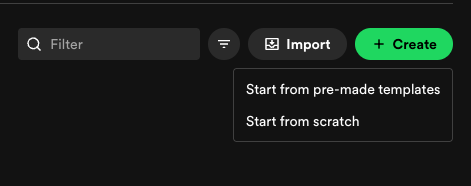
1. In Portal, navigate to **Create** and click the **Create** button. From the dropdown list select **Start from pre-made templates**.
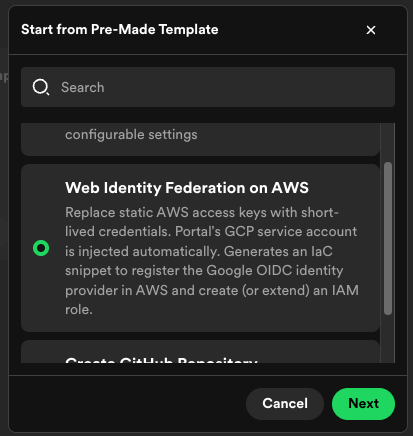
 2. In the dialog select **Web Identity Federation on AWS** and hit **Publish** to accept all defaults
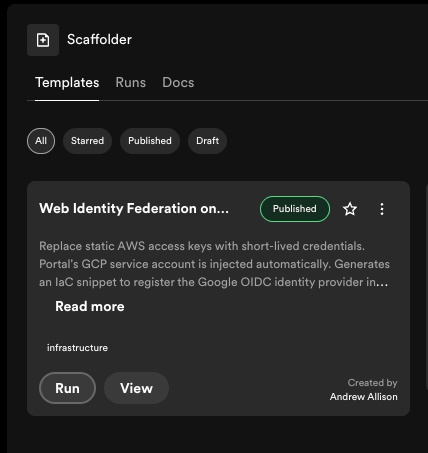
 3. Once the template has been published, click **Run** for the template
 4. Choose your IaC format: **CloudFormation**, **Terraform**, or **CDK**.
5. Choose whether to create a new IAM role or attach permissions to an existing one.
6. Select the AWS permissions your Portal plugins need (S3, Redshift, AWS Config).
7. The template outputs an IaC snippet with your instance's GCP service account ID pre-filled. Deploy it in your AWS account.
#### Manual setup
If you prefer to create the IAM role manually:
In your AWS account, create a new IAM role and attach a trust policy that allows Google's built-in OIDC provider to assume the role. You do not need to create a custom OIDC provider because `accounts.google.com` is built in to AWS.
Use the following trust policy template, replacing `` with the numeric ID provided by your Portal instance:
```json theme={"theme":{"light":"github-light","dark":"dracula"}}
{
"Version": "2012-10-17",
"Statement": [
{
"Effect": "Allow",
"Principal": {
"Federated": "accounts.google.com"
},
"Action": "sts:AssumeRoleWithWebIdentity",
"Condition": {
"StringEquals": {
"accounts.google.com:aud": "sts.amazonaws.com",
"accounts.google.com:sub": ""
}
}
}
]
}
```
Attach the permissions your plugins need. For example:
* **S3** — `s3:GetObject`, `s3:ListBucket` (TechDocs, URL reader)
* **Redshift** — `redshift:GetClusterCredentials`, `redshift:DescribeClusters`, `redshift-data:*` (Data Experience)
* **AWS Config** — `config:SelectResourceConfig`, `config:SelectAggregateResourceConfig` (Catalog ingestion)
### Portal-side setup
Go to **Settings → Integrations → AWS**.
Under **Account defaults**, enter the **Role name** of the IAM role you
created. This must match the role name in AWS exactly.
Under **Account overrides**, add your AWS account IDs. Leave the credentials
as **default**; do not enter static access keys.
### Supported plugins
The following plugins support Workload Identity Federation:
| Plugin | Use case |
| --------------------------------------------------------------------------------------------------- | ------------------------------------ |
| [Data Experience: Redshift](/docs/portal/core-features-and-plugins/data-experience/integration-redshift) | Dataset ingestion from Redshift |
| [TechDocs](/docs/portal/core-features-and-plugins/techdocs) | Reading documentation from S3 |
| [FleetShift](/docs/portal/core-features-and-plugins/fleetshift/enable-ai-shifts) | Running shifts against AWS resources |
| [AI Gateway: AWS Bedrock](/docs/portal/core-features-and-plugins/ai-gateway/integrations/aws-bedrock) | LLM provider access |
### Troubleshooting
* **Trust policy `sub` doesn't match:** The `accounts.google.com:sub` value in your trust policy must match the Portal instance's GCP service account numeric ID exactly. Contact support if you are unsure of this value.
* **Role name mismatch:** The role name in Portal must match the IAM role name in AWS exactly (case-sensitive).
* **Insufficient permissions:** The IAM role must have the policies required by the plugins you are using. Check CloudTrail for `AccessDenied` events to identify missing permissions.
* **Static credentials configured:** If static credentials are set for the same account, they take priority over WIF. Remove the access key and secret key from the account override to use WIF instead.
4. Choose your IaC format: **CloudFormation**, **Terraform**, or **CDK**.
5. Choose whether to create a new IAM role or attach permissions to an existing one.
6. Select the AWS permissions your Portal plugins need (S3, Redshift, AWS Config).
7. The template outputs an IaC snippet with your instance's GCP service account ID pre-filled. Deploy it in your AWS account.
#### Manual setup
If you prefer to create the IAM role manually:
In your AWS account, create a new IAM role and attach a trust policy that allows Google's built-in OIDC provider to assume the role. You do not need to create a custom OIDC provider because `accounts.google.com` is built in to AWS.
Use the following trust policy template, replacing `` with the numeric ID provided by your Portal instance:
```json theme={"theme":{"light":"github-light","dark":"dracula"}}
{
"Version": "2012-10-17",
"Statement": [
{
"Effect": "Allow",
"Principal": {
"Federated": "accounts.google.com"
},
"Action": "sts:AssumeRoleWithWebIdentity",
"Condition": {
"StringEquals": {
"accounts.google.com:aud": "sts.amazonaws.com",
"accounts.google.com:sub": ""
}
}
}
]
}
```
Attach the permissions your plugins need. For example:
* **S3** — `s3:GetObject`, `s3:ListBucket` (TechDocs, URL reader)
* **Redshift** — `redshift:GetClusterCredentials`, `redshift:DescribeClusters`, `redshift-data:*` (Data Experience)
* **AWS Config** — `config:SelectResourceConfig`, `config:SelectAggregateResourceConfig` (Catalog ingestion)
### Portal-side setup
Go to **Settings → Integrations → AWS**.
Under **Account defaults**, enter the **Role name** of the IAM role you
created. This must match the role name in AWS exactly.
Under **Account overrides**, add your AWS account IDs. Leave the credentials
as **default**; do not enter static access keys.
### Supported plugins
The following plugins support Workload Identity Federation:
| Plugin | Use case |
| --------------------------------------------------------------------------------------------------- | ------------------------------------ |
| [Data Experience: Redshift](/docs/portal/core-features-and-plugins/data-experience/integration-redshift) | Dataset ingestion from Redshift |
| [TechDocs](/docs/portal/core-features-and-plugins/techdocs) | Reading documentation from S3 |
| [FleetShift](/docs/portal/core-features-and-plugins/fleetshift/enable-ai-shifts) | Running shifts against AWS resources |
| [AI Gateway: AWS Bedrock](/docs/portal/core-features-and-plugins/ai-gateway/integrations/aws-bedrock) | LLM provider access |
### Troubleshooting
* **Trust policy `sub` doesn't match:** The `accounts.google.com:sub` value in your trust policy must match the Portal instance's GCP service account numeric ID exactly. Contact support if you are unsure of this value.
* **Role name mismatch:** The role name in Portal must match the IAM role name in AWS exactly (case-sensitive).
* **Insufficient permissions:** The IAM role must have the policies required by the plugins you are using. Check CloudTrail for `AccessDenied` events to identify missing permissions.
* **Static credentials configured:** If static credentials are set for the same account, they take priority over WIF. Remove the access key and secret key from the account override to use WIF instead.