> ## Documentation Index
> Fetch the complete documentation index at: https://backstage.spotify.com/docs/llms.txt
> Use this file to discover all available pages before exploring further.
# Setup auth provider
> Create a GitLab OAuth application and configure Portal to use GitLab as the sign-in authentication provider.
export const providerName_0 = "GitLab"
It is important to follow all the steps in this guide to ensure a successful configuration of {providerName_0} authentication.
If you encounter any issues, [please contact support](https://backstage.spotify.com/account/support/).
Portal includes a built-in GitLab authentication provider that uses GitLab OAuth for user authentication. To enable GitLab authentication for your Portal instance, follow these steps.
## Create an OAuth Application in GitLab
In GitLab, create a new OAuth application for Portal.
1. Set the application name to `Spotify Portal`, or your own custom app name
2. Set the redirect URI to:
```text theme={"theme":{"light":"github-light","dark":"dracula"}}
https://.spotifyportal.com/api/auth/gitlab/handler/frame
```
3. Select the scopes required for sign-in:
* `openid`
* `profile`
* `email`
* `read_user`
4. Save the application
5. Store the Application ID and Secret so you can add them to Portal
If your Portal instance uses a custom domain, use that domain in the redirect
URI. Do not add a trailing slash after `frame`.
## Configure the Authentication Provider in Portal
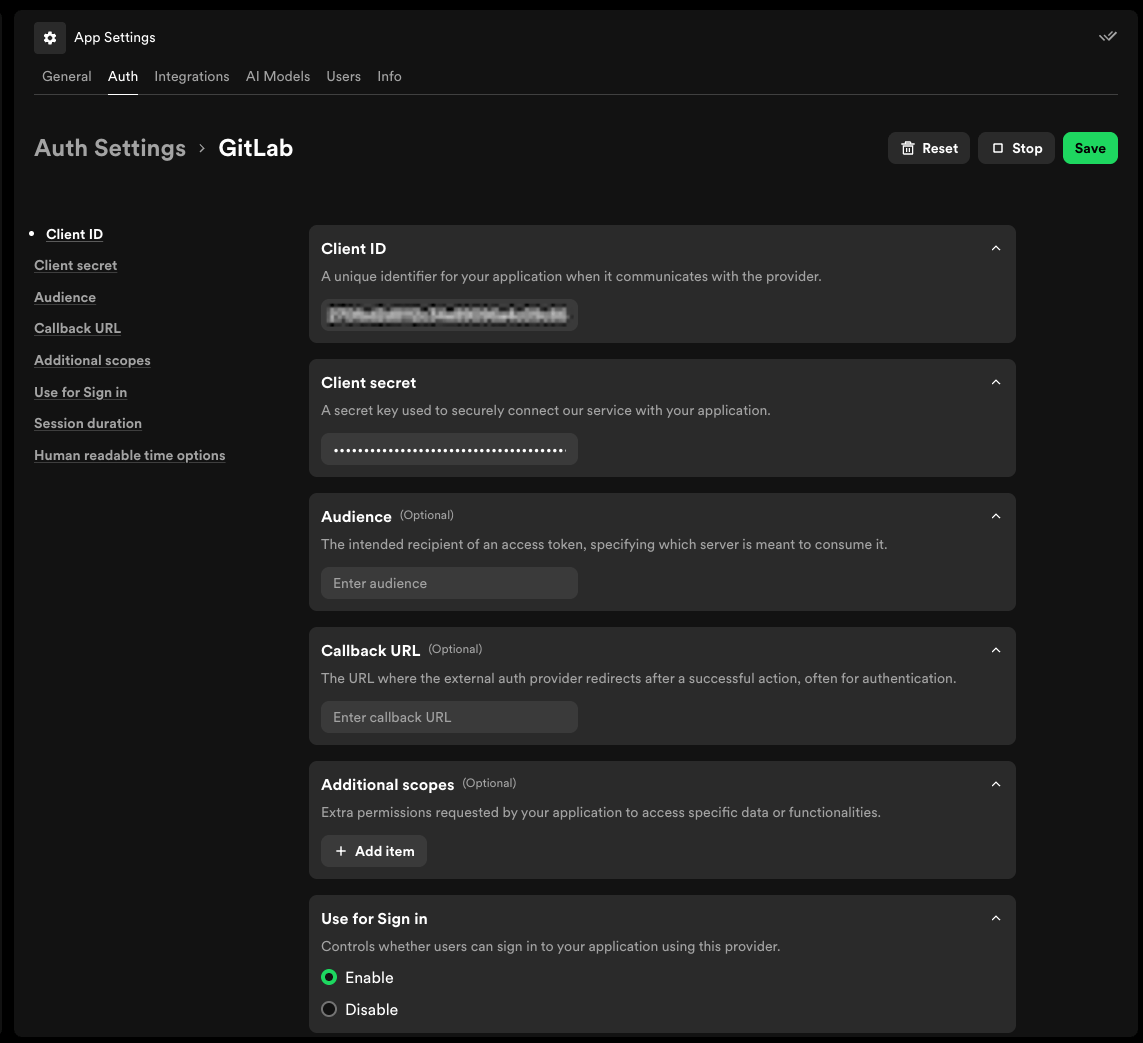
1. Open App Settings in Portal and navigate to Auth
2. Open the GitLab provider
3. Add a new configuration entry with a key name of `production`
4. Enter the following details from your GitLab OAuth application:
* `Client ID`
* `Client secret`
5. If you use self-managed GitLab, set the audience to the base URL for your GitLab instance, for example `https://gitlab.example.com`
6. In the Use for Sign in section, select Enable
7. Click Save
 ## Test your new auth provider
To test your new auth provider, sign out of Portal and sign back in using your GitLab credentials.
1. Select your profile icon in the top right
2. Press "Sign Out"
3. Sign back in using your GitLab credentials
## Test your new auth provider
To test your new auth provider, sign out of Portal and sign back in using your GitLab credentials.
1. Select your profile icon in the top right
2. Press "Sign Out"
3. Sign back in using your GitLab credentials