> ## Documentation Index
> Fetch the complete documentation index at: https://backstage.spotify.com/docs/llms.txt
> Use this file to discover all available pages before exploring further.
# Ingest users and groups
> Configure Microsoft Graph API permissions and the catalog provider to import users and groups from Entra ID into Portal.
export const providerName_0 = "Entra ID"
It is important to follow all the steps in this guide to ensure a successful configuration of {providerName_0} authentication.
If you encounter any issues, [please contact support](https://backstage.spotify.com/account/support/).
Portal can ingest organizational data—such as users and teams—from your Microsoft Entra ID tenant via the Microsoft Graph API. To do this, you must grant specific permissions to your Azure App Registration and configure the Microsoft Graph provider in Portal.
## Configure Permissions for Microsoft Graph in Azure
Portal requires the App Registration to have the following Application permissions (not Delegated) for Microsoft Graph:
* `GroupMember.Read.All`
* `User.Read.All`
If your organization requires admin consent, ensure these permissions are granted by an administrator.
## Configure the Microsoft Graph Provider in Portal
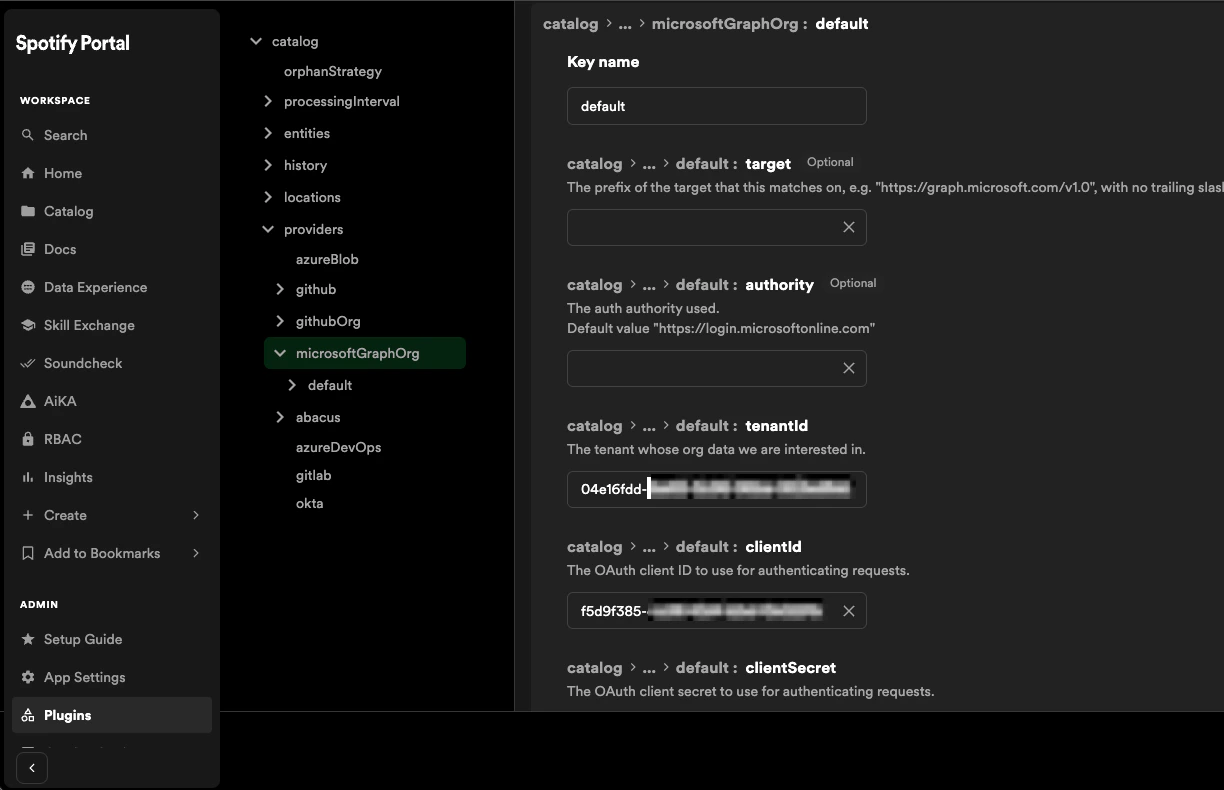
1. From the admin sidebar section, select Plugins -> Catalog -> View
2. Scroll to `catalog.providers.microsoftGraphOrg` and select Option 2
3. Add a new configuration entry named `default`
4. from your Azure App Registration:
* `clientId`
* `clientSecret`
* `tenantId`
 5. For `user.filter` add
```
accountEnabled eq true and userType eq 'member'
```
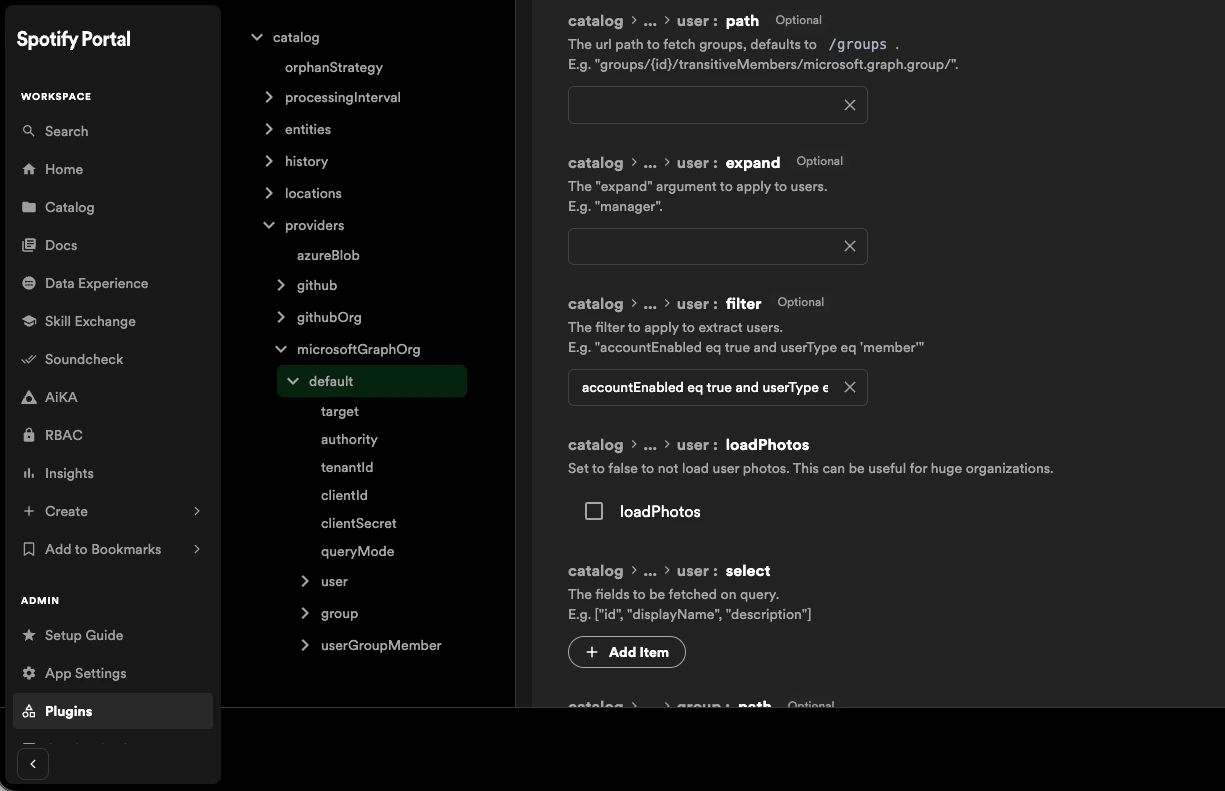
5. For `user.filter` add
```
accountEnabled eq true and userType eq 'member'
```
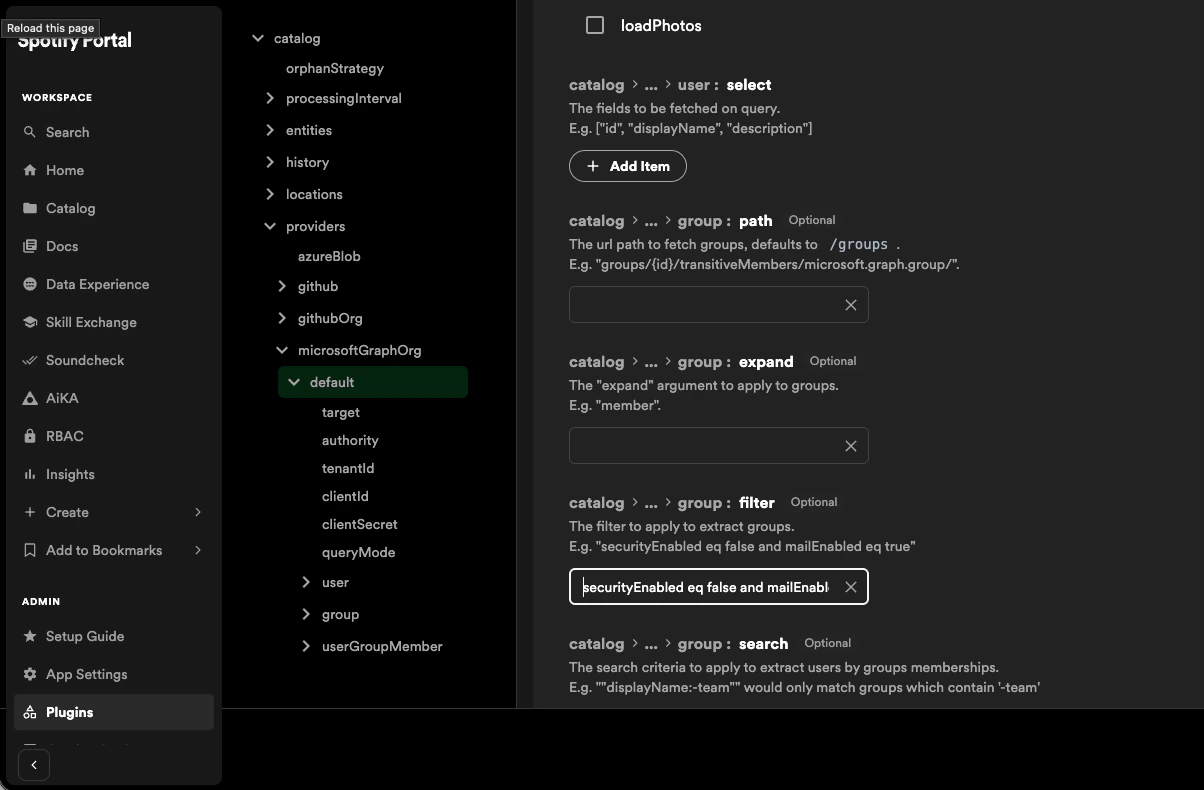
 6. For `group.filter` add
```
securityEnabled eq false and mailEnabled eq true and groupTypes/any(c:c eq 'Unified')
```
6. For `group.filter` add
```
securityEnabled eq false and mailEnabled eq true and groupTypes/any(c:c eq 'Unified')
```
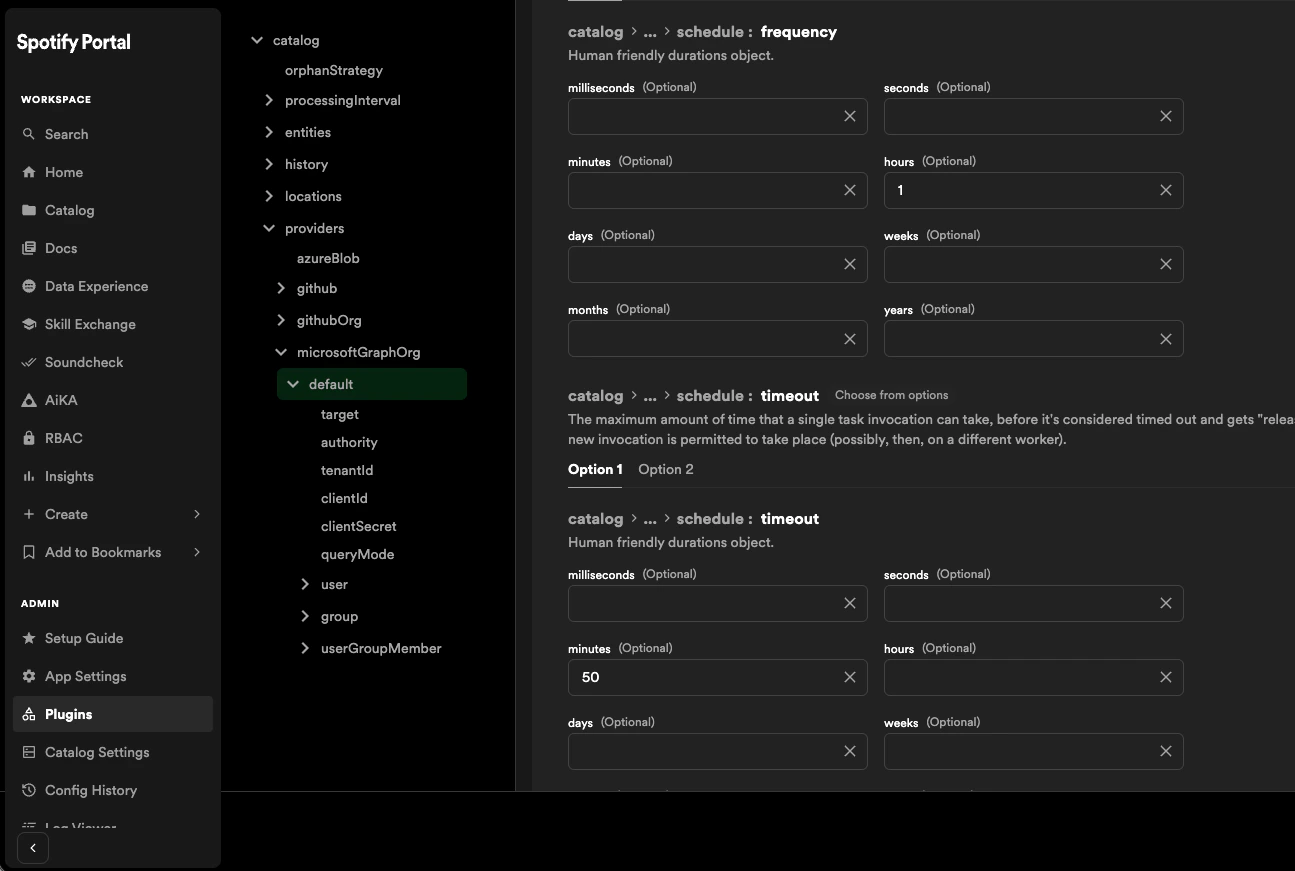
 7. Under `schedule`, set `frequency` (e.g., 1 hour), `timeout` (e.g., 50 minutes) and `initialDelay` (e.g., 30 seconds).
 8. Click Save changes.
Portal will now begin ingesting and synchronizing user and group data from Microsoft Entra ID according to the schedule cadence specified above.
You can check this by visiting Portal's Catalog, and looking to see if expected users and groups are being added from Entra ID.
## Next Steps
Your Portal instance should now have users and groups from Entra ID within the catalog.
Continue to the next section to learn how to configure the authentication provider in Portal to authenticate users via Microsoft Entra ID.
8. Click Save changes.
Portal will now begin ingesting and synchronizing user and group data from Microsoft Entra ID according to the schedule cadence specified above.
You can check this by visiting Portal's Catalog, and looking to see if expected users and groups are being added from Entra ID.
## Next Steps
Your Portal instance should now have users and groups from Entra ID within the catalog.
Continue to the next section to learn how to configure the authentication provider in Portal to authenticate users via Microsoft Entra ID.