> ## Documentation Index
> Fetch the complete documentation index at: https://backstage.spotify.com/docs/llms.txt
> Use this file to discover all available pages before exploring further.
# How-to Guides
> Step-by-step guides for creating, editing, publishing, and managing Software Templates in the Portal Scaffolder.
Task-oriented guides for common Scaffolder operations.
## Template Management
### How to Create a Template from Scratch
1. Navigate to the Scaffolder templates page
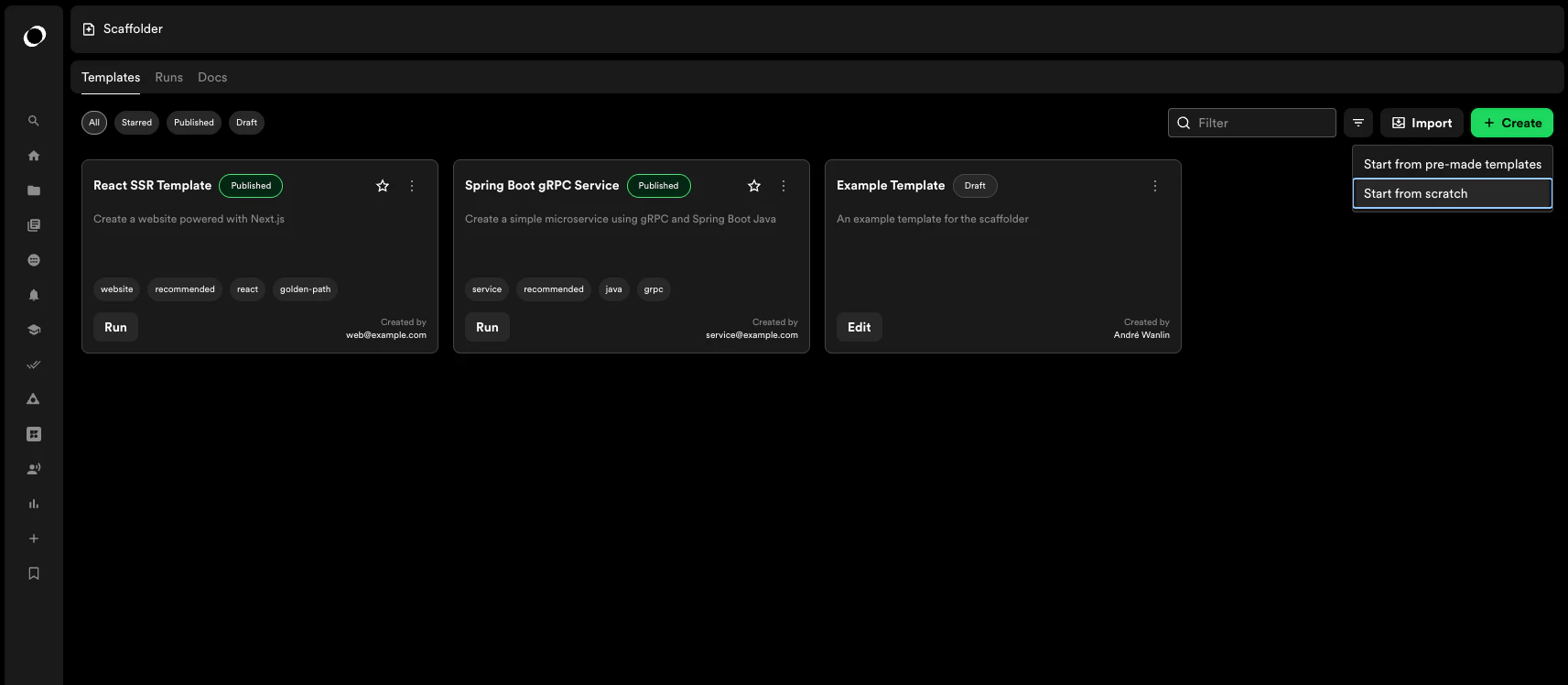
2. Click **Create New Template**
3. Select **Create from Scratch**
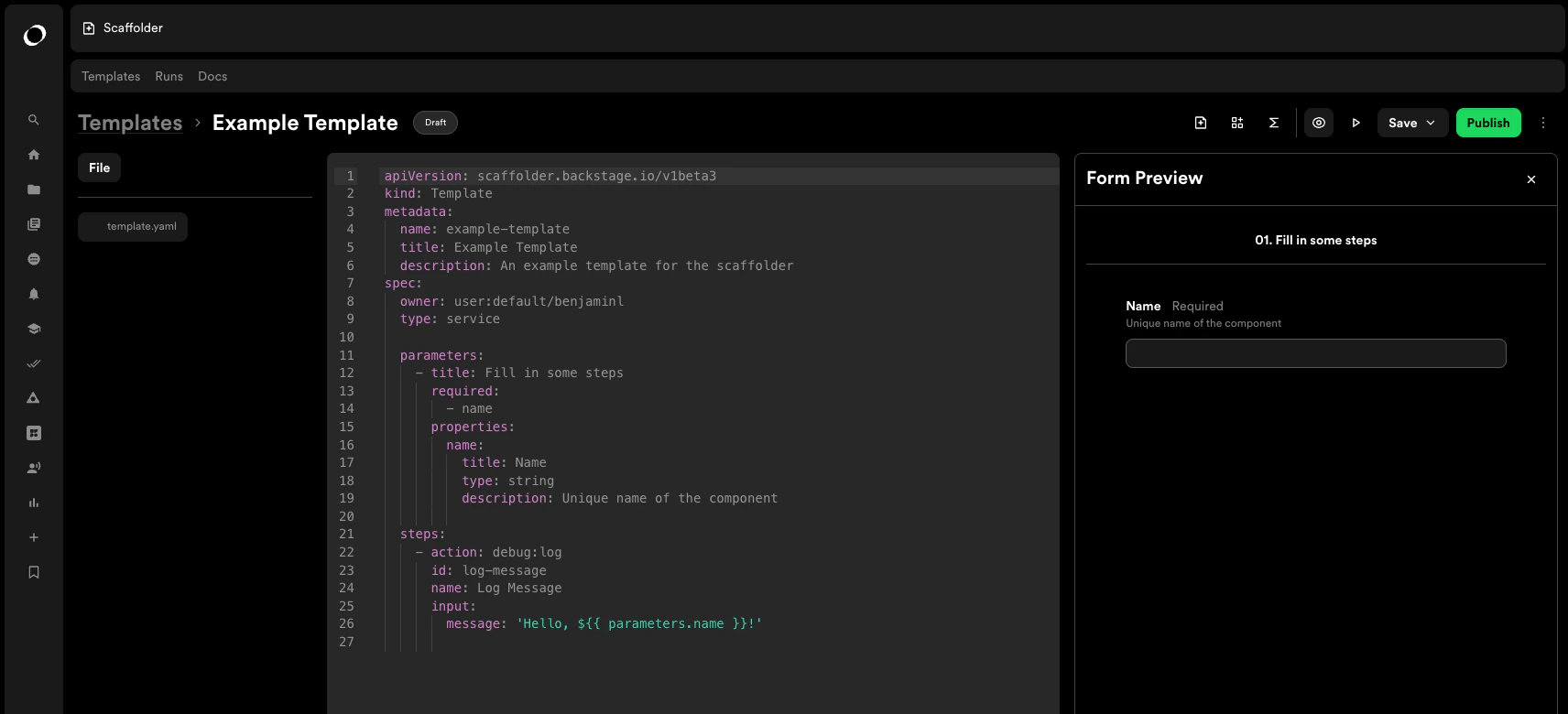 4. Define your template structure:
* Add form fields for user inputs
* Configure actions to execute
* Set up extensions if needed
5. Save as draft or publish when ready
### How to Create a Template from an Existing Template
1. Click **Create New Template**
2. Select **Create from a Premade Template**
3. Choose your source:
* Select via GitHub repository
* Choose the repository containing your template
* Set visibility (public/private)
* Click **Initialize**
4. The template will load in the editor for customization
### How to Edit a Published Template
1. Navigate to your templates list
4. Define your template structure:
* Add form fields for user inputs
* Configure actions to execute
* Set up extensions if needed
5. Save as draft or publish when ready
### How to Create a Template from an Existing Template
1. Click **Create New Template**
2. Select **Create from a Premade Template**
3. Choose your source:
* Select via GitHub repository
* Choose the repository containing your template
* Set visibility (public/private)
* Click **Initialize**
4. The template will load in the editor for customization
### How to Edit a Published Template
1. Navigate to your templates list
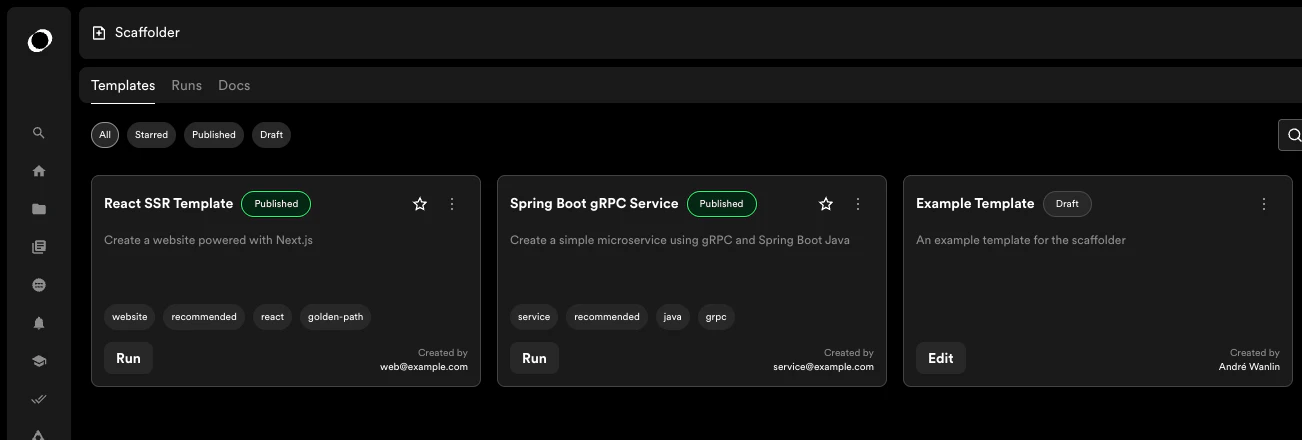 2. Find the template you want to edit
3. Click **Edit** on the template
2. Find the template you want to edit
3. Click **Edit** on the template
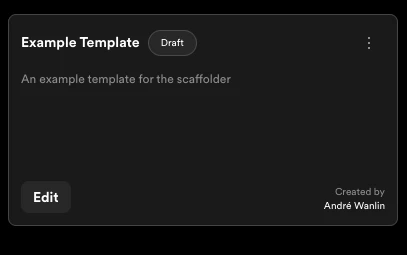 4. Make your changes in the editor
5. Save your changes:
* **Save**: Update the template
* **Download**: Export template locally
* **Publish**: Update the published version
### How to Add Form Fields
Form fields collect input from users when they run your template.
1. Open your template in the editor
2. Navigate to the form fields configuration section
4. Make your changes in the editor
5. Save your changes:
* **Save**: Update the template
* **Download**: Export template locally
* **Publish**: Update the published version
### How to Add Form Fields
Form fields collect input from users when they run your template.
1. Open your template in the editor
2. Navigate to the form fields configuration section
 3. Click **Append** to add a new field
 4. Configure the field:
* Set field name and type
* Add label and description
* Configure validation rules
* Set default values (optional)
5. Save your changes
### How to Add Actions to a Template
Actions define what happens when the template executes.
1. In the template editor, navigate to the actions section
2. Click to add a new action
3. Select an action type:
* `catalog:register`: Register entities in the catalog
* `github:create`: Create GitHub repositories
* `fetch:template`: Fetch template content
* And more...
4. Configure action parameters
5. Save the action configuration
### How to Configure Extensions
Extensions provide custom filters, functions, and values for your templates.
1. Navigate to the extensions section in the editor
2. Add extensions as needed:
* **Filters**: Transform data (e.g., lowercase, uppercase)
* **Functions**: Custom logic for complex operations
* **Values**: Reusable values across your template
3. Reference extensions in your template configuration
4. Save your changes
## Template Testing
### How to Use Dry Run
Dry run allows you to test templates without creating actual resources.
1. In the template editor, click **Dry Run**
4. Configure the field:
* Set field name and type
* Add label and description
* Configure validation rules
* Set default values (optional)
5. Save your changes
### How to Add Actions to a Template
Actions define what happens when the template executes.
1. In the template editor, navigate to the actions section
2. Click to add a new action
3. Select an action type:
* `catalog:register`: Register entities in the catalog
* `github:create`: Create GitHub repositories
* `fetch:template`: Fetch template content
* And more...
4. Configure action parameters
5. Save the action configuration
### How to Configure Extensions
Extensions provide custom filters, functions, and values for your templates.
1. Navigate to the extensions section in the editor
2. Add extensions as needed:
* **Filters**: Transform data (e.g., lowercase, uppercase)
* **Functions**: Custom logic for complex operations
* **Values**: Reusable values across your template
3. Reference extensions in your template configuration
4. Save your changes
## Template Testing
### How to Use Dry Run
Dry run allows you to test templates without creating actual resources.
1. In the template editor, click **Dry Run**
 2. Fill in the form with test values:
* Organization selection
* Repository name
* Any required fields
2. Fill in the form with test values:
* Organization selection
* Repository name
* Any required fields
 3. Click **Dry Run** to simulate execution
4. Review the output:
* Check what repository would be created
* Verify expected resources
* Confirm configuration is correct
3. Click **Dry Run** to simulate execution
4. Review the output:
* Check what repository would be created
* Verify expected resources
* Confirm configuration is correct
 5. If issues are found, return to editor and make adjustments
### How to Review Dry Run Results
After running a dry run:
1. Check the preview section for expected outputs
2. Verify repository details:
* Organization
* Repository name
* Visibility settings
3. Review any catalog entities that would be created
4. Confirm all parameters are correctly applied
## Template Execution
### How to Run a Published Template
1. Navigate to the templates list
2. Click **Run** on your desired template
3. Fill in the required information:
* Select organization from dropdown
* Enter repository name
* Provide description
* Complete any additional fields
4. Click **Review** to verify your inputs
5. Click **Submit** to execute the template
### How to Monitor Template Execution
When a template is running:
1. **View Logs**: Real-time execution logs appear automatically
5. If issues are found, return to editor and make adjustments
### How to Review Dry Run Results
After running a dry run:
1. Check the preview section for expected outputs
2. Verify repository details:
* Organization
* Repository name
* Visibility settings
3. Review any catalog entities that would be created
4. Confirm all parameters are correctly applied
## Template Execution
### How to Run a Published Template
1. Navigate to the templates list
2. Click **Run** on your desired template
3. Fill in the required information:
* Select organization from dropdown
* Enter repository name
* Provide description
* Complete any additional fields
4. Click **Review** to verify your inputs
5. Click **Submit** to execute the template
### How to Monitor Template Execution
When a template is running:
1. **View Logs**: Real-time execution logs appear automatically
 2. **Check Progress**: Monitor each step as it executes
 3. **Review Output**: Once complete, check the output section for:
* Created repositories
* Registered catalog entities
* Any generated artifacts
4. **Access Resources**: Click links to view created resources
3. **Review Output**: Once complete, check the output section for:
* Created repositories
* Registered catalog entities
* Any generated artifacts
4. **Access Resources**: Click links to view created resources
 ### How to Handle Execution Errors
If template execution fails:
1. Review the error message in the logs
2. Common issues:
* Missing permissions (verify write access to target repository)
* Invalid configuration
* Network or API errors
3. Check the **Show Logs** option for detailed error information
4. Fix the issue and retry execution
## Troubleshooting
### Template Won't Save
**Issue**: Error when trying to save template changes
**Solutions**:
* Check that all required fields are filled in
* Verify JSON/YAML syntax is valid
* Ensure you have permission to edit the template
* Try downloading the template and checking for errors locally
### GitHub Integration Error
**Issue**: Error message when creating template via GitHub
**Solutions**:
* Verify GitHub authentication is valid
* Check that the repository exists and you have access
* Confirm the repository URL is correct
* Re-authenticate with GitHub if necessary
### Dry Run Not Working as Expected
**Issue**: Dry run results don't match expectations
**Solutions**:
* Review form field configurations
* Check action parameters are correctly set
* Verify extensions are properly configured
* Test with different input values
### Template Missing After Publishing
**Issue**: Published template doesn't appear in templates list
**Solutions**:
* Refresh the page
* Check that publish completed successfully
* Verify template catalog configuration
* Ensure template has proper metadata (name, description)
### Tips to Ensure Success
1. **Verify Permissions**: Ensure your user has write access to the repository where you're creating components
2. **Check Template Structure**: Make sure your template doesn't contain conflicting catalog-info.yaml files
3. **Test First**: Always use dry run before publishing templates to production
4. **Use Clear Names**: Give templates descriptive names and descriptions
5. **Document Requirements**: Clearly document any prerequisites or permissions needed
### How to Handle Execution Errors
If template execution fails:
1. Review the error message in the logs
2. Common issues:
* Missing permissions (verify write access to target repository)
* Invalid configuration
* Network or API errors
3. Check the **Show Logs** option for detailed error information
4. Fix the issue and retry execution
## Troubleshooting
### Template Won't Save
**Issue**: Error when trying to save template changes
**Solutions**:
* Check that all required fields are filled in
* Verify JSON/YAML syntax is valid
* Ensure you have permission to edit the template
* Try downloading the template and checking for errors locally
### GitHub Integration Error
**Issue**: Error message when creating template via GitHub
**Solutions**:
* Verify GitHub authentication is valid
* Check that the repository exists and you have access
* Confirm the repository URL is correct
* Re-authenticate with GitHub if necessary
### Dry Run Not Working as Expected
**Issue**: Dry run results don't match expectations
**Solutions**:
* Review form field configurations
* Check action parameters are correctly set
* Verify extensions are properly configured
* Test with different input values
### Template Missing After Publishing
**Issue**: Published template doesn't appear in templates list
**Solutions**:
* Refresh the page
* Check that publish completed successfully
* Verify template catalog configuration
* Ensure template has proper metadata (name, description)
### Tips to Ensure Success
1. **Verify Permissions**: Ensure your user has write access to the repository where you're creating components
2. **Check Template Structure**: Make sure your template doesn't contain conflicting catalog-info.yaml files
3. **Test First**: Always use dry run before publishing templates to production
4. **Use Clear Names**: Give templates descriptive names and descriptions
5. **Document Requirements**: Clearly document any prerequisites or permissions needed