> ## Documentation Index
> Fetch the complete documentation index at: https://backstage.spotify.com/docs/llms.txt
> Use this file to discover all available pages before exploring further.
# Monorepos
> Configure Portal to discover and ingest monorepo packages as individual Software Catalog components.
## Configure a monorepo from Catalog Settings
1. Go to **Catalog Settings > Settings**.
2. Under **Auto-ingestion > Monorepos**, select **Add monorepo**.
3. Choose the monorepo root:
* Select **Existing entity** to choose a Portal-managed Component or Repository from the dropdown when the repository is already in the catalog.
* Select **Repository URL** when the repository is not yet in the catalog. Portal creates a Repository root from the URL.
4. Enter comma-separated **Folder globs**, such as `packages/*, plugins/*`.
5. Optional: enter an **Indicator file**, such as `package.json`, to include only matched folders that contain that file. Use **Excluded folder globs** to omit folders that match a broad pattern but should not become Components.
6. Save the settings. Portal starts package discovery and shows **Syncing** in the catalog header.
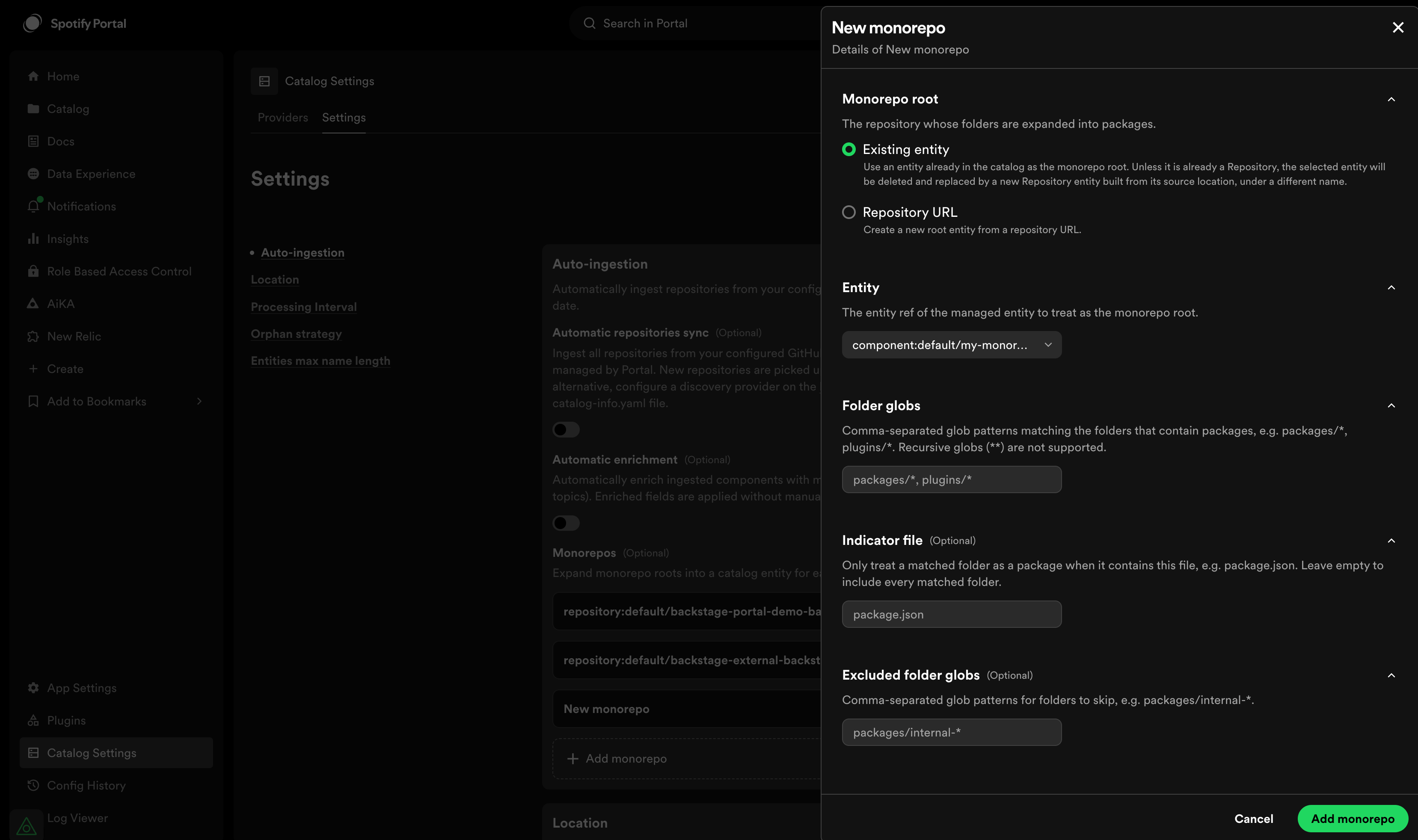 If you choose an existing Component from the dropdown, Portal replaces it with
a Repository root built from the Component's source location.
## Configure a monorepo from an entity page
1. In **Catalog**, select an eligible Portal-managed Component to open its entity page.
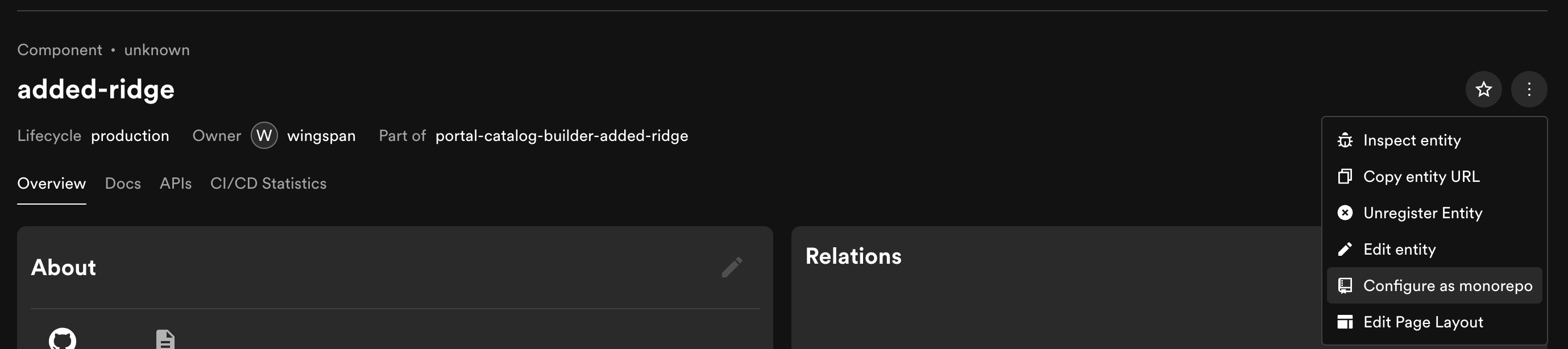
2. Open the entity actions menu and select **Configure as monorepo**.
3. Complete the package matching fields in the prefilled settings form.
4. Save the settings.
If you choose an existing Component from the dropdown, Portal replaces it with
a Repository root built from the Component's source location.
## Configure a monorepo from an entity page
1. In **Catalog**, select an eligible Portal-managed Component to open its entity page.
2. Open the entity actions menu and select **Configure as monorepo**.
3. Complete the package matching fields in the prefilled settings form.
4. Save the settings.
 ## Remove a monorepo configuration
Open its menu under **Catalog Settings > Settings > Auto-ingestion > Monorepos**, then select **Remove**. Review the affected components and save the settings.
Portal deletes all generated package Components. It also deletes the Repository root if it created that root from a repository URL or converted Component. A Repository that you selected from the catalog remains.
## Remove a monorepo configuration
Open its menu under **Catalog Settings > Settings > Auto-ingestion > Monorepos**, then select **Remove**. Review the affected components and save the settings.
Portal deletes all generated package Components. It also deletes the Repository root if it created that root from a repository URL or converted Component. A Repository that you selected from the catalog remains.