> ## Documentation Index
> Fetch the complete documentation index at: https://backstage.spotify.com/docs/llms.txt
> Use this file to discover all available pages before exploring further.
# Searching for Information
> Use AiKA to search across your organization's repositories, documentation, wikis, and data sources from within Portal.
## Overview
AiKA can search for information across your organization's repositories directly within Portal. By integrating with various information sources, AiKA can help you find answers and relevant content from your company's documentation, wikis, and other data sources.
## How It Works
AiKA accesses search capabilities through Portal's [MCP tools](../mcp), which provide a standardized way to expose Portal-native functionality to AI agents.
### Search Actions
Portal includes these pre-registered search actions that AiKA can use:
* **search**: Performs traditional text-based searches using specific terms and phrases across company internal systems, documentation, and software catalogs
* **query-semantic-search-engine**: Uses vector-based semantic search to find contextually relevant information even when exact keywords don't match
For more information about available tools, see the [Available MCP Tools](../mcp/available-tools) documentation.
## Example Usage
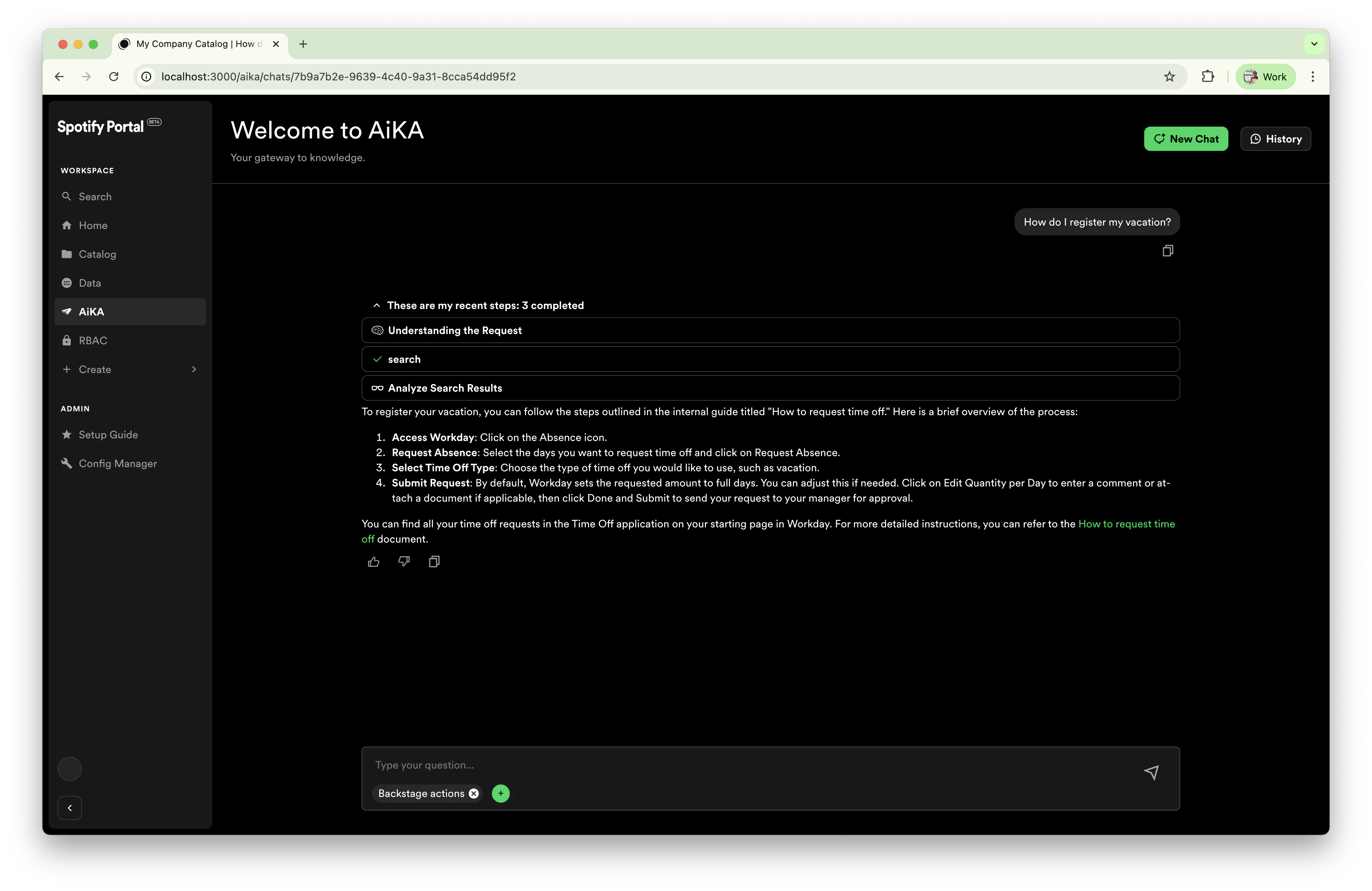
When you ask AiKA questions, it searches your organizational knowledge to provide relevant answers. Here's an example response where AiKA provides comprehensive instructions for registering vacation time:
 ## Agentic Search vs. Single-Step RAG
If you're familiar with traditional single-step **RAG (Retrieval-Augmented Generation)** systems, you might wonder how AiKA's agentic approach compares. Both use the same **semantic search technology** under the hood to enhance LLM responses with organizational knowledge, but they differ in how that search is triggered and controlled.
AiKA delivers the same knowledge-enhanced responses you expect from traditional RAG systems, but with a **smarter approach to retrieval**.
Traditional RAG systems automatically inject documents into every query using semantic search, regardless of whether search is needed. AiKA instead **lets the LLM decide** when to search, which search method to use (semantic or keyword), and whether to search at all. This technique is sometimes called **agentic RAG**.
This means you get more targeted results for complex queries and the ability to combine multiple search strategies within a single conversation.
## Configuration and Setup
AiKA's **search tools** currently draw from these internal sources:
* **TechDocs**: Internal documentation, including engineering, data, product, and, process docs.
* **Confluence**: Confluence spaces indexed by Backstage search can be used as a knowledge source.
* **Catalog**: Software catalog information can be used as a knowledge source.
In general, the **search tools** will be able to draw from any source that is indexed by **Backstage Search**, and requires that if you have a custom collator you've set up, you can add the [name](https://github.com/backstage/backstage/blob/9ad11f65556aa2880ab030b213e0e13cd81ae6e6/plugins/search-backend-module-catalog/src/collators/DefaultCatalogCollatorFactory.ts#L44) associated
with the collator to the `aika > knowledgeTypes` section in **Plugins**.
To configure AiKA to draw from specific sources, you can add the source to the `aika > knowledgeTypes` section in **Plugins**.
The most common sources are:
```yaml theme={"theme":{"light":"github-light","dark":"dracula"}}
aika:
knowledgeTypes:
- techdocs
- confluence
- software-catalog
```
This configuration is optional. It will default to only `techdocs` if unspecified.
## Custom Knowledge Sources
By default, only the TechDocs knowledge source is enabled. To improve the relevance and accuracy of AiKA's answers, you can add other knowledge sources alongside TechDocs. Expanding your knowledge base helps AiKA better respond to more diverse queries.
### Getting Started
If you want to add more sources, here are some helpful resources:
* [Community-created collators](https://backstage.io/docs/features/search/collators/#community-collators)
Discover existing collators for different platforms and data sources. Using a community collator can save setup time.
* [How to install custom packages in Portal](https://backstage.spotify.com/docs/portal/portal-plugins/publish-install-plugin#install-a-plugin-in-portal)
Guidance for installing plugins in your Backstage instance.
* [How to create a custom collator](https://backstage.io/docs/features/search/collators/#community-collators)
For when you want to index a data source not already supported.
***
### Example: Adding Confluence as a Knowledge Source
#### 1. Add the Confluence Collator Module
* Go to **Plugins**.
* Add the following module:
```
@backstage-community/plugin-search-backend-module-confluence-collator
```
This module enables indexing Confluence content in your search backend.
#### 2. Configure the Module
* Review the [Confluence collator module documentation](https://www.npmjs.com/package/@backstage-community/plugin-search-backend-module-confluence-collator#configuration) to identify required configuration fields (such as Confluence base URL, credentials, etc.).
* In the Plugins section, navigate to the search plugin configuration at `/admin/plugin-settings/plugin/search`.
* Update your configuration values to include the Confluence collator settings.
#### 3. Register the New Document Type with AiKA
* After adding the module, a new document `type` (see: [collator code](https://github.com/backstage/community-plugins/blob/a07b802cb8d37d1a5ff30dcdefb00fc44962a9b2/workspaces/confluence/plugins/search-backend-module-confluence-collator/src/collators/ConfluenceCollatorFactory.ts#L142)) will be available.
* To make AiKA aware of this new knowledge source:
* Navigate to AiKA's configuration in Plugins at `/admin/plugin-settings/plugin/aika`.
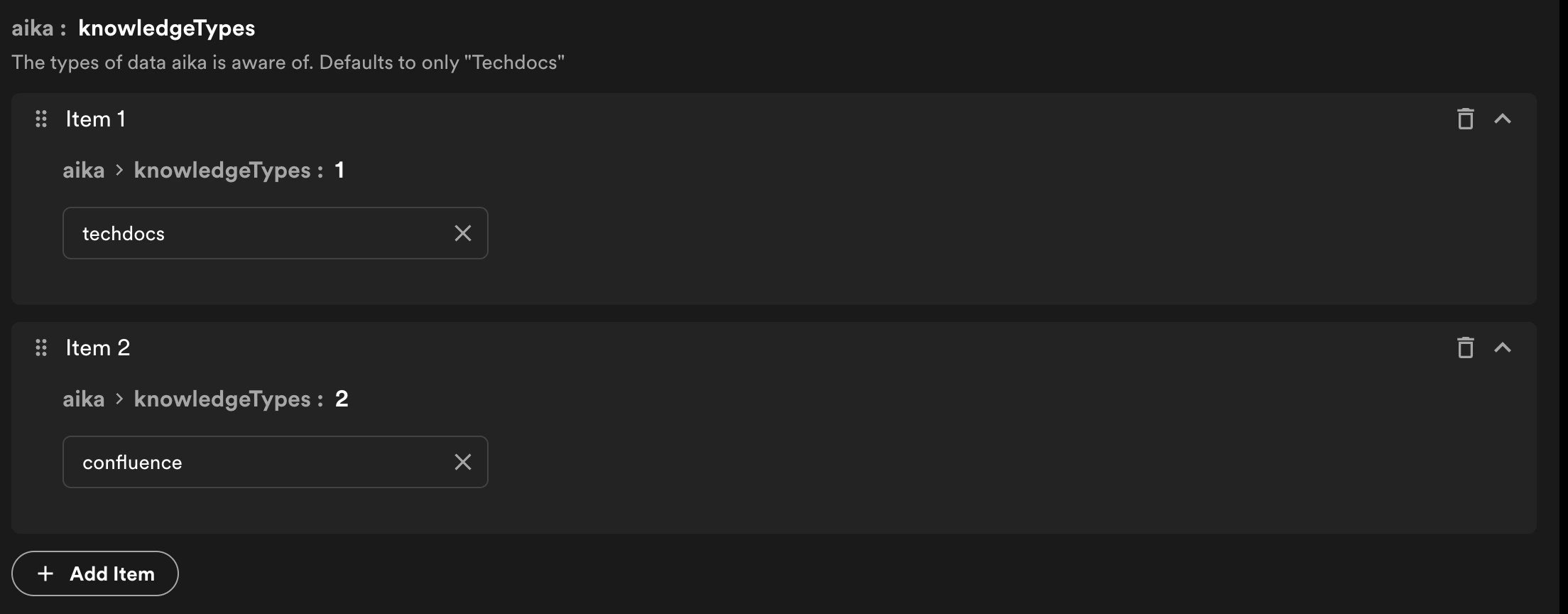
* Update the `knowledgeType` list to include the new document type (e.g., `confluence`).
## Agentic Search vs. Single-Step RAG
If you're familiar with traditional single-step **RAG (Retrieval-Augmented Generation)** systems, you might wonder how AiKA's agentic approach compares. Both use the same **semantic search technology** under the hood to enhance LLM responses with organizational knowledge, but they differ in how that search is triggered and controlled.
AiKA delivers the same knowledge-enhanced responses you expect from traditional RAG systems, but with a **smarter approach to retrieval**.
Traditional RAG systems automatically inject documents into every query using semantic search, regardless of whether search is needed. AiKA instead **lets the LLM decide** when to search, which search method to use (semantic or keyword), and whether to search at all. This technique is sometimes called **agentic RAG**.
This means you get more targeted results for complex queries and the ability to combine multiple search strategies within a single conversation.
## Configuration and Setup
AiKA's **search tools** currently draw from these internal sources:
* **TechDocs**: Internal documentation, including engineering, data, product, and, process docs.
* **Confluence**: Confluence spaces indexed by Backstage search can be used as a knowledge source.
* **Catalog**: Software catalog information can be used as a knowledge source.
In general, the **search tools** will be able to draw from any source that is indexed by **Backstage Search**, and requires that if you have a custom collator you've set up, you can add the [name](https://github.com/backstage/backstage/blob/9ad11f65556aa2880ab030b213e0e13cd81ae6e6/plugins/search-backend-module-catalog/src/collators/DefaultCatalogCollatorFactory.ts#L44) associated
with the collator to the `aika > knowledgeTypes` section in **Plugins**.
To configure AiKA to draw from specific sources, you can add the source to the `aika > knowledgeTypes` section in **Plugins**.
The most common sources are:
```yaml theme={"theme":{"light":"github-light","dark":"dracula"}}
aika:
knowledgeTypes:
- techdocs
- confluence
- software-catalog
```
This configuration is optional. It will default to only `techdocs` if unspecified.
## Custom Knowledge Sources
By default, only the TechDocs knowledge source is enabled. To improve the relevance and accuracy of AiKA's answers, you can add other knowledge sources alongside TechDocs. Expanding your knowledge base helps AiKA better respond to more diverse queries.
### Getting Started
If you want to add more sources, here are some helpful resources:
* [Community-created collators](https://backstage.io/docs/features/search/collators/#community-collators)
Discover existing collators for different platforms and data sources. Using a community collator can save setup time.
* [How to install custom packages in Portal](https://backstage.spotify.com/docs/portal/portal-plugins/publish-install-plugin#install-a-plugin-in-portal)
Guidance for installing plugins in your Backstage instance.
* [How to create a custom collator](https://backstage.io/docs/features/search/collators/#community-collators)
For when you want to index a data source not already supported.
***
### Example: Adding Confluence as a Knowledge Source
#### 1. Add the Confluence Collator Module
* Go to **Plugins**.
* Add the following module:
```
@backstage-community/plugin-search-backend-module-confluence-collator
```
This module enables indexing Confluence content in your search backend.
#### 2. Configure the Module
* Review the [Confluence collator module documentation](https://www.npmjs.com/package/@backstage-community/plugin-search-backend-module-confluence-collator#configuration) to identify required configuration fields (such as Confluence base URL, credentials, etc.).
* In the Plugins section, navigate to the search plugin configuration at `/admin/plugin-settings/plugin/search`.
* Update your configuration values to include the Confluence collator settings.
#### 3. Register the New Document Type with AiKA
* After adding the module, a new document `type` (see: [collator code](https://github.com/backstage/community-plugins/blob/a07b802cb8d37d1a5ff30dcdefb00fc44962a9b2/workspaces/confluence/plugins/search-backend-module-confluence-collator/src/collators/ConfluenceCollatorFactory.ts#L142)) will be available.
* To make AiKA aware of this new knowledge source:
* Navigate to AiKA's configuration in Plugins at `/admin/plugin-settings/plugin/aika`.
* Update the `knowledgeType` list to include the new document type (e.g., `confluence`).
 #### 4. Re-index the Knowledge Base
* After configuration, re-index your knowledge base (by default, it will start on its own. It may take a couple of minutes to fully execute). This process will make the new Confluence documents available to AiKA for answering queries.
#### 4. Re-index the Knowledge Base
* After configuration, re-index your knowledge base (by default, it will start on its own. It may take a couple of minutes to fully execute). This process will make the new Confluence documents available to AiKA for answering queries.