> ## Documentation Index
> Fetch the complete documentation index at: https://backstage.spotify.com/docs/llms.txt
> Use this file to discover all available pages before exploring further.
# Modes
> Create declarative agents that turn AiKA into purpose-built assistants with custom instructions, tools, and quality controls.
## Overview
Modes let you turn AiKA into a purpose-built agent for a specific use case. Each mode defines what the agent knows (instructions), what it can do (tools), and how it behaves (processors) — so instead of a generic assistant, your team gets a dedicated agent for support, code review, documentation, incident response, or any other workflow. You can give AiKA domain-specific knowledge and boundaries, connect it to specific MCP tools, enforce response quality with built-in verification and confidence scoring, and let users switch between different agent behaviors without reconfiguring anything.
## Prerequisites
* AiKA is enabled in your Portal instance
* You have access to the AiKA chat interface
## Creating your first mode
1. Open **AiKA** in Portal
2. Click the **Modes** dropdown and select **Manage modes**
3. Click **Create mode**
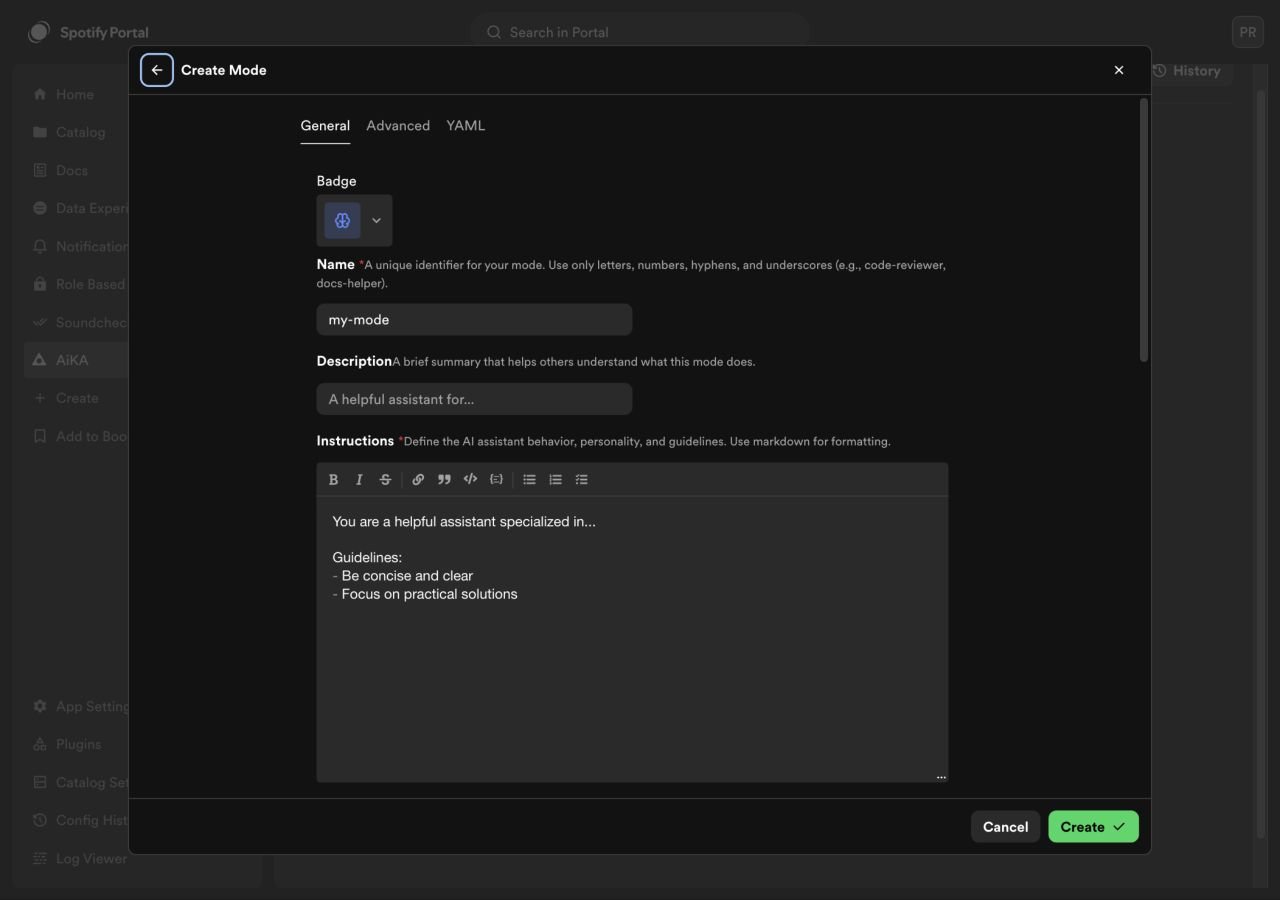
4. Fill in the required fields:
* **Name** — a short, descriptive name (e.g. `platform-support`)
* **Instructions** — tell the agent what it should do, what it should not do, and how it should respond
5. Set visibility to **public** if you want others to use this mode
6. Click **Create**
The mode is available immediately — select it from the Modes dropdown in the chat input to start using it.
 ### Writing good instructions
Instructions are the most important part of a mode. A few guidelines:
* **Be specific about scope.** Tell the agent exactly what domain it covers. "You answer questions about deployments, CI/CD, and Kubernetes" is better than "You are helpful."
* **Set boundaries.** Without explicit limits, the agent will try to answer everything. Add lines like "Do not answer questions outside of platform operations" or "If you're unsure, say so."
* **Keep it short.** Long instructions dilute focus. Aim for a clear paragraph, not a full page.
## Using a mode
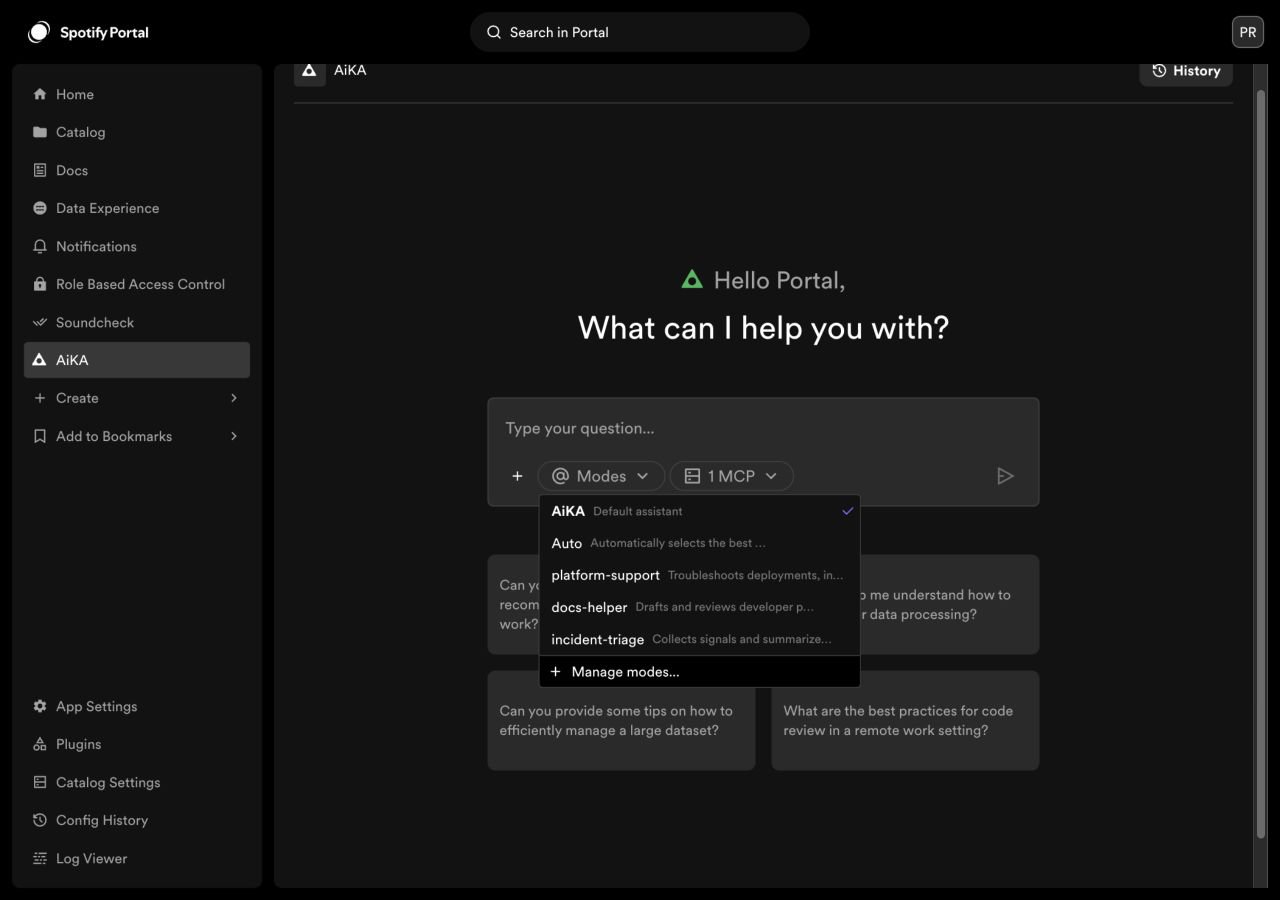
Before you can select a mode from the picker, add it to your mode list:
1. Open AiKA chat
2. Click the **Modes** dropdown in the chat input area
3. Select **Manage modes**
4. Find the mode you want to use and click **+** to add it to your list
5. Return to the **Modes** dropdown and select the mode — AiKA will use that mode's instructions and tools for the conversation
You can also type `@mode-name` directly in the chat input to invoke a specific mode for a single message.
### Writing good instructions
Instructions are the most important part of a mode. A few guidelines:
* **Be specific about scope.** Tell the agent exactly what domain it covers. "You answer questions about deployments, CI/CD, and Kubernetes" is better than "You are helpful."
* **Set boundaries.** Without explicit limits, the agent will try to answer everything. Add lines like "Do not answer questions outside of platform operations" or "If you're unsure, say so."
* **Keep it short.** Long instructions dilute focus. Aim for a clear paragraph, not a full page.
## Using a mode
Before you can select a mode from the picker, add it to your mode list:
1. Open AiKA chat
2. Click the **Modes** dropdown in the chat input area
3. Select **Manage modes**
4. Find the mode you want to use and click **+** to add it to your list
5. Return to the **Modes** dropdown and select the mode — AiKA will use that mode's instructions and tools for the conversation
You can also type `@mode-name` directly in the chat input to invoke a specific mode for a single message.
 ## Connecting tools
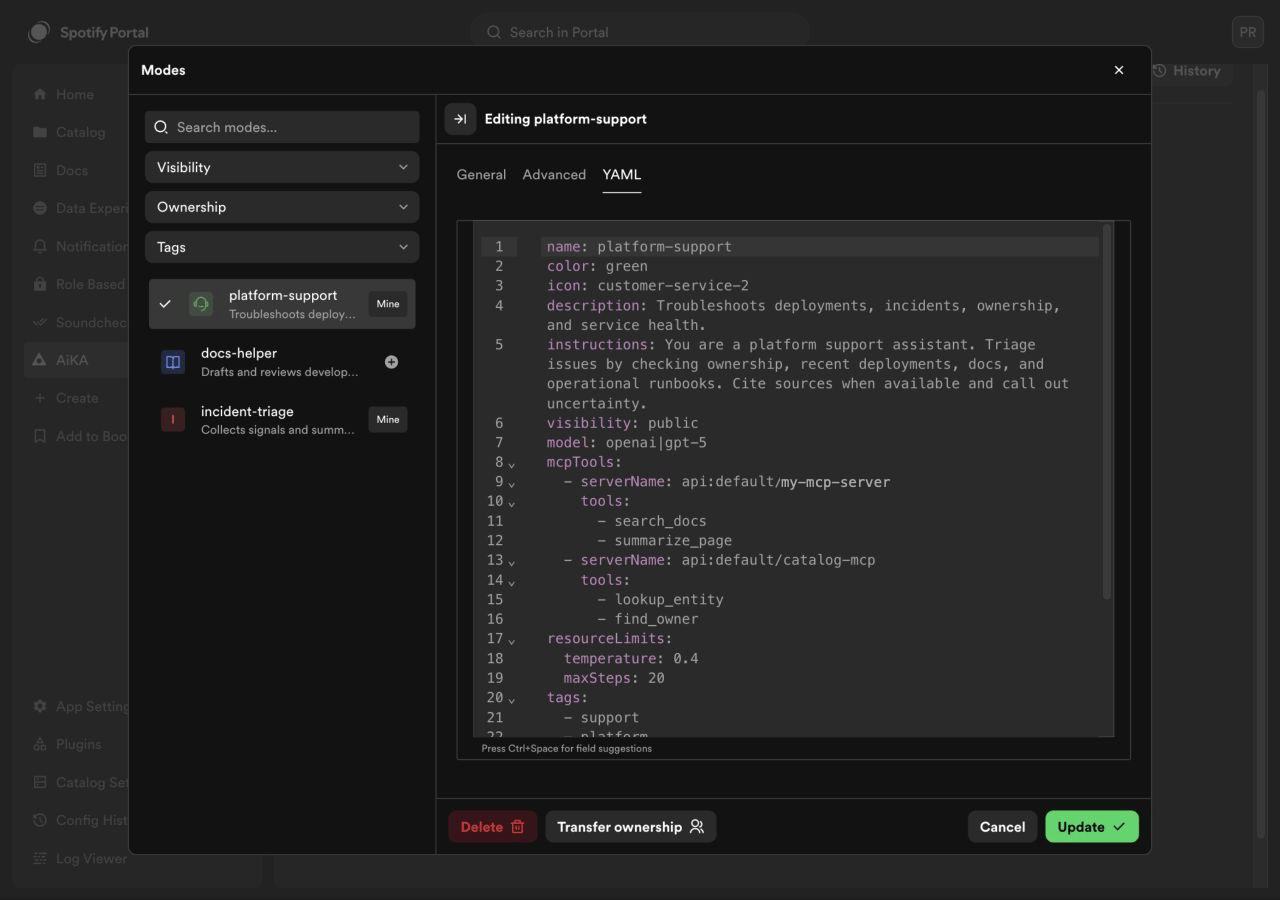
Modes can use MCP servers to give the agent access to external tools — search, documentation, APIs, or any other capability registered in your Backstage catalog.
Add tools in the mode editor under **MCP Tools**, or in YAML:
```yaml theme={"theme":{"light":"github-light","dark":"dracula"}}
mcpTools:
- serverName: 'api:default/my-mcp-server'
- serverName: 'api:default/another-server'
tools:
- 'search'
- 'summarize'
```
A mode's `mcpTools` list determines exactly which tools the agent has access to. If you don't add any servers, the agent runs without tools. If you add a server without specifying individual tools, the agent gets access to everything on that server. To restrict it, list only the tool names you want.
## Connecting tools
Modes can use MCP servers to give the agent access to external tools — search, documentation, APIs, or any other capability registered in your Backstage catalog.
Add tools in the mode editor under **MCP Tools**, or in YAML:
```yaml theme={"theme":{"light":"github-light","dark":"dracula"}}
mcpTools:
- serverName: 'api:default/my-mcp-server'
- serverName: 'api:default/another-server'
tools:
- 'search'
- 'summarize'
```
A mode's `mcpTools` list determines exactly which tools the agent has access to. If you don't add any servers, the agent runs without tools. If you add a server without specifying individual tools, the agent gets access to everything on that server. To restrict it, list only the tool names you want.
 ## Improving response quality with processors
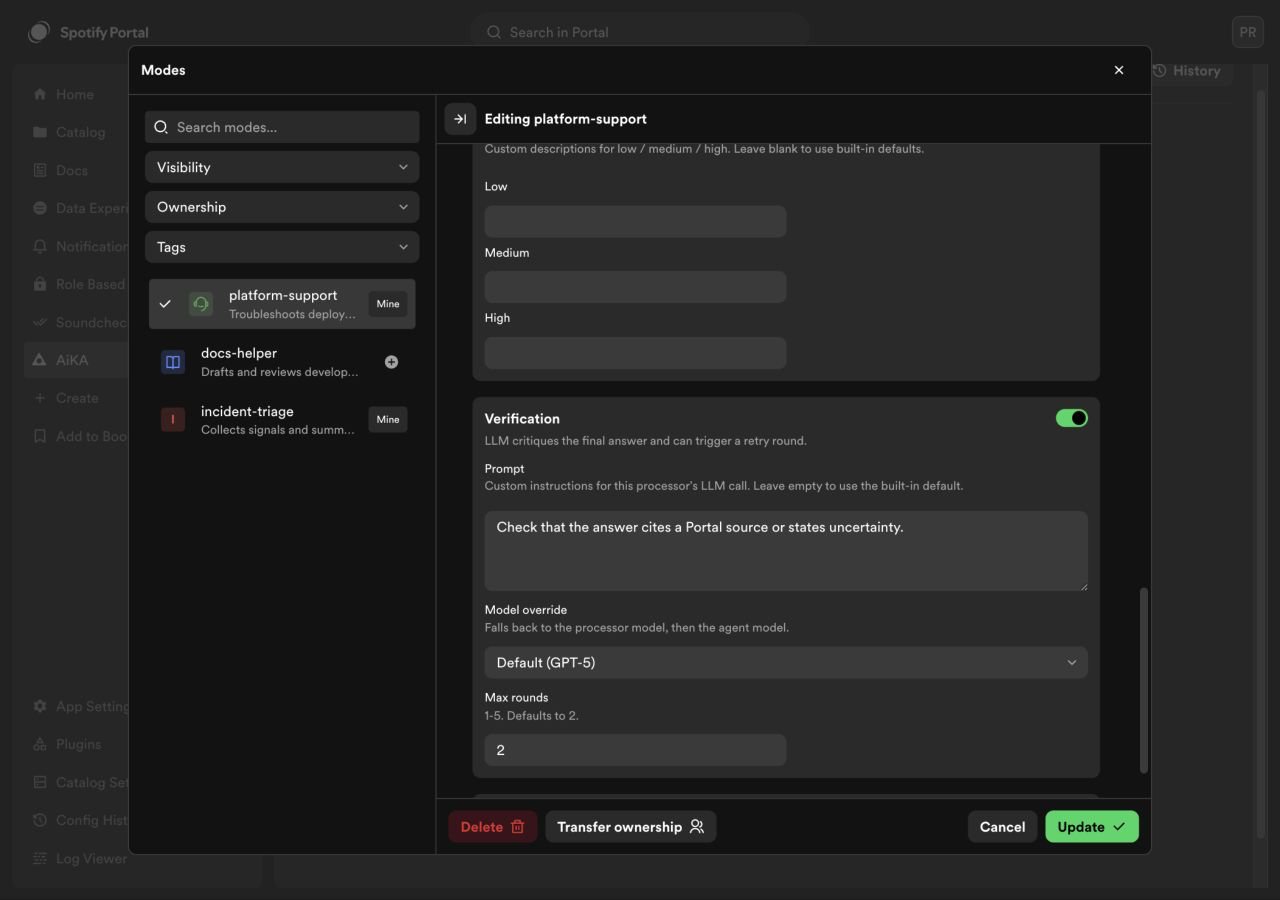
Processors are optional pipeline stages that wrap the agent with structured pre- and post-processing. They help you enforce quality standards without relying on prompt engineering alone.
Enable a processor by adding it to your mode's YAML. Use `true` for defaults, or pass an object to customize:
```yaml theme={"theme":{"light":"github-light","dark":"dracula"}}
# Enable with defaults
planning: true
# Enable with custom settings
verification:
prompt: |
Fail if the response has no Sources section.
maxRounds: 3
```
## Improving response quality with processors
Processors are optional pipeline stages that wrap the agent with structured pre- and post-processing. They help you enforce quality standards without relying on prompt engineering alone.
Enable a processor by adding it to your mode's YAML. Use `true` for defaults, or pass an object to customize:
```yaml theme={"theme":{"light":"github-light","dark":"dracula"}}
# Enable with defaults
planning: true
# Enable with custom settings
verification:
prompt: |
Fail if the response has no Sources section.
maxRounds: 3
```
 ### Available processors
Categorizes the user's request (e.g. "how-to", "operational", "lookup") before the agent responds. Useful for routing behavior or analytics.
```yaml theme={"theme":{"light":"github-light","dark":"dracula"}}
classification:
labels:
how-to: User is asking how to accomplish a task
operational: User is investigating an operational issue
lookup: User wants a specific fact or reference
```
Generates a brief investigation plan before the agent starts using tools. Helps the agent work more methodically on complex questions.
```yaml theme={"theme":{"light":"github-light","dark":"dracula"}}
planning: true
```
Tells the agent how to structure every response. Use this to enforce a consistent format across all conversations.
```yaml theme={"theme":{"light":"github-light","dark":"dracula"}}
answer:
prompt: |
Format your answer as:
**TL;DR:** (one sentence)
**Details:** (2-3 bullet points)
**Sources:** (markdown links)
```
Reviews the agent's final response against quality criteria you define — independent of the answer formatting processor. If the response fails, the agent automatically retries with feedback. You can set how many retries are allowed (default 2, max 5).
```yaml theme={"theme":{"light":"github-light","dark":"dracula"}}
verification:
prompt: |
Check EACH criterion. If ANY fails, set pass to false:
1. Directly addresses the question
2. Claims supported by tool results
3. No fabricated information
maxRounds: 2
```
Rates the agent's response as low, medium, or high confidence based on how well it's supported by tool results.
```yaml theme={"theme":{"light":"github-light","dark":"dracula"}}
confidence: true
```
Controls how long conversations are handled. Set a token limit to prune old messages, or enable observational memory to intelligently compress conversation history.
```yaml theme={"theme":{"light":"github-light","dark":"dracula"}}
contextManagement:
tokenLimit:
limit: 20000
```
### Using a different model for processors
By default, processors use the same model as the agent. To run processors on a cheaper or faster model, set `processorModel`:
```yaml theme={"theme":{"light":"github-light","dark":"dracula"}}
processorModel: openai|gpt-4o-mini
```
Individual processors can override this further with their own `model` field.
## Visibility and sharing
Modes have two visibility levels:
| Visibility | Who can see it | Who can use it | Who can edit/delete it |
| --------------------- | ------------------------- | ------------------------- | ---------------------- |
| **Private** (default) | Only the owner | Only the owner | Only the owner |
| **Public** | Everyone in the workspace | Everyone in the workspace | Only the owner |
Set a mode to **public** when you want your team or organization to use it. Private modes are useful for personal workflows or modes still being developed.
### Transferring ownership
You can transfer a mode to another user or to a Backstage group. This is useful when the original creator leaves a team, or when you want shared ownership across a group.
1. Open **Manage modes** and select the mode you own
2. Click **Transfer Ownership**
3. Search for and select the new owner (a user or group)
4. Confirm the transfer
When a mode is owned by a group, any member of that group can edit or delete it.
## Reference
### Mode fields
| Field | Required | Description |
| ---------------------------- | -------- | --------------------------------------------------------------------- |
| `name` | Yes | Display name. Letters, numbers, hyphens, underscores (max 100 chars). |
| `instructions` | Yes | System prompt that shapes the agent's behavior. |
| `description` | No | Short summary shown in the mode picker (max 1000 chars). |
| `visibility` | No | `private` (default) or `public`. |
| `model` | No | Model override in `provider\|model` format (e.g. `openai\|gpt-4o`). |
| `mcpTools` | No | List of MCP servers the agent can use. |
| `mcpTools[].serverName` | Yes | MCP server name matching a Backstage catalog entry. |
| `mcpTools[].tools` | No | Specific tool names to include. Omit for all, `[]` for none. |
| `resourceLimits.temperature` | No | Response randomness, 0–1 in 0.1 increments. |
| `resourceLimits.maxSteps` | No | Max agent steps before forcing a response (1–100). |
| `tags` | No | Tags for filtering in the Manage modes UI. |
### Processor fields
All processors accept `true` (enable with defaults) or an object with these shared fields:
| Field | Description |
| -------- | --------------------------------------- |
| `prompt` | Custom instructions for the processor. |
| `model` | Model override for this processor only. |
Processor-specific fields:
| Processor | Field | Default | Description |
| ------------------- | ------------------------- | ---------------- | ---------------------------------------------------------------------------------- |
| `classification` | `labels` | generic fallback | Map of label name to description. Minimum 2 labels. |
| `verification` | `maxRounds` | `2` | Max retries before accepting the response (1–5). |
| `confidence` | `levels` | built-in | Custom descriptions for `low`, `medium`, `high`. All three required if overriding. |
| `contextManagement` | `tokenLimit.limit` | — | Hard ceiling on message-history tokens. |
| `contextManagement` | `observation.instruction` | — | Custom instruction for the memory observer. |
## Limitations
* **Private modes cannot be shared.** To let others use a mode, set it to public. There is no invite-only sharing.
* **Processors add latency.** Each enabled processor adds an extra LLM call before or after the agent responds, which increases response time. Verification with retries can multiply this further — for example, 2 retry rounds means up to 3x the verification cost. Start with the processors you need and add more as you identify quality gaps.
### Available processors
Categorizes the user's request (e.g. "how-to", "operational", "lookup") before the agent responds. Useful for routing behavior or analytics.
```yaml theme={"theme":{"light":"github-light","dark":"dracula"}}
classification:
labels:
how-to: User is asking how to accomplish a task
operational: User is investigating an operational issue
lookup: User wants a specific fact or reference
```
Generates a brief investigation plan before the agent starts using tools. Helps the agent work more methodically on complex questions.
```yaml theme={"theme":{"light":"github-light","dark":"dracula"}}
planning: true
```
Tells the agent how to structure every response. Use this to enforce a consistent format across all conversations.
```yaml theme={"theme":{"light":"github-light","dark":"dracula"}}
answer:
prompt: |
Format your answer as:
**TL;DR:** (one sentence)
**Details:** (2-3 bullet points)
**Sources:** (markdown links)
```
Reviews the agent's final response against quality criteria you define — independent of the answer formatting processor. If the response fails, the agent automatically retries with feedback. You can set how many retries are allowed (default 2, max 5).
```yaml theme={"theme":{"light":"github-light","dark":"dracula"}}
verification:
prompt: |
Check EACH criterion. If ANY fails, set pass to false:
1. Directly addresses the question
2. Claims supported by tool results
3. No fabricated information
maxRounds: 2
```
Rates the agent's response as low, medium, or high confidence based on how well it's supported by tool results.
```yaml theme={"theme":{"light":"github-light","dark":"dracula"}}
confidence: true
```
Controls how long conversations are handled. Set a token limit to prune old messages, or enable observational memory to intelligently compress conversation history.
```yaml theme={"theme":{"light":"github-light","dark":"dracula"}}
contextManagement:
tokenLimit:
limit: 20000
```
### Using a different model for processors
By default, processors use the same model as the agent. To run processors on a cheaper or faster model, set `processorModel`:
```yaml theme={"theme":{"light":"github-light","dark":"dracula"}}
processorModel: openai|gpt-4o-mini
```
Individual processors can override this further with their own `model` field.
## Visibility and sharing
Modes have two visibility levels:
| Visibility | Who can see it | Who can use it | Who can edit/delete it |
| --------------------- | ------------------------- | ------------------------- | ---------------------- |
| **Private** (default) | Only the owner | Only the owner | Only the owner |
| **Public** | Everyone in the workspace | Everyone in the workspace | Only the owner |
Set a mode to **public** when you want your team or organization to use it. Private modes are useful for personal workflows or modes still being developed.
### Transferring ownership
You can transfer a mode to another user or to a Backstage group. This is useful when the original creator leaves a team, or when you want shared ownership across a group.
1. Open **Manage modes** and select the mode you own
2. Click **Transfer Ownership**
3. Search for and select the new owner (a user or group)
4. Confirm the transfer
When a mode is owned by a group, any member of that group can edit or delete it.
## Reference
### Mode fields
| Field | Required | Description |
| ---------------------------- | -------- | --------------------------------------------------------------------- |
| `name` | Yes | Display name. Letters, numbers, hyphens, underscores (max 100 chars). |
| `instructions` | Yes | System prompt that shapes the agent's behavior. |
| `description` | No | Short summary shown in the mode picker (max 1000 chars). |
| `visibility` | No | `private` (default) or `public`. |
| `model` | No | Model override in `provider\|model` format (e.g. `openai\|gpt-4o`). |
| `mcpTools` | No | List of MCP servers the agent can use. |
| `mcpTools[].serverName` | Yes | MCP server name matching a Backstage catalog entry. |
| `mcpTools[].tools` | No | Specific tool names to include. Omit for all, `[]` for none. |
| `resourceLimits.temperature` | No | Response randomness, 0–1 in 0.1 increments. |
| `resourceLimits.maxSteps` | No | Max agent steps before forcing a response (1–100). |
| `tags` | No | Tags for filtering in the Manage modes UI. |
### Processor fields
All processors accept `true` (enable with defaults) or an object with these shared fields:
| Field | Description |
| -------- | --------------------------------------- |
| `prompt` | Custom instructions for the processor. |
| `model` | Model override for this processor only. |
Processor-specific fields:
| Processor | Field | Default | Description |
| ------------------- | ------------------------- | ---------------- | ---------------------------------------------------------------------------------- |
| `classification` | `labels` | generic fallback | Map of label name to description. Minimum 2 labels. |
| `verification` | `maxRounds` | `2` | Max retries before accepting the response (1–5). |
| `confidence` | `levels` | built-in | Custom descriptions for `low`, `medium`, `high`. All three required if overriding. |
| `contextManagement` | `tokenLimit.limit` | — | Hard ceiling on message-history tokens. |
| `contextManagement` | `observation.instruction` | — | Custom instruction for the memory observer. |
## Limitations
* **Private modes cannot be shared.** To let others use a mode, set it to public. There is no invite-only sharing.
* **Processors add latency.** Each enabled processor adds an extra LLM call before or after the agent responds, which increases response time. Verification with retries can multiply this further — for example, 2 retry rounds means up to 3x the verification cost. Start with the processors you need and add more as you identify quality gaps.