> ## Documentation Index
> Fetch the complete documentation index at: https://backstage.spotify.com/docs/llms.txt
> Use this file to discover all available pages before exploring further.
# AI Gateway
> Configure and manage AI providers, models, and re-ranking capabilities in Portal through the centralized AI Gateway plugin.
## Overview
### What is AI Gateway?
The AI Gateway is a centralized plugin for configuring and managing AI capabilities in Backstage. It allows you to set up and manage various AI models, providers, and re-ranking capabilities that can be used across different plugins, such as AiKA.
**What You'll Accomplish**
By the end of this guide, you'll have AI Gateway configured with one or more AI providers, enabling AI-powered features across your Portal instance.
### Supported Providers
AI Gateway currently supports the following providers:
* **AWS Bedrock** - Amazon's managed service for foundation models
* **Azure OpenAI** - OpenAI models through Microsoft Azure infrastructure
* **OpenAI** - Direct access to OpenAI's models (GPT-5.4, GPT-5, etc.)
* **Cohere** - Cohere's language models and reranking capabilities
* **Google Generative AI** - Google's Gemini models
* **Ollama** - Self-hosted open source models
### Step 1: Enable AI Gateway in Portal
You can enable or disable the AI Gateway at any time through the Plugin settings page.
### Step 2: Configure AI Providers
We provide support for a variety of AI providers and models. You can configure these in the Plugin settings page under the `AI Gateway` section.
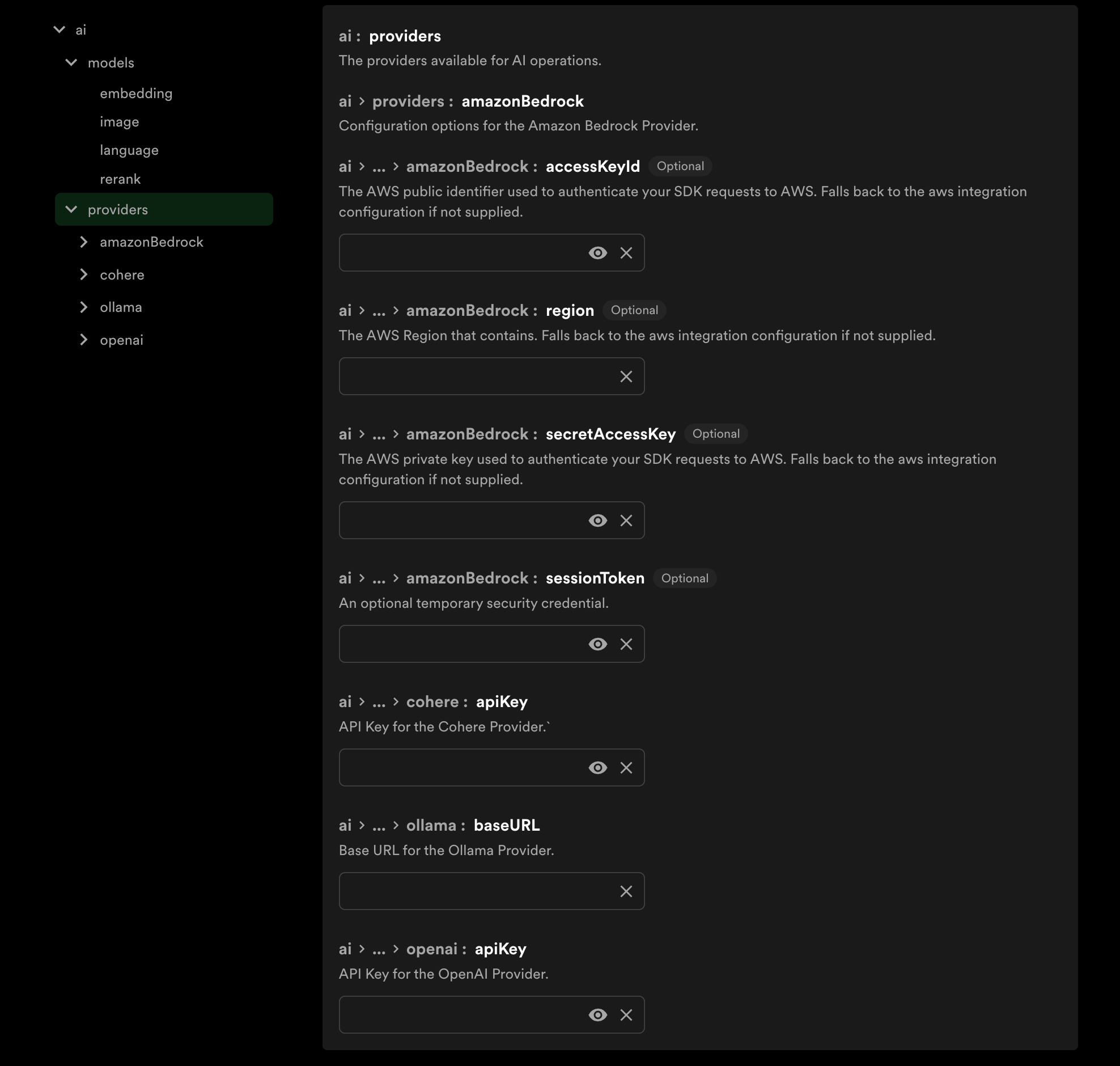 You can have one or multiple providers configured at the same time. Plugins
will allow you to select which provider and model to use, or you can set a
default provider to use across all plugins.
The `baseURL` and `headers` configuration options are useful when routing
requests through a proxy or gateway. For direct connections to AI providers,
these options can be omitted and the default endpoints will be used.
### Provider Configuration
Navigate to **Admin → Plugin Settings → AI Gateway** to configure your providers.
#### [OpenAI](./integrations/openai)
| Field | Required | Description |
| ------------ | -------- | ---------------------------------------------- |
| **API Key** | Yes | Your OpenAI API key |
| **Base URL** | No | Optional, to point at a gateway |
| **Headers** | No | Optional, e.g. for authentication with gateway |
#### [Azure OpenAI](./integrations/azure)
| Field | Required | Description |
| ----------------- | -------- | ---------------------------------------------------------------------- |
| **API Key** | Yes | Your Azure API key |
| **Resource Name** | Yes\* | Used in URL: `https://{resourceName}.openai.azure.com/openai/v1` |
| **API Version** | No | Optional, defaults to preview |
| **Base URL** | No | Optional, to point at a gateway (overrides resourceName when provided) |
| **Headers** | No | Optional, e.g. for authentication with gateway |
\*Either Resource Name or Base URL must be provided.
#### [AWS Bedrock](./integrations/aws-bedrock)
| Field | Required | Description |
| --------------------- | -------- | ---------------------------------------------- |
| **Region** | Yes | AWS region (e.g., `us-east-1`) |
| **Access Key ID** | Yes | Your AWS access key ID |
| **Secret Access Key** | Yes | Your AWS secret access key |
| **Session Token** | No | Optional, if using temporary credentials |
| **Base URL** | No | Optional, to point at a gateway |
| **Headers** | No | Optional, e.g. for authentication with gateway |
#### [Cohere](./integrations/cohere)
| Field | Required | Description |
| ------------ | -------- | ---------------------------------------------- |
| **API Key** | Yes | Your Cohere API key |
| **Base URL** | No | Optional, to point at a gateway |
| **Headers** | No | Optional, e.g. for authentication with gateway |
#### [Google Generative AI](./integrations/google)
| Field | Required | Description |
| ------------ | -------- | ---------------------------------------------- |
| **API Key** | Yes | Your Google API key |
| **Base URL** | No | Optional, to point at a gateway |
| **Headers** | No | Optional, e.g. for authentication with gateway |
#### [Ollama](./integrations/ollama)
| Field | Required | Description |
| ------------ | -------- | ---------------------------------------------- |
| **Base URL** | Yes | URL to your Ollama instance |
| **Headers** | No | Optional, e.g. for authentication with gateway |
### Step 3: Configure Default Models (Optional)
You can set a default provider that will be used across all plugins that support AI Gateway. The model fields are formatted as `provider|model`.
In the Plugin settings page under the **Models** section, you can configure:
| Model Type | Format | Description | Example |
| ------------------- | ----------------- | --------------------------------------- | -------------------------------- |
| **Language Model** | `provider\|model` | Model used for chat and text generation | `openai\|gpt-5.4` |
| **Reranking Model** | `provider\|model` | Model used for search result reranking | `cohere\|rerank-v3.5` |
| **Embedding Model** | `provider\|model` | Model used for text embeddings | `openai\|text-embedding-3-small` |
| **Image Model** | `provider\|model` | Model used for image generation | `openai\|dall-e-3` |
## Next Steps
With AI Gateway configured, you can now:
* [**Enable AiKA**](../aika/getting-started) for AI-powered assistance in your Portal instance
* [**Configure Semantic Search**](../aika/semantic-plugin) to use AI-powered semantic search capabilities
* **Explore Provider Integrations** to learn more about each provider's specific features
* **Optimize Model Selection** by testing different models for your use cases
You can have one or multiple providers configured at the same time. Plugins
will allow you to select which provider and model to use, or you can set a
default provider to use across all plugins.
The `baseURL` and `headers` configuration options are useful when routing
requests through a proxy or gateway. For direct connections to AI providers,
these options can be omitted and the default endpoints will be used.
### Provider Configuration
Navigate to **Admin → Plugin Settings → AI Gateway** to configure your providers.
#### [OpenAI](./integrations/openai)
| Field | Required | Description |
| ------------ | -------- | ---------------------------------------------- |
| **API Key** | Yes | Your OpenAI API key |
| **Base URL** | No | Optional, to point at a gateway |
| **Headers** | No | Optional, e.g. for authentication with gateway |
#### [Azure OpenAI](./integrations/azure)
| Field | Required | Description |
| ----------------- | -------- | ---------------------------------------------------------------------- |
| **API Key** | Yes | Your Azure API key |
| **Resource Name** | Yes\* | Used in URL: `https://{resourceName}.openai.azure.com/openai/v1` |
| **API Version** | No | Optional, defaults to preview |
| **Base URL** | No | Optional, to point at a gateway (overrides resourceName when provided) |
| **Headers** | No | Optional, e.g. for authentication with gateway |
\*Either Resource Name or Base URL must be provided.
#### [AWS Bedrock](./integrations/aws-bedrock)
| Field | Required | Description |
| --------------------- | -------- | ---------------------------------------------- |
| **Region** | Yes | AWS region (e.g., `us-east-1`) |
| **Access Key ID** | Yes | Your AWS access key ID |
| **Secret Access Key** | Yes | Your AWS secret access key |
| **Session Token** | No | Optional, if using temporary credentials |
| **Base URL** | No | Optional, to point at a gateway |
| **Headers** | No | Optional, e.g. for authentication with gateway |
#### [Cohere](./integrations/cohere)
| Field | Required | Description |
| ------------ | -------- | ---------------------------------------------- |
| **API Key** | Yes | Your Cohere API key |
| **Base URL** | No | Optional, to point at a gateway |
| **Headers** | No | Optional, e.g. for authentication with gateway |
#### [Google Generative AI](./integrations/google)
| Field | Required | Description |
| ------------ | -------- | ---------------------------------------------- |
| **API Key** | Yes | Your Google API key |
| **Base URL** | No | Optional, to point at a gateway |
| **Headers** | No | Optional, e.g. for authentication with gateway |
#### [Ollama](./integrations/ollama)
| Field | Required | Description |
| ------------ | -------- | ---------------------------------------------- |
| **Base URL** | Yes | URL to your Ollama instance |
| **Headers** | No | Optional, e.g. for authentication with gateway |
### Step 3: Configure Default Models (Optional)
You can set a default provider that will be used across all plugins that support AI Gateway. The model fields are formatted as `provider|model`.
In the Plugin settings page under the **Models** section, you can configure:
| Model Type | Format | Description | Example |
| ------------------- | ----------------- | --------------------------------------- | -------------------------------- |
| **Language Model** | `provider\|model` | Model used for chat and text generation | `openai\|gpt-5.4` |
| **Reranking Model** | `provider\|model` | Model used for search result reranking | `cohere\|rerank-v3.5` |
| **Embedding Model** | `provider\|model` | Model used for text embeddings | `openai\|text-embedding-3-small` |
| **Image Model** | `provider\|model` | Model used for image generation | `openai\|dall-e-3` |
## Next Steps
With AI Gateway configured, you can now:
* [**Enable AiKA**](../aika/getting-started) for AI-powered assistance in your Portal instance
* [**Configure Semantic Search**](../aika/semantic-plugin) to use AI-powered semantic search capabilities
* **Explore Provider Integrations** to learn more about each provider's specific features
* **Optimize Model Selection** by testing different models for your use cases