> ## Documentation Index
> Fetch the complete documentation index at: https://backstage.spotify.com/docs/llms.txt
> Use this file to discover all available pages before exploring further.
# Configuration
AI Explorer is configured through the Portal Config Manager.
## Configure catalog providers
Navigate to **Admin → Catalog Settings → Providers**.
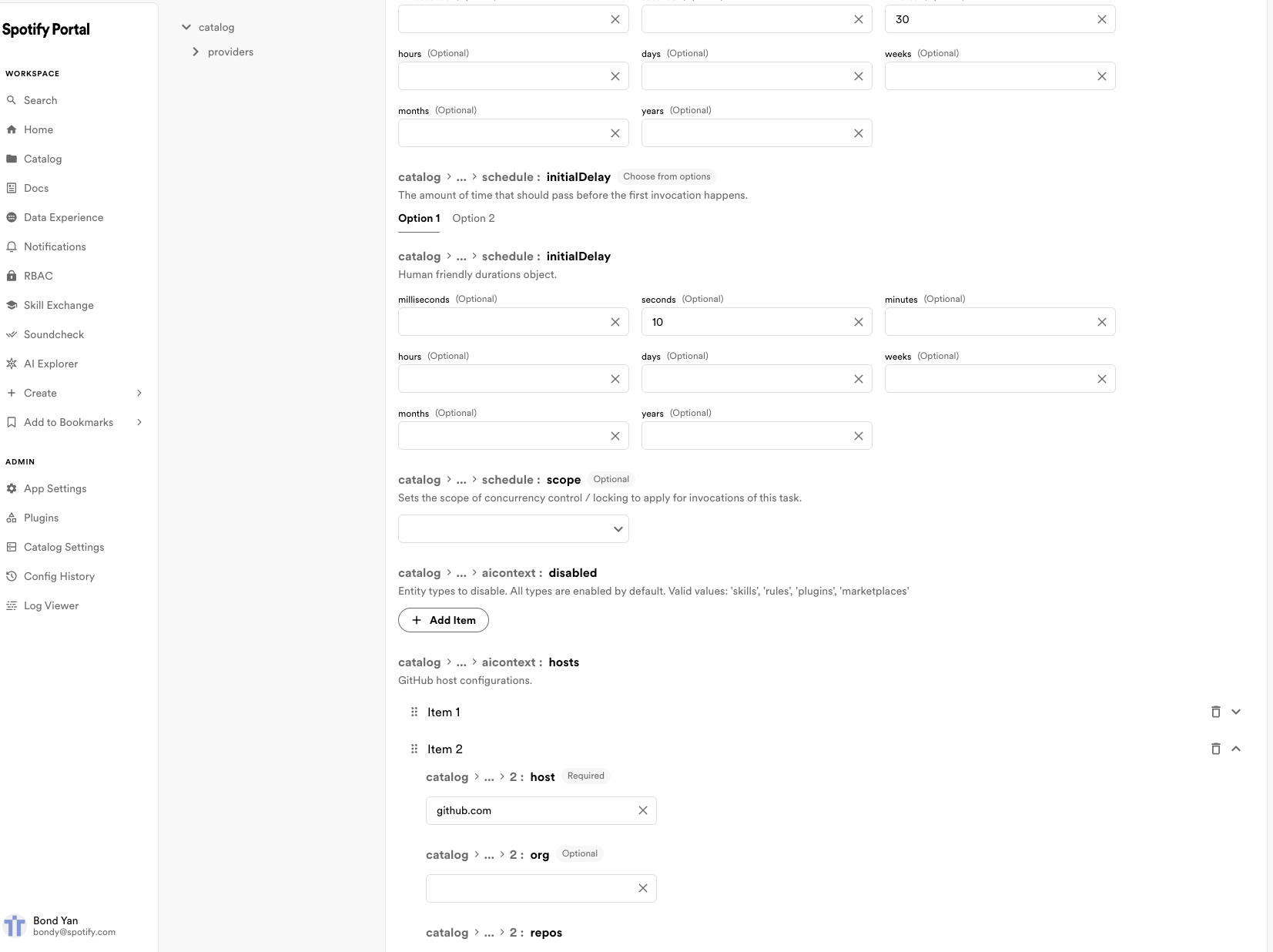
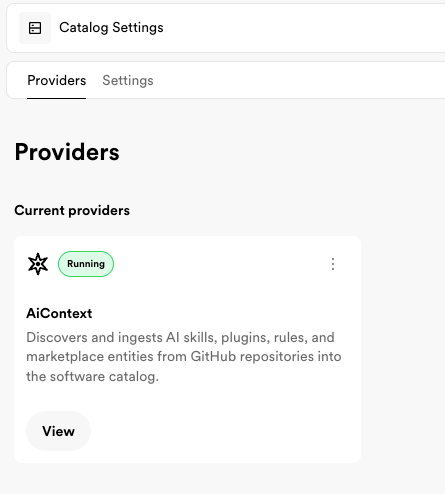 Then configure which GitHub hosts to scan for agent resources. The entity providers use GitHub code search to automatically discover rule files and `SKILL.md` files.
 ## Configuring AI Explorer
Once enabled, configure AI Explorer at **Admin → Plugin Settings → AI Explorer**. The settings form is organized into sections matching the options below.
### Certification
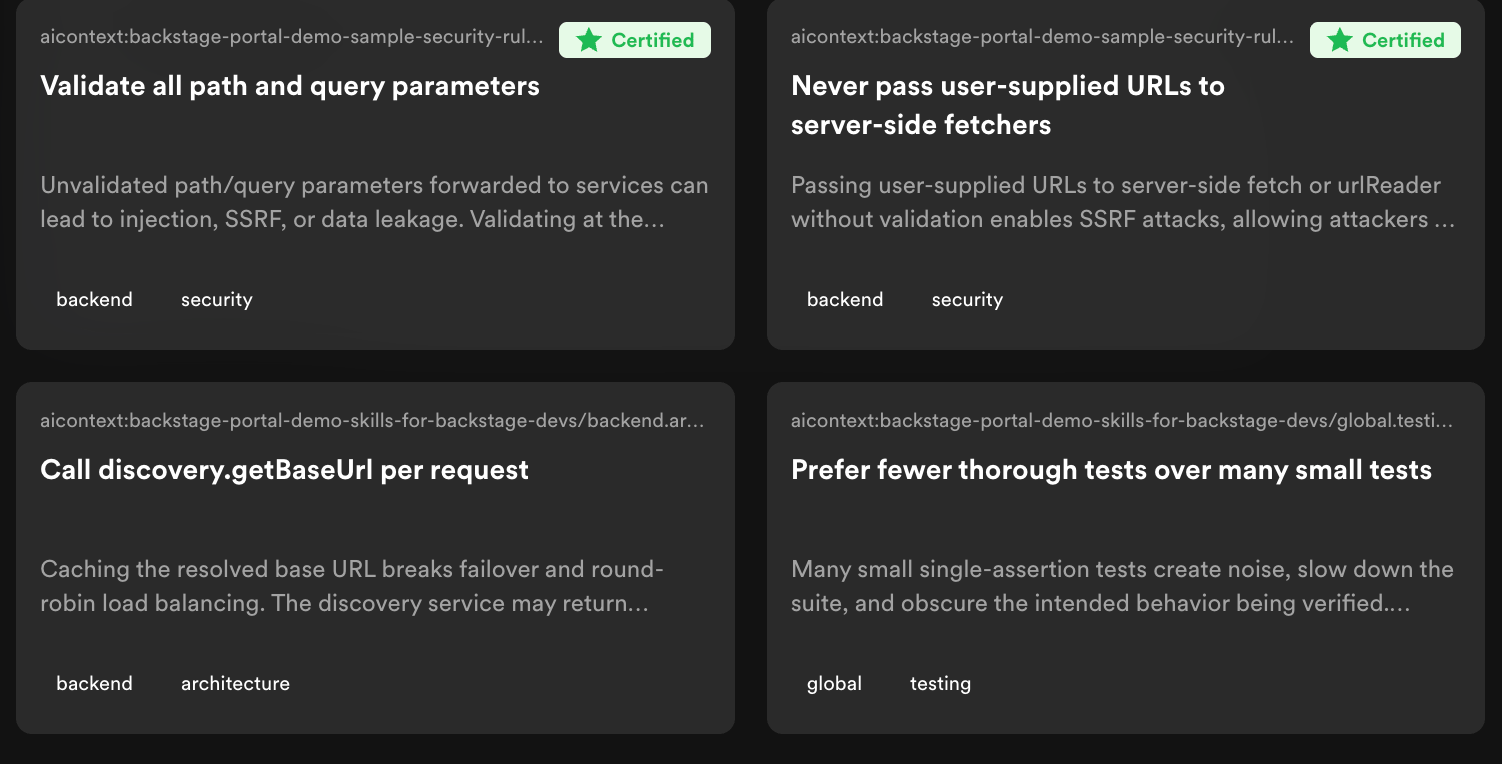
As the number of agent resources in your organization grows, developers need a way to know which ones they can trust. Certification lets you designate the teams responsible for AI enablement — such as a platform engineering group or an AI advisory board — so their resources are clearly distinguished from community contributions. This is especially valuable when skills automate high-impact workflows like deployments, migrations, or security reviews, where using an unvetted skill could introduce risk.
Add entity refs (e.g. `group:default/platform-team`) to the **Certified Owners** list. Resources owned by any entity in this list display a certified badge and can be filtered for in the browse UI.
## Configuring AI Explorer
Once enabled, configure AI Explorer at **Admin → Plugin Settings → AI Explorer**. The settings form is organized into sections matching the options below.
### Certification
As the number of agent resources in your organization grows, developers need a way to know which ones they can trust. Certification lets you designate the teams responsible for AI enablement — such as a platform engineering group or an AI advisory board — so their resources are clearly distinguished from community contributions. This is especially valuable when skills automate high-impact workflows like deployments, migrations, or security reviews, where using an unvetted skill could introduce risk.
Add entity refs (e.g. `group:default/platform-team`) to the **Certified Owners** list. Resources owned by any entity in this list display a certified badge and can be filtered for in the browse UI.
 ### Hiding tabs
If some resource types aren't relevant for your organization, you can hide their tabs from the AI Explorer page. Add tab IDs to the **Hidden Tabs** list. Valid values: `rules`, `plugins`, `skills`.
### Custom install instructions
By default, AI Explorer shows install instructions using the Portal CLI. You can configure custom install commands for your own tooling under the **Install Method** section, separately for skills and rules.
Each install method has three fields:
| Field | Description |
| ------------ | -------------------------------------------------------------- |
| **Title** | Display name for the install method (e.g. "Via Internal Tool") |
| **Command** | Command template with placeholders (see below) |
| **Docs URL** | Optional link to documentation for the custom tool |
Supported placeholders in the command template:
| Placeholder | Description |
| -------------- | -------------------------------------------------------- |
| `{entityRef}` | Full entity reference (e.g. `aicontext:default/my-rule`) |
| `{discipline}` | The resource's discipline, if available |
To hide the default Portal CLI instructions and only show your custom method, disable the **Include Default Install Instructions** toggle.
### Hiding tabs
If some resource types aren't relevant for your organization, you can hide their tabs from the AI Explorer page. Add tab IDs to the **Hidden Tabs** list. Valid values: `rules`, `plugins`, `skills`.
### Custom install instructions
By default, AI Explorer shows install instructions using the Portal CLI. You can configure custom install commands for your own tooling under the **Install Method** section, separately for skills and rules.
Each install method has three fields:
| Field | Description |
| ------------ | -------------------------------------------------------------- |
| **Title** | Display name for the install method (e.g. "Via Internal Tool") |
| **Command** | Command template with placeholders (see below) |
| **Docs URL** | Optional link to documentation for the custom tool |
Supported placeholders in the command template:
| Placeholder | Description |
| -------------- | -------------------------------------------------------- |
| `{entityRef}` | Full entity reference (e.g. `aicontext:default/my-rule`) |
| `{discipline}` | The resource's discipline, if available |
To hide the default Portal CLI instructions and only show your custom method, disable the **Include Default Install Instructions** toggle.