> ## Documentation Index
> Fetch the complete documentation index at: https://backstage.spotify.com/docs/llms.txt
> Use this file to discover all available pages before exploring further.
# Filters
> Narrow the applicability of checks, tracks, campaigns, and collector schedules to specific catalog entities using key-value filter syntax.
Filters allow you to narrow down the applicability of a **check/track/campaign** and scheduling of **checks/collectors** to a specific set of entities in the Software Catalog.
These filters follow the backstage [catalog filters](https://backstage.io/docs/reference/catalog-client.entityfilterquery/),
with the exception of the `CATALOG_FILTER_EXISTS` symbol.
The legacy `CatalogFilter` format (the nested `{ catalog: ... }` object
shape) is **deprecated** and will be removed in a future release. The backend logs a
warning whenever a deprecated filter is evaluated.
Migrate to the flat key-value format documented on this page, using
dot-separated entity paths under the `filter` / `exclude` properties.
For more complex scenarios where catalog filters alone aren't sufficient — for
example, determining applicability based on collected facts — check out
[Applicability
Rules](/plugins/soundcheck/core-concepts/checks#applicability-rule). These let
you define rule-based conditions using fact data to control whether a check
applies to a given entity.
From the backstage docs:
* Each key of a record is a dot-separated path into the entity structure, e.g. metadata.name.
* The values are literal values to match against.
* All matching of keys and values is case insensitive.
* If multiple filter sets are given as an array, then there is effectively an OR between each filter set.
* Within one filter set, there is effectively an AND between the various keys.
* Within one key, if there is more than one value, then there is effectively an OR between them.
Soundcheck supports both inclusion (under the `filter` property) and exclusion (under the `exclude` property).
## YAML
The UI has a handy
[preview](/plugins/soundcheck/core-concepts/filters#preview) for filters if
you want to explore available options. You can also create a check or track in
the UI and export them to see the yaml filter output.
YAML is available for checks, tracks, and collector configs.
### Examples
#### Include Filters
Inclusion filters will always be under the `filter` property.
Match entities with lifecycle `production`:
```yaml theme={"theme":{"light":"github-light","dark":"dracula"}}
filter:
spec.lifecycle: 'production'
```
Match entities with a type of `service` or `website`:
```yaml theme={"theme":{"light":"github-light","dark":"dracula"}}
filter:
spec.type: ['service', 'website']
```
Match entities with a kind of `component` and type of `service` or `website`:
```yaml theme={"theme":{"light":"github-light","dark":"dracula"}}
filter:
kind: 'component'
spec.type: ['service', 'website']
```
#### Exclude Filters
Exclusion filters will always be under the `exclude` property, and can used to further refine your results.
**An exclusion filter must be used together with an inclusion filter**.
Match entities with kind of `component` where `spec.lifecycle` is NOT `experimental`.
```yaml theme={"theme":{"light":"github-light","dark":"dracula"}}
filter:
kind: 'component'
exclude:
spec.lifecycle: 'experimental'
```
Match entities with kind of `component` AND (`spec.type` is NOT `dataset` OR `website`) AND (`metadata.tags` does NOT contain `skip`).
```yaml theme={"theme":{"light":"github-light","dark":"dracula"}}
filter:
kind: 'component'
exclude:
spec.type: ['dataset', 'website']
metadata.tags: 'skip'
```
## UI
The UI interface for filters is available to check, track, campaign and collector configs.
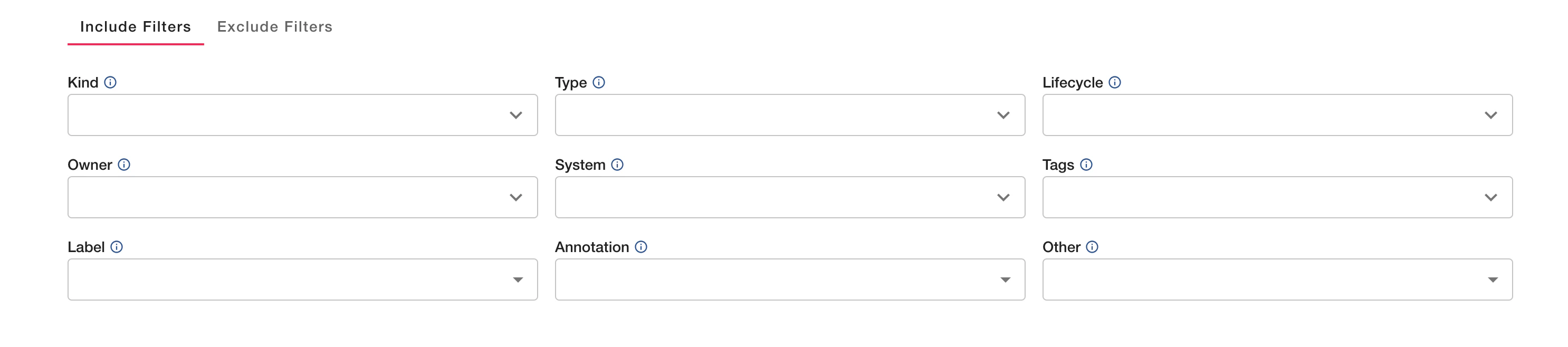
To make it easier, the UI comes with a few common filter categories. The other category can be used to add any key value filter combination.
 ### Adding a Filter
You add a Kind, Type, Lifecycle, Owner, System, or Tags filter, simply select or search for the options you want and select them.
### Adding a Filter
You add a Kind, Type, Lifecycle, Owner, System, or Tags filter, simply select or search for the options you want and select them.
 For Labels, Annotations, and Other, this is a bit more complicated, as you need to include both a key and value.
First click the selection and it will open up an input dialog.
For Labels, Annotations, and Other, this is a bit more complicated, as you need to include both a key and value.
First click the selection and it will open up an input dialog.
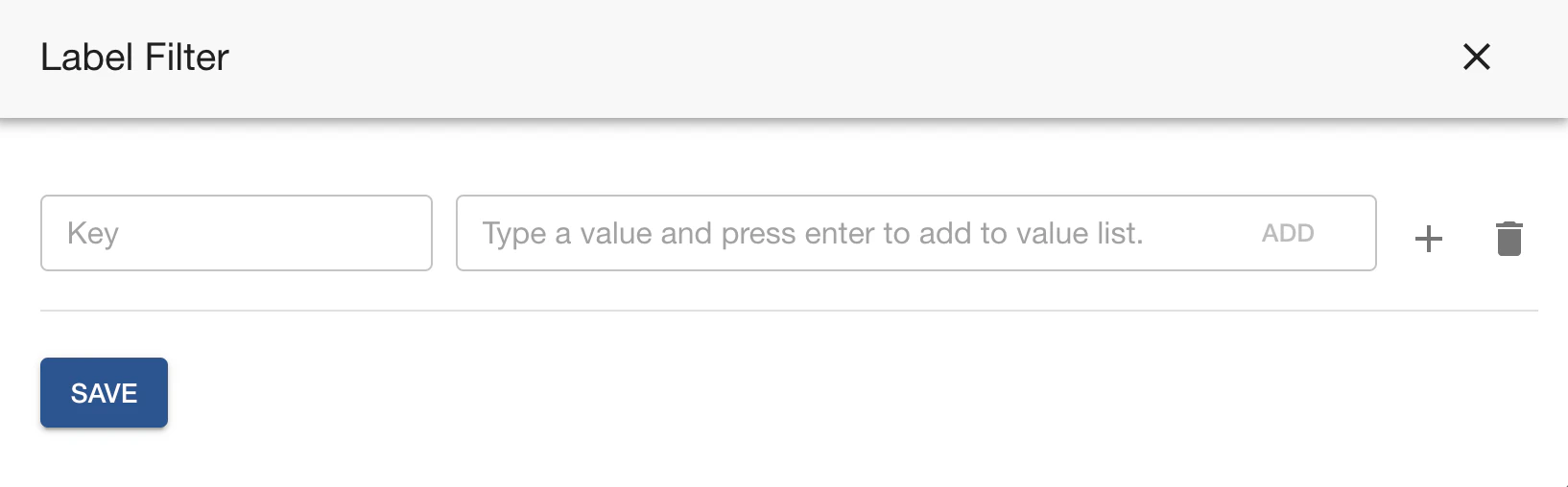 Add the key, in this case the label name, then add values. You have to add the values to the list by either pressing enter, or clicking add.
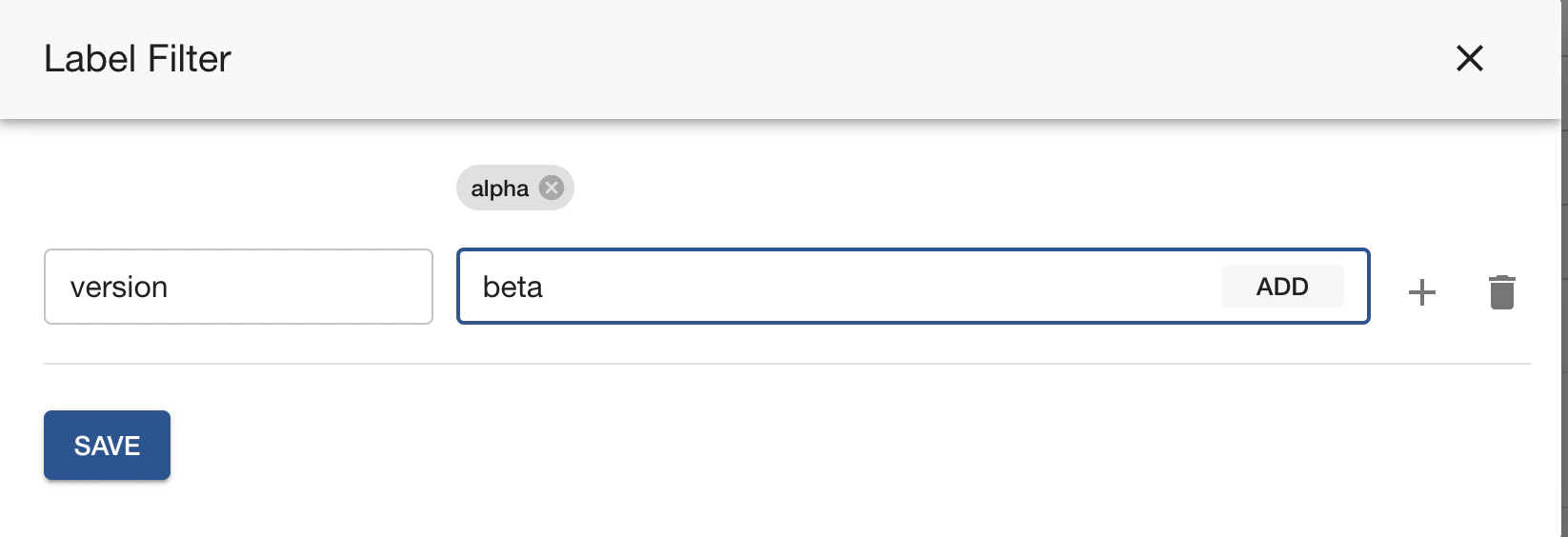 You can add additional key values by clicking the + symbol.
For the Other category you must input the whole filter property as the key. For example, `metadata.name`.
### Exclude Filter
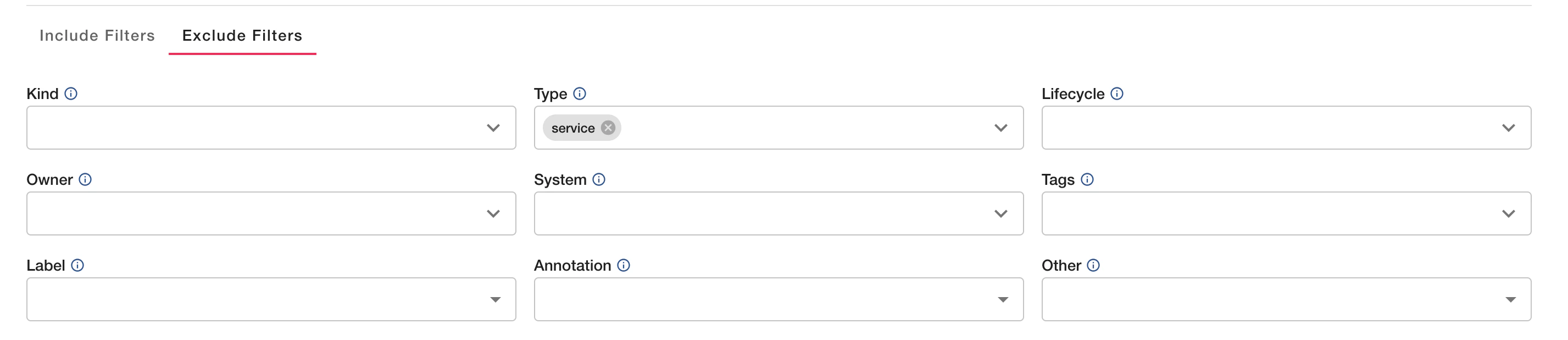
Exclude filters can be selected by clicking the exclude tab. Exclude filter requires an include filter to function.
You can add additional key values by clicking the + symbol.
For the Other category you must input the whole filter property as the key. For example, `metadata.name`.
### Exclude Filter
Exclude filters can be selected by clicking the exclude tab. Exclude filter requires an include filter to function.
 ### Preview
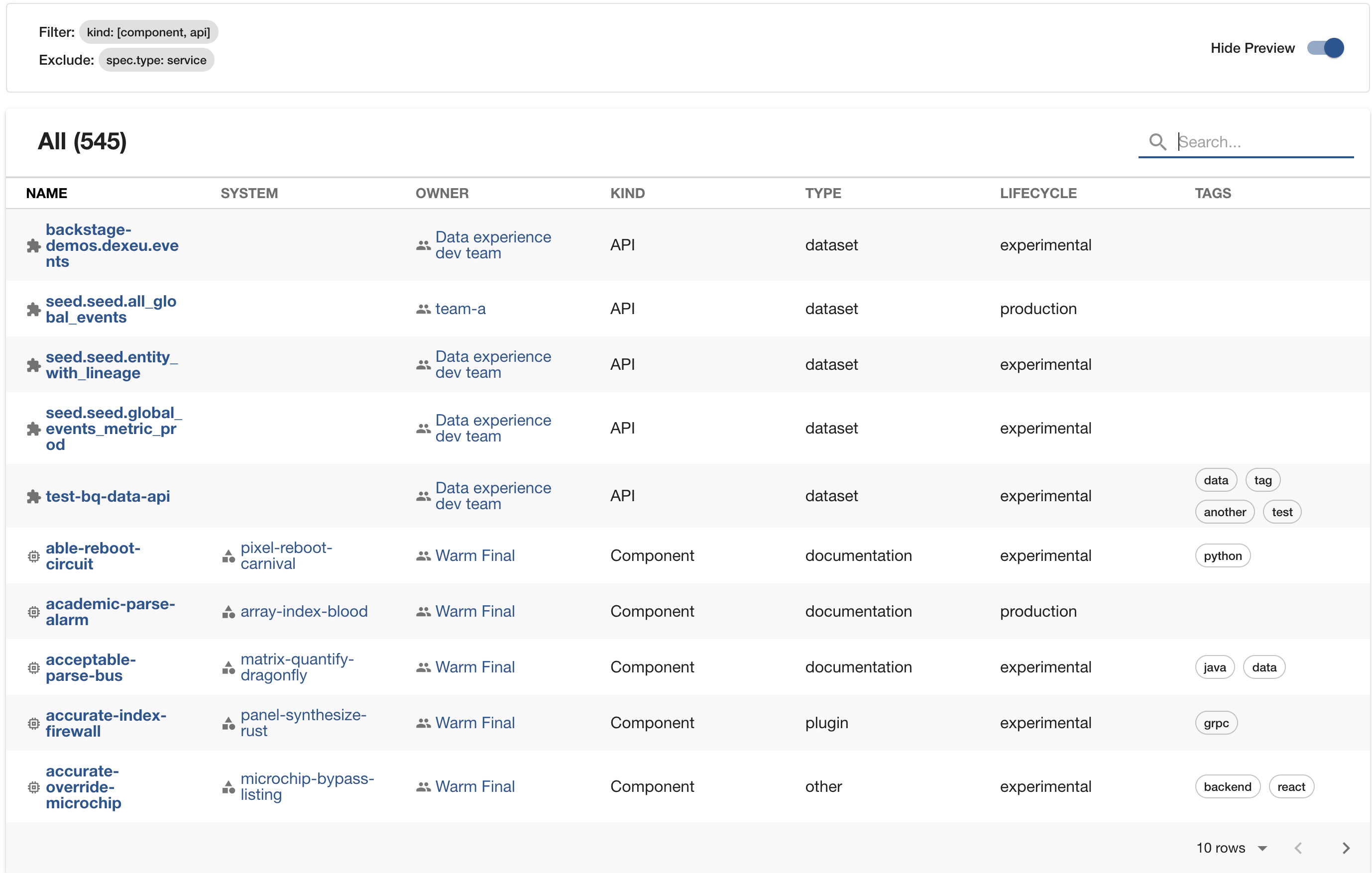
The UI includes a preview of entities that match the given filters. You can toggle this on/off.
### Preview
The UI includes a preview of entities that match the given filters. You can toggle this on/off.